

Playing DVDs on a Mac is no longer as simple as it once was. Apple removed built-in optical drives from MacBook Pro in 2012, and the native Apple DVD Player app that ships with macOS has strict region-code limitations and no support for DRM-protected commercial discs. In 2026, Mac users need a third-party DVD player to get the most out of their disc collection.
This guide covers the 10 best DVD player apps for Mac, ranked by performance, macOS Sonoma compatibility, Apple Silicon support, and value. Whether you need a free option for occasional DVD watching or a premium tool for Blu-ray playback and region-free support, the list below has a recommendation for every use case.
Hardware note: To play physical DVDs on any modern Mac, you need an external USB DVD drive. Compatible drives from LG, Verbatim, and ROOFULL start from around $20 and work plug-and-play with macOS Sonoma, no drivers required.
Quick Comparison: Top 10 DVD Players for Mac (2026)
| App | Price | macOS Sonoma | Blu-ray | Region-Free | Best For |
|---|---|---|---|---|---|
| VLC Media Player | Free | Yes | Partial | Yes* | Best free overall |
| IINA | Free | Yes (native) | No | No | Mac-native UI |
| 5KPlayer | Free | Yes | Yes | Yes | DRM and region bypass |
| Apple DVD Player | Free | Yes | No | No | Basic built-in option |
| Kodi | Free | Yes | Yes | Yes | Home theater setup |
| Elmedia Player | Free / $19.99 | Yes | No | Partial | Daily Mac use |
| Wondershare UniConverter | $39.99/yr | Yes | Yes | Yes | Convert and play |
| Mac Blu-ray Player (Macgo) | $29.99 | Yes | Yes | Yes | Blu-ray and DVD |
| DVDFab Media Player | Free / $29.99 | Yes | Yes | Yes | Format versatility |
| PowerDVD | $59.99+ | Yes | Yes | Yes | Premium experience |
*Requires libdvdcss library installation
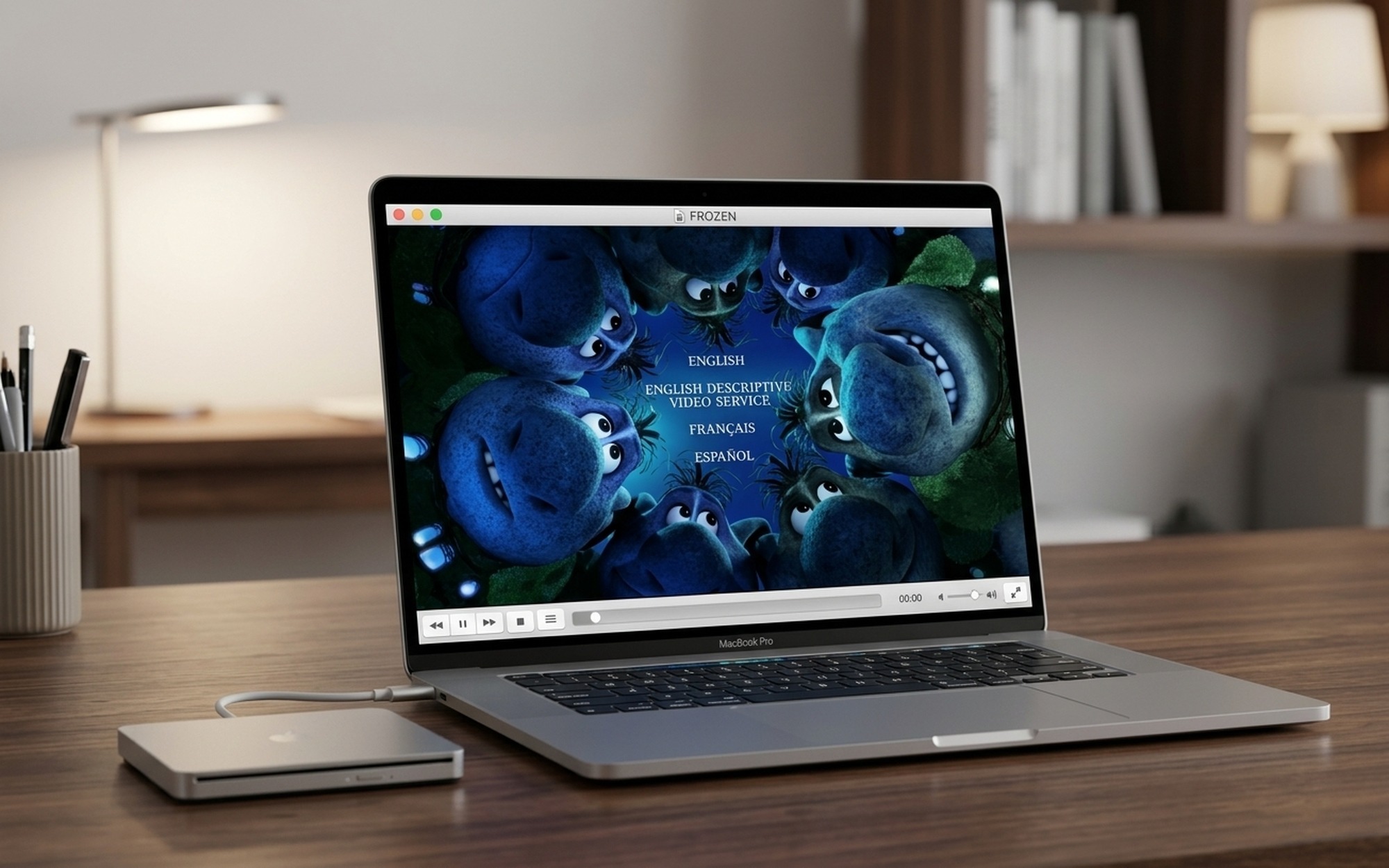
1. VLC Media Player – Best Free DVD Player for Mac
Price: Free | macOS: Sonoma, Sequoia | Apple Silicon: Native
VLC remains the most capable free DVD player for Mac in 2026. The open-source app handles DVDs from physical disc, ISO image, or VIDEO_TS folder, and bypasses most region codes and CSS encryption when paired with the free libdvdcss library. The latest VLC build runs natively on Apple Silicon, delivering smooth playback on any M-series Mac without Rosetta 2 translation overhead.
The interface looks dated next to newer macOS-native apps, but the playback engine is unmatched at this price point. VLC also plays Blu-ray folder structures (BDMV), though it cannot decrypt commercially encrypted Blu-ray titles. For virtually every other video format you might have, VLC handles it without additional codecs.
Standout features:
– Region-free DVD playback with libdvdcss (install via Homebrew: brew install libdvdcss)
– Plays VIDEO_TS folders, ISO files, and physical discs from a single interface
– Subtitle support for SRT, VobSub, ASS, and 20+ other formats
– Hardware-accelerated decoding on M1, M2, M3, and M4 Macs
– 100% free: no ads, no subscription, no nag screens
2. IINA – Best macOS-Native DVD Player
Price: Free | macOS: Sonoma, Sequoia | Apple Silicon: Native
IINA is the most visually polished free DVD player for Mac users who care about design. Built specifically for macOS using native Apple frameworks, IINA integrates with macOS Sonoma’s look and feel in a way that VLC cannot match. It supports automatic DVD disc detection, chapter navigation, and DVD menu support, making it a smooth experience for standard disc playback.
The main limitation is copy protection. IINA struggles with heavily encrypted Disney and Sony discs where VLC with libdvdcss would succeed. For standard DVD titles without aggressive DRM, however, IINA delivers a cleaner, more Mac-native experience. It is also open-source and completely ad-free.
Standout features:
– Fully native macOS interface with Dark Mode and system font support
– Automatic DVD detection and full menu navigation
– Picture-in-Picture mode on macOS Sonoma and Sequoia
– Touch Bar support on older MacBook Pro models
– Open-source, ad-free: IINA official site
3. 5KPlayer – Best Free Region-Free DVD Player for Mac
Price: Free (ad-supported) | macOS: Sonoma, Sequoia | Apple Silicon: Yes
5KPlayer is the most practical free option when you need to play DVDs from multiple regions or bypass DRM without any extra setup. Unlike VLC, which requires installing libdvdcss separately, 5KPlayer includes a built-in decryption library that handles CSS, Disney DRM, Sony ARccOS, and RCE protection out of the box. Insert a disc, open 5KPlayer, and play: no Homebrew, no terminal commands.
The trade-off is in-app advertising and a less refined interface. Still, for users who regularly play import DVDs from Region 2, 3, or other zones, 5KPlayer’s no-setup approach to region-free playback makes it one of the most practical free picks in 2026. It also supports Blu-ray disc folder structures and AirPlay streaming.
Standout features:
– Handles all 6 DVD region codes with no additional software
– Built-in support for CSS, Disney DRM, Sony ARccOS, and RCE protection
– Blu-ray disc and ISO file playback
– AirPlay streaming to Apple TV
– Download 5KPlayer – free for macOS
4. Apple DVD Player – Best Built-in Option
Price: Free | macOS: Sonoma (pre-installed) | Apple Silicon: Yes
Apple’s DVD Player app ships with every Mac and requires no installation. It offers a clean, straightforward interface with basic playback controls, subtitle toggling, and DVD menu navigation. For users who only watch standard Region 1 DVDs from the US market, it works reliably and integrates with macOS system media controls including the Touch Bar and Now Playing widget.
The limitations appear quickly: Apple DVD Player enforces the standard 5-change region limit on your hardware, cannot bypass CSS or DRM encryption, and does not support ISO files or VIDEO_TS folders. It is the simplest starting point but not the best long-term solution for any serious disc collection.
When to use it: You only watch Region 1 discs, you want zero installation, and you have an external USB DVD drive connected.

5. Kodi – Best for Home Theater Setups
Price: Free | macOS: Sonoma, Sequoia | Apple Silicon: Native (arm64)
Kodi transforms your Mac into a full media center. Originally designed as a home theater PC application, Kodi handles DVDs, Blu-rays, audio CDs, network streaming, and local media libraries with equal confidence. Its region code settings are configurable in preferences, making it a solid choice for region-free DVD playback without extra plugins. An official Apple Silicon arm64 build is available for M-series Macs.
The setup process is more involved than other apps in this list. Kodi takes time to configure, especially if you want a polished media library alongside disc playback. For users who already use Kodi on a TV or other devices, extending the setup to a Mac is seamless.
Standout features:
– DVD and Blu-ray disc playback with configurable region settings
– Full media library management with automatic metadata and cover art
– Extensive skin and plugin ecosystem
– Available as a native Apple Silicon build
6. Elmedia Player – Best Balance of Features
Price: Free / Pro at $19.99 | macOS: Sonoma, Sequoia | Apple Silicon: Yes
Elmedia Player by Eltima Software provides a clean, macOS-native interface with DVD disc support, ISO file playback, and VIDEO_TS folder browsing. The free version handles standard DVD playback well. The $19.99 Pro upgrade adds AirPlay streaming to Apple TV, advanced subtitle controls, chapter bookmarks, and playback speed adjustment up to 4x.
Elmedia sits between the power of VLC and the simplicity of IINA. It is not region-free out of the box, but it handles a wide range of disc formats and offers one of the more polished everyday DVD experiences on Mac without committing to a premium subscription.
Standout features:
– Native macOS interface with full Dark Mode support
– Screenshot capture and chapter bookmark during playback
– Pro version adds AirPlay and advanced subtitle styling
– Supports DVD disc, ISO images, VIDEO_TS folders, and VOB files
7. Wondershare UniConverter – Best All-in-One Solution
Price: $39.99/yr | macOS: Sonoma, Sequoia | Apple Silicon: Yes
Wondershare UniConverter is not just a DVD player: it is a complete media toolkit that handles DVD and Blu-ray playback alongside video conversion, compression, editing, and screen recording. If you regularly need to rip DVDs to digital formats for offline storage or device compatibility, UniConverter handles both playback and conversion within the same polished interface.
The DVD playback component supports region-free discs and encrypted commercial content. At $39.99 per year, it makes the most sense for users who need the full conversion workflow, not just playback. Users who only want to watch DVDs occasionally will find VLC or IINA a more cost-effective choice.
Standout features:
– DVD and Blu-ray playback plus built-in video converter supporting 1,000+ formats
– Handles CSS and DRM-encrypted commercial DVDs
– Batch ripping from disc to MP4, MKV, HEVC, and AV1
– macOS Sonoma and Apple Silicon compatible
8. Mac Blu-ray Player (Macgo) – Best for Blu-ray and DVD
Price: $29.99 one-time | macOS: Sonoma | Apple Silicon: Rosetta 2
Mac Blu-ray Player by Macgo is one of the few dedicated apps that handles both Blu-ray and DVD discs with full menu navigation and region-free support on Mac. It plays Blu-ray ISO files, BDMV folders, and standard DVDs with Dolby 5.1 and DTS audio passthrough when connected to a compatible receiver. Screenshots save directly to JPEG with one click.
Macgo has been slower than competitors to release a native Apple Silicon build. On M-series Macs, the app runs via Rosetta 2, which adds minor overhead but does not meaningfully affect playback quality for disc content. A free trial is available to verify compatibility before purchasing.
Standout features:
– Full Blu-ray disc and DVD playback with complete menu support
– Dolby TrueHD and DTS-HD audio passthrough
– Region-free DVD playback across regions 1 to 6
– One-time purchase with no ongoing subscription
9. DVDFab Media Player – Best for Format Versatility
Price: Free / Pro at $29.99 | macOS: Sonoma, Sequoia | Apple Silicon: Yes
DVDFab Media Player offers the broadest format support of any app in this list. Beyond DVDs, it plays Blu-ray discs, 3D Blu-ray, ISO images, MKV, AVI, MP4, and HDR video files within a single interface. The free version covers standard DVD playback. Pro unlocks Blu-ray and 3D disc decryption, region-free playback, and HDR output for compatible displays.
DVDFab maintains a regularly updated DRM decryption library, which matters for newly released commercial discs that use newer protection schemes. For users who buy new DVD releases frequently and want consistent long-term compatibility, DVDFab is one of the more future-proof paid options.
Standout features:
– DVD, Blu-ray, 3D Blu-ray, and standard video file playback in one app
– Regularly updated DRM library covering new commercial releases
– HDR output support for compatible 4K displays
– Free tier available for basic DVD-only use
10. PowerDVD – Best Premium DVD Player for Mac
Price: From $59.99 | macOS: Sonoma, Sequoia | Apple Silicon: Yes
PowerDVD by CyberLink is the gold standard for disc playback on Windows, and its Mac version brings the same feature depth to macOS. TrueTheatre enhancement technology upscales standard DVD video for large Retina displays, motion compensation smooths 24fps cinema footage, and the interface is designed specifically for home theater use. Full Blu-ray and region-free DVD support are included at all pricing tiers.
At $59.99 and above, PowerDVD is the most expensive option in this list. It earns its price for users who want the highest-quality DVD upscaling on a large external display or connected TV. For everyday disc watching on a MacBook, however, VLC or IINA deliver equivalent results at no cost.
Standout features:
– TrueTheatre video upscaling and color enhancement for standard DVDs
– Full Blu-ray and region-free DVD playback
– Motion compensation for smooth 24p cinema playback
– Cloud sync for watch history and playlists across devices
How to Play a DVD on Mac in 2026
Since every modern Mac requires an external optical drive, here is the quickest path to watching a DVD on a MacBook Pro or iMac running macOS Sonoma:
- Connect a compatible external USB DVD drive. Third-party USB DVD drives from LG, Verbatim, ROOFULL, and similar brands work plug-and-play on macOS Sonoma without drivers.
- Download VLC for Mac (free from videolan.org) or IINA (free from iina.io).
- Insert your DVD and wait for macOS to detect the disc.
- Open VLC, go to Media > Open Disc, select your connected drive, and press Play.
- For region-locked discs: install libdvdcss via Homebrew in Terminal (
brew install libdvdcss) to enable region-free playback in VLC.
For DVD ISO files and VIDEO_TS folders already stored on your Mac, all 10 apps in this list can open and play them directly without a physical drive attached.
If you also need to back up or burn your DVD collection, check out our guide to the best free DVD burning software for Mac and PC for compatible ripping and authoring tools.
- 100% free and open-source with no ads, subscriptions, or paywalls
- Runs natively on Apple Silicon M1, M2, M3, and M4 Macs without Rosetta overhead
- Region-free DVD playback enabled via the free libdvdcss library
- Plays VIDEO_TS folders, ISO images, and physical discs in a single app
- Requires libdvdcss installation for region-free and encrypted disc support
- Interface looks dated compared to IINA and other macOS-native alternatives
- Partial Blu-ray support only: cannot decrypt most commercial Blu-ray titles
Frequently Asked Questions
Does macOS Sonoma support DVD playback?
Yes. macOS Sonoma includes the built-in Apple DVD Player app, but it requires an external USB DVD drive since Apple stopped including optical drives in MacBook models in 2012. For region-free or DRM-bypassed playback, a third-party app such as VLC or 5KPlayer is recommended over the built-in player.
What is the best free DVD player for Mac in 2026?
VLC Media Player is the best free DVD player for Mac in 2026. It is open-source, runs natively on Apple Silicon, and supports region-free playback with the free libdvdcss library. IINA is the better pick if you prefer a macOS-native interface without any extra library setup.
Can VLC play Blu-ray discs on Mac?
VLC can open Blu-ray disc folder structures (BDMV folders) and unencrypted Blu-ray content, but it cannot decrypt most commercially encrypted Blu-ray titles. For full Blu-ray playback with menu support on Mac, Mac Blu-ray Player (Macgo) or DVDFab Media Player Pro are the reliable paid alternatives.
What is a region-free DVD player for Mac?
A region-free DVD player bypasses the region lock that restricts DVDs to specific geographic zones (Region 1 for the US, Region 2 for Europe, etc.). On Mac, VLC with libdvdcss, 5KPlayer, and DVDFab Media Player Pro all support region-free playback across all 6 DVD regions without hardware modification.
Do I need an external DVD drive to play DVDs on a MacBook Pro?
Yes. MacBook Pro models from 2012 onward do not include a built-in optical drive. You need a compatible external USB DVD drive to play physical discs on any modern Mac. Third-party USB DVD drives from brands such as LG, Verbatim, or ROOFULL work without additional drivers on macOS Sonoma.
Which DVD player for Mac works best on Apple Silicon (M1, M2, M3)?
VLC, IINA, 5KPlayer, and Kodi all offer native Apple Silicon builds that run without Rosetta 2 translation. Elmedia Player and DVDFab Media Player also support M-series Macs. Mac Blu-ray Player (Macgo) currently runs via Rosetta 2 on Apple Silicon, which adds minor overhead but does not impact playback quality.