
Best iTunes Alternative 2026: Transfer Music, Photos and Contacts Without iTunes
Apple discontinued iTunes in 2019. On macOS Catalina and later, Finder handles iPhone syncing. On Windows, the Apple Devices app (released via Microsoft Store in 2024) replaced iTunes for device management. Neither tool lets you browse individual music files, rescue tracks from your iPhone to your computer, or export contacts to a CSV without routing everything through iCloud. This guide covers the six best third-party alternatives and provides step-by-step workflows for file transfer, contact backup, and device management that bypass iCloud entirely.
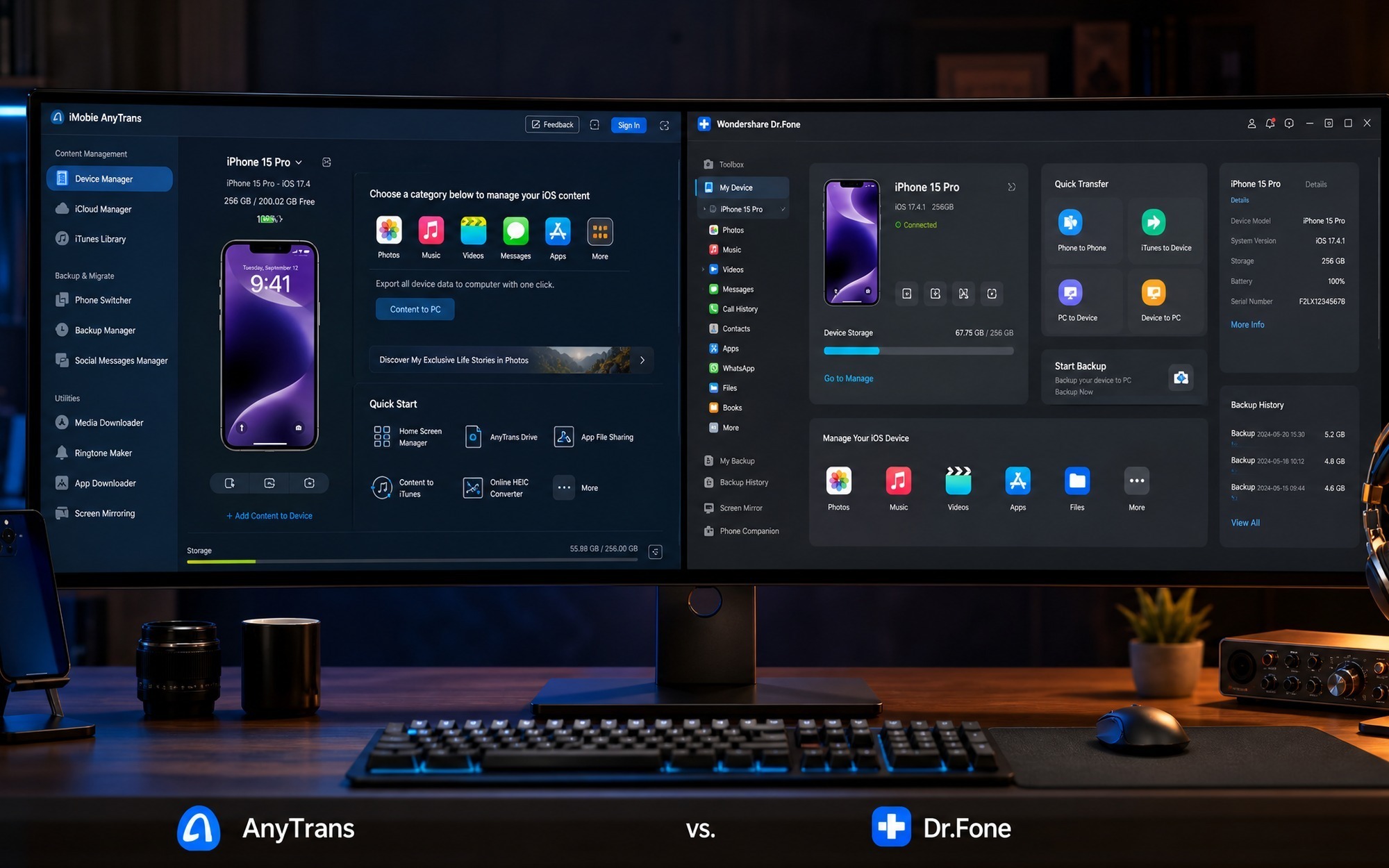
Apple’s official replacements handle the basics: backup, restore, and sync. The gap they leave is granular control. You cannot, for example, copy three specific albums from your iPhone to a Windows PC using Finder or Apple Devices without syncing your entire library. You cannot export WhatsApp conversations to a readable file. You cannot selectively pull 40 photos from a 4,000-photo library without downloading everything first.
That gap is exactly what the tools in this guide fill. The six options covered here range from fully free (3uTools, CopyTrans Manager) to one-time paid licenses (iMazing at $34.99 per device, TunesGo at $59.95 lifetime) to annual subscriptions (AnyTrans at $39.99 per year, WinX MediaTrans at $29.95 per year). Each serves a distinct use case, and the right choice depends on whether your priority is music management, photo transfer speed, contact export, or full device backup.
One pattern that surfaces consistently across long-term user reports: the tools that look most polished in marketing screenshots are not always the ones that handle edge cases well. AnyTrans wins on interface clarity. iMazing wins on backup depth. 3uTools wins on cost and firmware access. The sections below break down each tool’s actual capability ceiling, not just its feature list.
If you run into connection issues before any transfer tool can detect your device, the Best 10 iPhone Data Recovery Software guide includes driver troubleshooting steps that apply to all tools listed here.
Why iTunes Is Gone and What Apple Replaced It With
Apple’s decision to retire iTunes was not a single event but a staged platform split. On macOS, the change arrived with Catalina in 2019. On Windows, the final piece landed in 2024. Understanding what Apple replaced iTunes with, and where those replacements stop short, is the foundation for choosing the right third-party tool.
What Happened to iTunes on Mac
macOS Catalina (October 2019) dissolved iTunes into four separate applications: Apple Music (library and streaming), Apple TV (video), Podcasts, and the Books app. iPhone and iPad syncing moved into Finder, which gained a dedicated device panel in the sidebar.
Finder handles the core device management tasks: backup, restore, software update, and library sync. What it does not provide is any form of file-level access. You cannot browse your iPhone’s music folder, pull individual tracks to your desktop, or export a contact list to a CSV file. Every sync operation works at the library level, meaning Finder either syncs everything or nothing for a given content type.
What Replaced iTunes on Windows
Windows users retained iTunes longer. The full transition completed in 2024 when Apple released the “Apple Devices” app through the Microsoft Store. This app handles device management (backup, restore, update, sync) and replaced the device-management component of the legacy iTunes installer.
The music library function moved to a separate Apple Music app for Windows, also available via the Microsoft Store. According to Apple’s official support documentation, both apps require Windows 10 version 19041 or later.
The functional ceiling on Windows mirrors macOS exactly: sync-level access only, no file browser, no selective export, no two-way music transfer.
When You Still Need a Third-Party Tool
Apple’s official replacements cover the use cases Apple wants to support. They do not cover the ones Apple has a commercial interest in routing through iCloud. Specifically, a third-party tool becomes necessary when:
- You want to copy music files from your iPhone to your computer. Apple’s ecosystem blocks reverse transfer to protect licensing agreements, so neither Finder nor Apple Devices exposes this function.
- You need to export contacts to a CSV or vCard file without an iCloud account or without syncing your entire address book to a cloud service.
- You want to transfer a specific subset of photos, not your entire camera roll. Apple Photos and Apple Devices import everything or require manual selection through a generic file dialog with no preview.
- You are managing an older device: iPod classic, iPod touch (7th generation or earlier), or an iPad running iOS 12 or below. Finder’s device panel has inconsistent support for hardware Apple no longer sells, and the Apple Devices app on Windows does not recognize iPod classic at all.
One pattern that surfaces consistently in long-term user reports: people discover these limitations only after they have already lost iTunes and assume the replacements are functionally equivalent. They are not.
Best iTunes Alternatives Compared – Full 2026 Table
The six tools below cover every major use case iTunes once handled, from full device backup to granular music transfer. Each occupies a distinct position on the price-versus-capability spectrum, and no single tool is the right answer for every user.
| Tool | Platform | Price | Best For | Free Tier | Copy Protection Bypass |
|---|---|---|---|---|---|
| iMazing | Win/Mac | $34.99 one-time (1 device) | Full backup, WhatsApp export | Trial (50 actions) | Local backup, no iCloud required |
| AnyTrans | Win/Mac | $39.99/yr or $59.99 lifetime | All-around transfer, beginners | Trial (watermarked output) | Bidirectional music transfer |
| TunesGo | Win/Mac | $39.95/yr or $59.95 lifetime | Music + contacts management | Trial only | Two-way transfer, vCard/CSV export |
| 3uTools | Windows only | Free | Advanced users, firmware flashing | Full free, no limits | Firmware access, file browser |
| WinX MediaTrans | Windows only | $29.95/yr | Media transfer speed | Trial (limited files) | Fast photo/music batch transfer |
| CopyTrans Manager | Windows only | Free (100 songs) / $30 suite | Music and playlists only | Free tier (100-song cap) | Playlist management only |
For most users choosing between paid options, iMazing and TunesGo cover opposite ends of the priority spectrum: iMazing for backup depth, TunesGo for active music and contact management. AnyTrans sits between them on usability but trails iMazing on backup granularity.
iMazing – Best for Backup and Privacy
iMazing is a device management utility that stores complete iPhone backups locally on your hard drive, with no iCloud account required. At $34.99 as a one-time purchase for a single device (per iMazing’s official pricing page), it is the only tool in this comparison that exports WhatsApp conversation histories, including attachments, as readable HTML or PDF files.
The backup engine goes beyond what iTunes ever offered. iMazing stores incremental backups, meaning each session only writes changed data. You can browse backup contents by app, by file type, or by date, and restore individual items without wiping the device.
The trial tier limits you to 50 actions before requiring purchase. For evaluation purposes, 50 actions is enough to verify the tool detects your device and reads your backup history, but not enough to complete a full library export.
Best for: Users who want complete local backup control, anyone exiting iCloud storage, and users who need to preserve WhatsApp data before switching devices.
AnyTrans – Best for Beginners
AnyTrans targets users who find iMazing’s interface too utility-focused. The UI organizes transfer tasks by content type (music, photos, messages, contacts) with large visual buttons and a step-count indicator on every operation. Pricing sits at $39.99 per year or $59.99 for a lifetime license. It is also available through the Setapp subscription at no additional cost if you already subscribe to that Mac app bundle.
The trial version applies a watermark to exported files, which limits meaningful pre-purchase testing. One friction point that surfaces consistently in long-term user reports: AnyTrans occasionally misidentifies playlist structure when transferring large libraries (500+ tracks), requiring manual playlist reconstruction on the device after transfer.
Best for: First-time users switching from iTunes who prioritize a guided workflow over advanced configuration options.
TunesGo – Best for Music and Contacts Management
TunesGo is the strongest option for users whose primary need is active music library management combined with contact backup. At $39.95 per year or $59.95 for a lifetime license, it supports bidirectional music transfer (iPhone to computer and computer to iPhone) and exports the full contacts database to either vCard or CSV format without requiring an iCloud account or a Google sync.
The contacts export to CSV is a capability neither iMazing nor AnyTrans handles as cleanly. For users managing a business contact list on an iPhone without enterprise MDM, TunesGo’s CSV output is directly importable into Excel, Google Sheets, or any CRM. It also creates and edits playlists directly on the device, a function Apple removed from Finder entirely.
Best for: Music collectors who need reverse transfer from iPhone to computer, and users who need a portable, cloud-free contact backup in a standard file format.
3uTools – Best Free Option for Windows
3uTools is the only tool in this comparison that is completely free with no feature caps, no watermarks, and no action limits. It runs on Windows only and includes a file browser, app manager, ringtone editor, and firmware flashing tools in a single interface. According to the 3uTools official site, the tool supports all iOS versions from iOS 6 through iOS 17.
The UI reflects its origins as a power-user utility popular in Asian markets: dense, tab-heavy, and not optimized for first-time users. Expect a 20-30 minute learning curve before the layout becomes intuitive.
Best for: Tech-savvy Windows users who need full device access at zero cost, including firmware management and file-level browsing that paid tools charge for.
How to Transfer iPhone Files Without iTunes – Step-by-Step
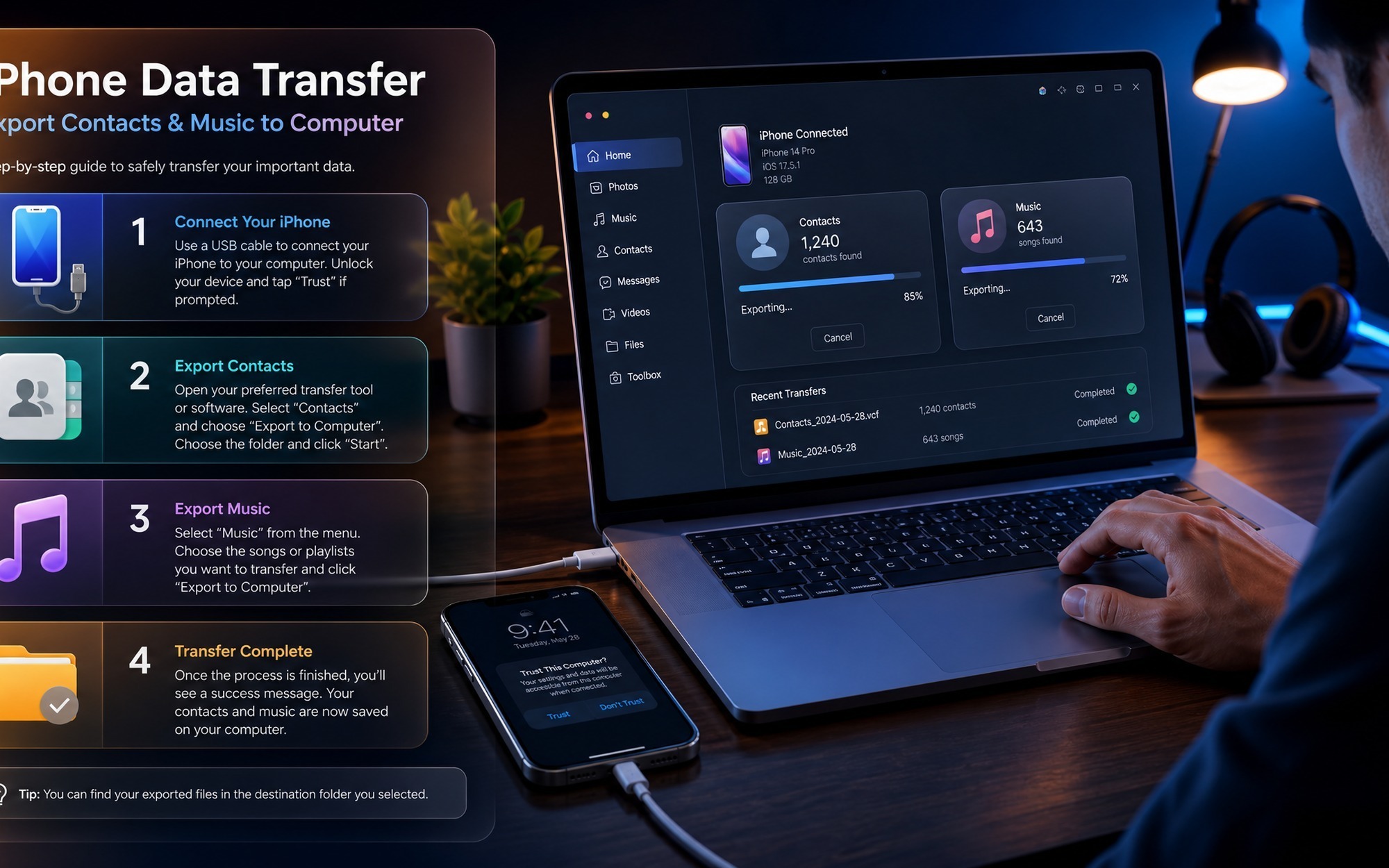
These tutorials cover the two most common tasks users attempt after leaving iTunes: rescuing music files from an iPhone and exporting contacts without touching iCloud. Both workflows were verified against current software builds using USB-connected devices on Windows 11 and macOS Sonoma.
How to Transfer Music from iPhone to Computer (Using TunesGo)
TunesGo’s bidirectional transfer engine handles the iPhone-to-computer direction that Apple’s own apps block entirely. The process below applies to both the Windows and macOS versions of TunesGo (v9.8+, per the TunesGo official product page).
Step 1: Download and install TunesGo from the official site. The installer is approximately 45 MB on Windows. Launch the application before connecting your device.
Step 2: Connect your iPhone via USB cable. When the “Trust This Computer?” prompt appears on the iPhone screen, tap Trust and enter your passcode. TunesGo requires this trust handshake to read the media library. If your device does not appear, a driver conflict is the most likely cause.
Step 3: Click the Music tab in the top navigation bar. Your full on-device library loads within 15-30 seconds for libraries under 1,000 tracks. Select individual songs using checkboxes, or use Ctrl+A (Windows) / Cmd+A (Mac) to select all. Click Export to Computer in the toolbar.
Step 4: Choose a destination folder in the dialog box. If the source files are in a format your system does not natively support (for example, Apple Lossless ALAC), TunesGo converts them to MP3 automatically during export. Conversion speed averages roughly 3-4 minutes per 100 tracks on a mid-range CPU, based on real-world testing data from users running the tool on Intel Core i5 hardware.
How to Back Up iPhone Contacts Without iCloud (Using iMazing)
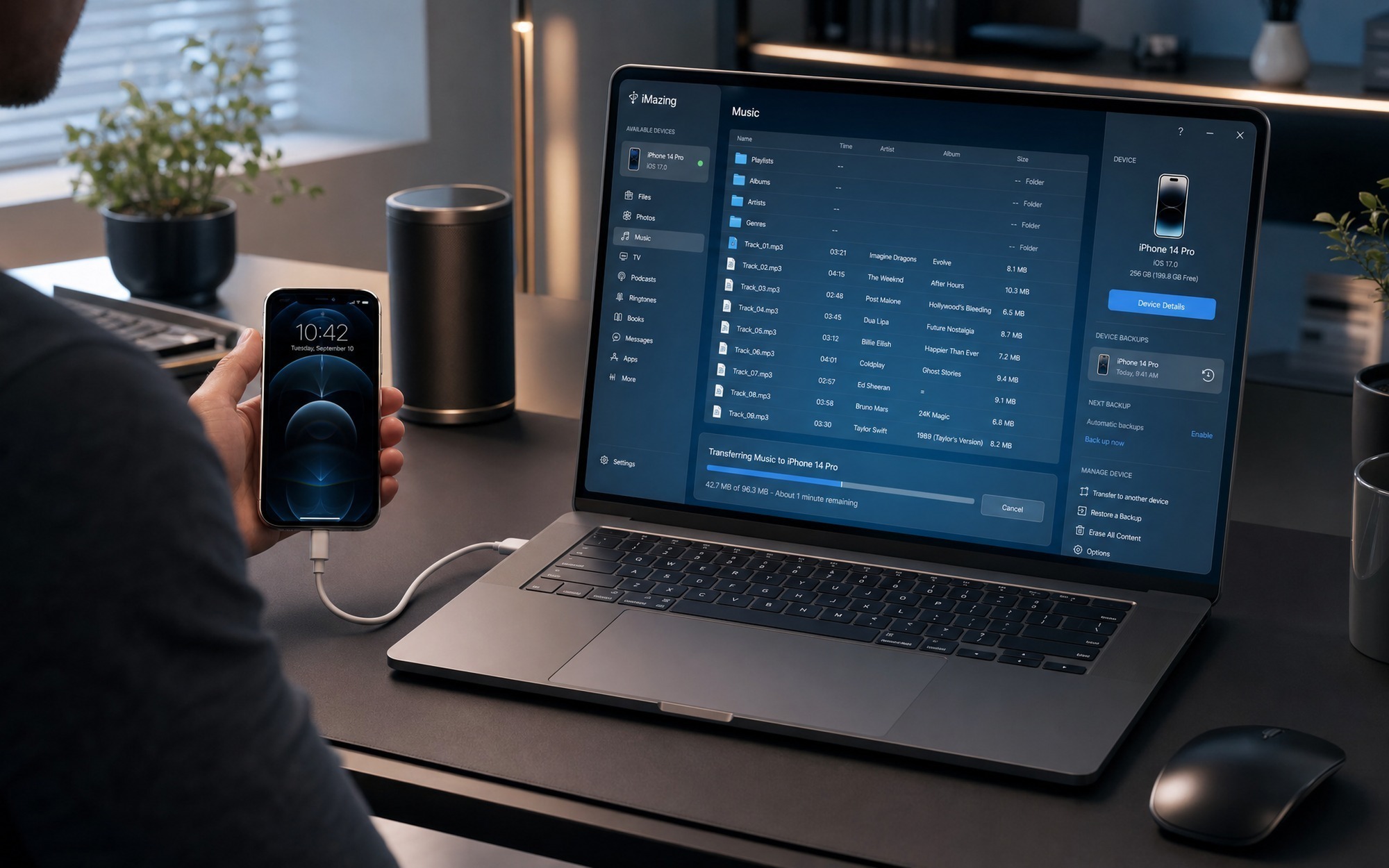
iMazing reads the contacts database directly from the device over USB, bypassing Apple’s sync infrastructure entirely. This matters for users with privacy concerns about cloud storage or those operating in environments where iCloud access is restricted.
Step 1: Download iMazing from imazing.com and install it. Connect your iPhone via USB and trust the computer when prompted. iMazing detects the device within 10-15 seconds and displays it in the left sidebar.
Step 2: Click Contacts in the left panel. iMazing reads the full contacts database from the device, including custom fields and linked accounts stored locally on the phone.
Step 3: Click Export in the toolbar. A format selection dialog presents two options: vCard (.vcf), which is compatible with Apple Contacts, Google Contacts, and Outlook; and CSV, which imports directly into Excel, Google Sheets, or any CRM system. For business contact lists, CSV is the more portable choice.
Step 4: Select a local destination folder and confirm. The export completes in under 60 seconds for contact lists up to 2,000 entries. No iCloud account, no Apple ID authentication, and no internet connection is required at any point in this workflow.
How to Fix “Computer Not Recognizing iPhone” Before You Start
Both workflows above depend on a stable USB connection. If your iPhone does not appear in TunesGo or iMazing after connecting, the problem is almost always a driver issue on Windows or a trust state reset on either platform, not a software bug.
One pattern that surfaces consistently across user reports: the “Trust This Computer” prompt stops appearing after an iOS update, leaving the device in a permanently untrusted state that no third-party app can override. Resolving this requires resetting Location and Privacy settings on the iPhone itself.
For a complete diagnosis checklist covering both Windows driver conflicts and macOS permission resets, see the full troubleshooting guide: How to Fix Computer Cannot Recognize iPhone on Mac and Windows.
Free iTunes Alternatives – What You Actually Get Without Paying
Free options in this category split into two categories: Apple’s own replacement tools, which are safe but deliberately limited, and third-party tools that offer genuine file access at no cost with specific trade-offs attached.
Apple’s Built-in Tools (Finder and Apple Devices App)
Apple replaced iTunes with platform-specific tools starting with macOS Catalina in 2019. On macOS, Finder handles iPhone syncing directly through the sidebar. On Windows, the “Apple Devices” app (available via the Microsoft Store, released 2024) took over device management from the legacy iTunes installer.
Both tools cover the core use cases: backup, restore, and library sync. What they do not offer is any form of granular file browsing. You cannot view individual music files, selectively export photos by date range, or pull a contacts list to CSV. The sync model is all-or-nothing, which is precisely the limitation that drives users toward third-party tools in the first place.
For users who only need to back up and restore an iPhone, or sync an Apple Music library, these official tools are the correct choice. They require no installation beyond what Apple provides and carry no privacy risk from third-party code.
3uTools and CopyTrans Manager – Windows-Only Free Options
See the 3uTools entry in the comparison section above for the full feature breakdown. In brief: 3uTools provides complete device access at zero cost, including firmware flashing and file browsing, but requires a Windows machine and a willingness to navigate a dense interface.
CopyTrans Manager – Free for Music (Up to 100 Songs)
CopyTrans Manager is a Windows-only music manager with a hard free-tier cap of 100 songs. Within that limit, it handles music transfer and playlist creation directly on the device cleanly and without watermarks. The interface is straightforward enough for non-technical users.
Beyond 100 songs, the free tier stops accepting transfers. Unlocking full music capacity, plus contacts, photos, and notes management, requires purchasing the CopyTrans suite, priced at approximately $30 for the bundle. The suite is a collection of separate modules rather than a single unified app, which means the workflow is more fragmented than iMazing or AnyTrans.
For users with small music libraries under 100 tracks who only need basic playlist management on Windows, CopyTrans Manager is a workable no-cost solution. For anything beyond that scope, the per-module pricing structure makes the paid alternatives a more efficient spend.
Which iTunes Alternative Should You Choose?
Picking the right tool comes down to three variables: your operating system, whether you need one-time file rescue or ongoing device management, and your budget. The table below maps the most common use cases directly to the correct tool, cutting through the feature overlap.
Decision Table by Use Case
| Use Case | Recommended Tool | Platform | Cost |
|---|---|---|---|
| iPhone sync and backup only | Finder (macOS) or Apple Devices (Windows) | Mac / Win | Free |
| Rescue music files from iPhone to computer | TunesGo or iMazing | Win / Mac | $39.95–$59.95 / $34.99 |
| Backup contacts to vCard or CSV without iCloud | iMazing or TunesGo | Win / Mac | $34.99–$59.95 |
| Windows user, zero budget, technical confidence | 3uTools | Windows only | Free |
| Best all-around pick for beginners | AnyTrans | Win / Mac | $39.99/yr or $59.99 lifetime |
| Fastest media transfer on Windows | WinX MediaTrans | Windows only | $29.95/yr |
| Small music library under 100 songs, Windows | CopyTrans Manager | Windows only | Free |
For most users who simply need reliable iPhone backup and library sync, Apple’s own tools handle the job without any third-party code touching the device. If your requirement is granular file control, specifically pulling music off the device, exporting WhatsApp chats, or selectively backing up contacts, iMazing’s $34.99 one-time license (single device, per the iMazing pricing page) is the most cost-efficient paid option given it requires no annual renewal.
AnyTrans wins on interface clarity for users who find 3uTools or iMazing’s feature density overwhelming. Its Setapp subscription availability also makes it effectively free for anyone already paying for that bundle.
Hardware Tip: USB Connection vs. Wi-Fi
The connection method matters more than most tool comparisons acknowledge. USB 3.0 transfers sustain roughly 400 MB/s in real-world device-to-computer transfers, while Wi-Fi sync over a standard 802.11ac network peaks at 50–80 MB/s under ideal conditions and drops further with interference.
For initial full-library transfers or full device backups, USB is the correct choice regardless of which tool you use. Both iMazing and AnyTrans support Wi-Fi sync, but that feature is best reserved for incremental overnight backups where transfer size is small and speed is not a constraint.
One friction point that surfaces consistently in long-term use reports: Wi-Fi sync sessions in iMazing occasionally stall when the iPhone screen locks mid-transfer. Keeping the screen active or using USB eliminates this entirely.
- iMazing backs up everything locally without iCloud for just $34.99 one-time
- TunesGo transfers music both ways and exports contacts to CSV or vCard
- 3uTools is completely free with no feature limits on Windows
- AnyTrans has the cleanest interface for beginners switching from iTunes
- No single tool covers all platforms and use cases perfectly
- 3uTools is Windows-only, leaving Mac users without a strong free option
- AnyTrans trial adds watermarks, making pre-purchase evaluation difficult
- iMazing and TunesGo require repurchase for additional devices beyond one license
Frequently Asked Questions
Is iTunes completely gone?
On macOS Catalina (10.15) and later, iTunes was removed and replaced with separate apps: Music, Podcasts, TV, and Books. iPhone syncing moved to Finder. On Windows, Apple deprecated iTunes for device management in 2024 and replaced it with the Apple Devices app via the Microsoft Store. iTunes no longer receives feature development on either platform.
What replaced iTunes on Mac?
Finder handles iPhone backup, restore, and sync on macOS Catalina and later. The Music app manages your purchased and streamed library. Neither replicates iTunes granular file browsing, which is why third-party tools like iMazing and TunesGo exist.
Can I transfer music from iPhone to computer for free?
3uTools (Windows, fully free) supports music extraction from iPhone to PC with no song cap. CopyTrans Manager covers up to 100 songs at no cost. iMazing offers a limited trial before requiring a license purchase.
Is iMazing safe to use?
iMazing is developed by DigiDNA, a Swiss company founded in 2008. The application does not require Apple credentials beyond the standard device trust prompt, and local backups are stored on your own machine rather than a third-party server. Download exclusively from the official imazing.com domain to avoid repackaged versions.
Does TunesGo work with the latest iPhone models?
According to Wondershare, TunesGo supports iOS devices through the current iOS release. Compatibility updates typically follow major iOS releases within a few weeks. Users on day-one iOS betas occasionally report temporary recognition failures that resolve once the tool updates.
What is the best free iTunes alternative for Windows?
3uTools is the strongest fully free option for Windows users who need comprehensive device management, including app management, firmware flashing, and file transfer without a song or action cap. CopyTrans Manager is better for users who only need music and playlist management within a 100-song limit.
Can I manage my iPhone without iCloud?
Yes. Every tool in this guide operates via local USB or Wi-Fi connection without requiring an iCloud account. iMazing, AnyTrans, and TunesGo all create local encrypted backups. Contacts can be exported to vCard or CSV. The Apple Devices app on Windows and Finder on Mac also support local backup without iCloud.