
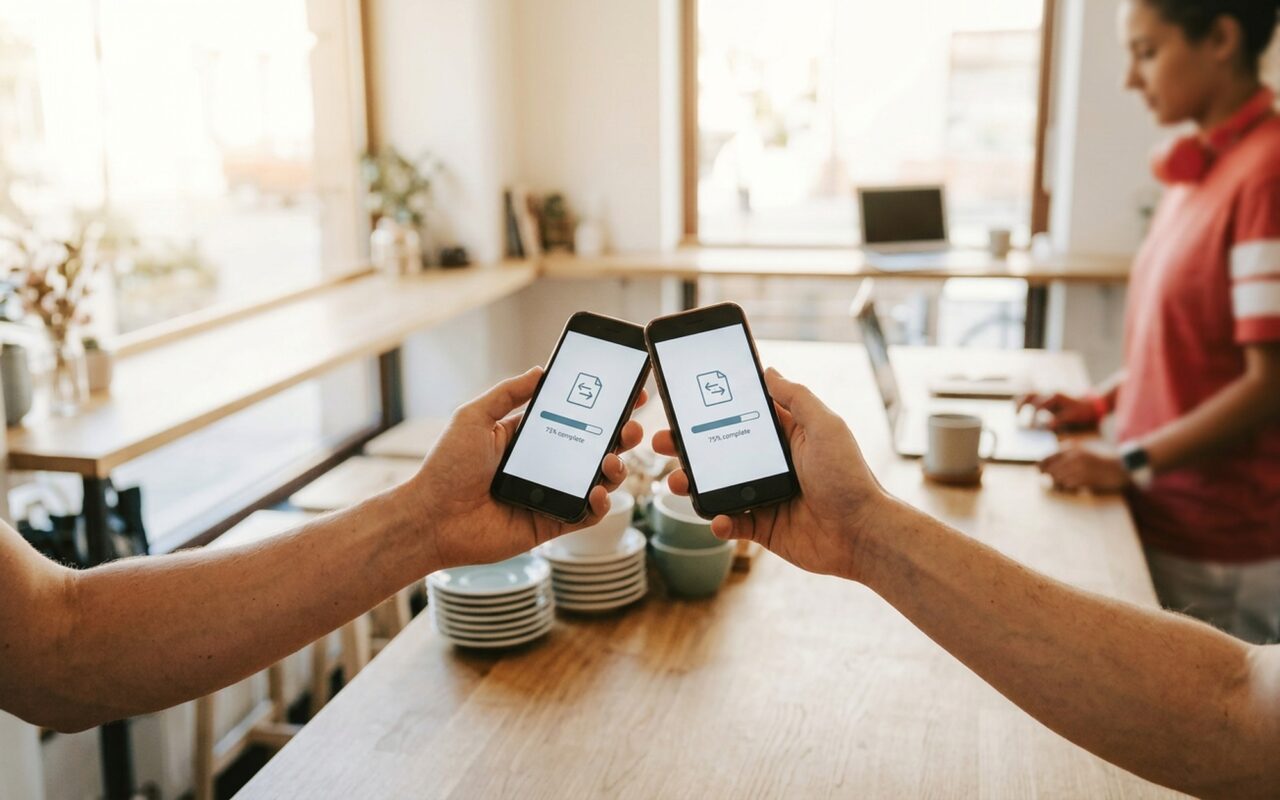
Switching to a new phone should be exciting, not stressful. Whether you are moving from Android to iPhone, switching Samsung models, or making any cross-platform jump, the biggest concern is always the same: will your contacts, messages, photos, and WhatsApp history make it across safely?
This guide covers every major phone transfer scenario in 2026, from free built-in options to dedicated software that handles the data types the built-in tools miss.
What Data Can You Transfer Between Phones?
Not all transfer methods support the same data types. This comparison will help you pick the right approach before you start.
| Data Type | Move to iOS | Google One | Samsung Smart Switch | MobileTrans |
|---|---|---|---|---|
| Contacts | Yes | Yes | Yes | Yes |
| SMS Messages | Android to iPhone only | No | Android only | Yes |
| Photos and Videos | Yes | Yes | Yes | Yes |
| WhatsApp Chats | Limited | No | No | Yes |
| Music Files | No | No | No | Yes |
| Call Logs | Yes | No | Yes | Yes |
| Third-Party App Data | No | Limited | Limited | WhatsApp, LINE, Viber |
Method 1: Transfer from Android to iPhone
Option A: Use Move to iOS (Free, During Setup Only)
Apple’s Move to iOS is the simplest free option for switching from Android to iPhone. It runs over a direct Wi-Fi connection during your iPhone’s initial setup and requires no cables or computer.
What gets transferred: contacts, message history, photos, videos, web bookmarks, mail accounts, calendars, and available free apps.
Steps:
- Turn on your new iPhone and follow the setup steps until you reach Transfer Your Apps & Data, then tap From Android
- On your Android phone, download the Move to iOS app from the Google Play Store
- Open Move to iOS on Android, tap Continue, and accept the terms
- On your iPhone, tap Continue to generate a 10-digit code
- Enter the code on your Android phone to start a direct Wi-Fi link
- Select the data types you want to copy
- Tap Continue on Android and keep both phones plugged in until the progress bar completes
Key limitation: Move to iOS only works during the initial iPhone setup. If your iPhone is already configured, you cannot use this method without performing a factory reset first.
Option B: Use MobileTrans (Any Time, Full Data Coverage)
If you have already finished iPhone setup, or need to transfer WhatsApp data, multi-year SMS history, or call logs, MobileTrans handles all of this without requiring you to reset either device.
- Install MobileTrans on your Windows or Mac computer
- Open MobileTrans and select Phone Transfer
- Connect both phones to your computer using USB cables
- Set your Android as Source and iPhone as Destination (use the Flip button if they appear reversed)
- Check the data types you want to move: contacts, messages, photos, WhatsApp, call logs
- Click Start and wait for the process to finish
For iPhone 16 and later, you may need to enable Trust This Computer on your iPhone when first connecting.
Method 2: Transfer from iPhone to Android
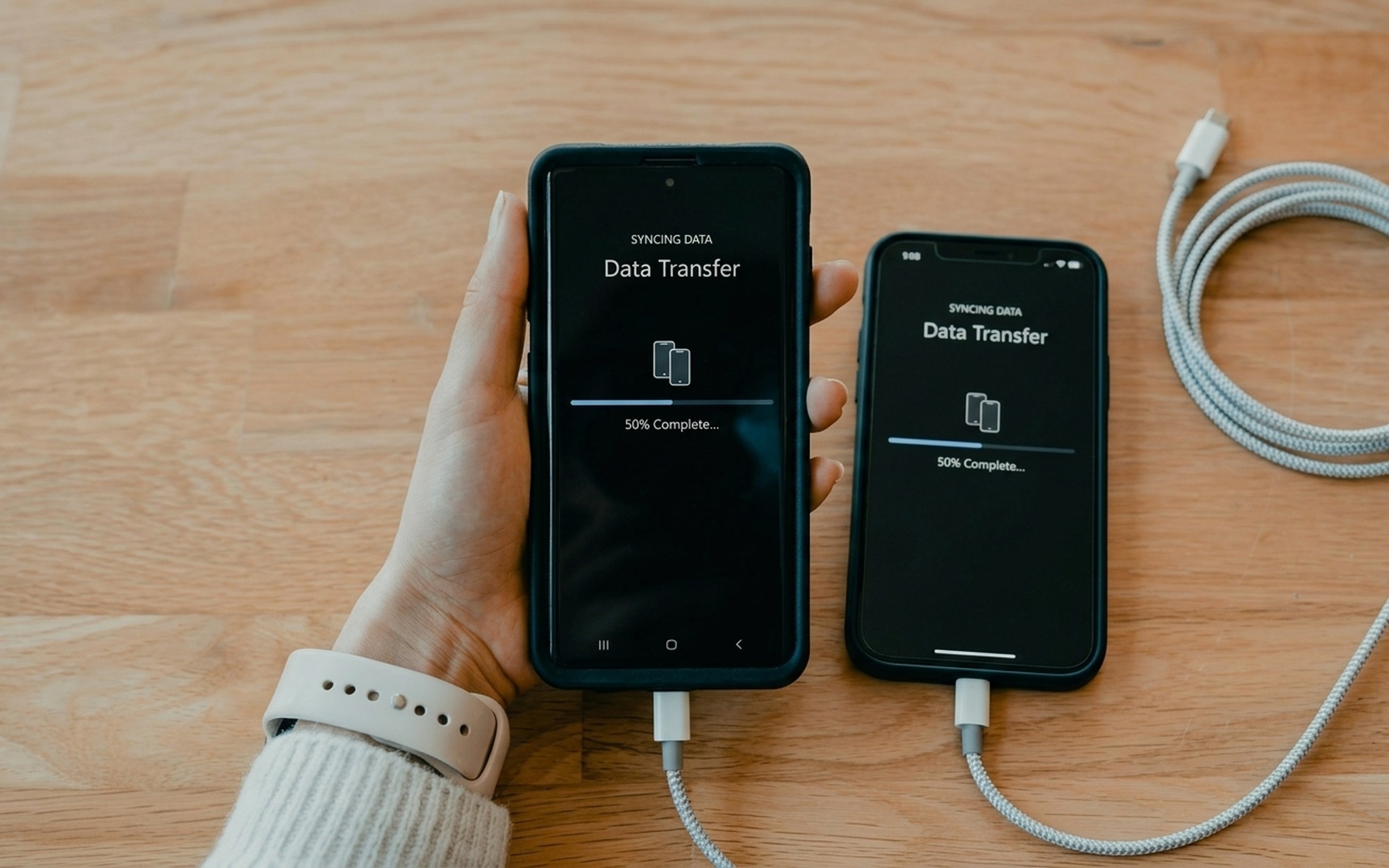
Moving from iPhone to Android means leaving Apple’s ecosystem behind. Here is the most reliable way to bring your data across.
Step 1: Sync Contacts and Calendars
Go to Settings > [Your Name] > iCloud and confirm that Contacts and Calendars are toggled on. On your new Android device, add your Google account and contacts will sync automatically. You can also export a .vcf file from iCloud.com and import it directly into Google Contacts.
Step 2: Export Your Photos and Music
Use iCloud.com or the iCloud for Windows app to download your full photo library to your computer, then copy the folders to your Android via USB cable. For iTunes purchases and local music files, MobileTrans can copy them directly to your Android without needing to re-download anything. For managing your existing iTunes library, our guide on sharing your iTunes library across multiple computers covers the setup in detail.
Step 3: Transfer SMS Messages and WhatsApp
This is the step where Apple’s native tools fall short. Standard iMessage and SMS history cannot be exported to Android using any built-in method. For full SMS history and WhatsApp data, MobileTrans is currently the most practical cross-platform solution.
For wireless file-sharing options that do not require a computer or USB cable, see our guide on how to transfer files between iPhone and Android.
Method 3: Samsung to iPhone Transfer
Samsung is the most common starting point when switching to iPhone. Samsung’s own Smart Switch app is designed for transfers into Samsung devices, so moving data out requires a different approach.
Option A: USB Cable Transfer (Photos and Videos Only)
Using a USB-C to Lightning or USB-C to USB-C adapter:
- Connect your Samsung to your new iPhone with the appropriate cable
- When prompted on your iPhone, tap Trust or Allow to grant access
- Open the Files app on iPhone and navigate to your Samsung’s storage
- Copy your photo and video folders directly
This method only works for media files. Contacts, SMS messages, and WhatsApp data cannot be transferred this way.
Option B: MobileTrans for Full Samsung to iPhone Transfer
For a complete transfer including contacts, SMS, call logs, photos, and WhatsApp conversations:
- Connect both devices to your computer via USB cables
- Open MobileTrans and choose Phone Transfer
- Confirm Samsung as the Source and iPhone as the Destination
- Select all the data types you want to move
- Click Start, keep both devices connected, and wait for the transfer to complete
The process typically takes 5 to 15 minutes depending on data volume. According to Apple’s official Move to iOS support page, Apple’s native app also supports Samsung-to-iPhone transfers, but your iPhone must be in setup mode.
MobileTrans: What It Can Do Beyond a Basic Transfer
MobileTrans is built specifically for cross-platform data migration. Several of its features are useful at the point of switching devices.
WhatsApp Transfer: Moves your complete WhatsApp chat history, photos, videos, voice notes, and stickers between Android and iPhone. This is one of the few tools that handles this reliably without requiring a paid WhatsApp subscription or device backup workarounds.
Phone Backup and Restore: Save your device data locally to your computer without relying on iCloud or Google Drive storage. Useful before wiping an old device to check that everything was captured correctly.
Permanent Data Erase: Securely wipe all data from your old phone before selling or trading it in. The tool overwrites storage so data cannot be recovered by consumer recovery software.
HarmonyOS and Broad Device Support: Works with over 6,000 phone models including Huawei devices running HarmonyOS alongside the standard iOS and Android lineup.
Pricing: Windows version starts at $29.95/year for individual features or $39.99/year for all features. Mac starts at $44.99/year. A free trial is available with limited transfer counts. For Samsung’s free built-in transfer option, see the Samsung Smart Switch support page to compare what it covers.

Free vs. Paid: Which Method Is Right for You?
| Your Situation | Best Method | Cost |
|---|---|---|
| New iPhone, switching from Android at setup | Move to iOS | Free |
| Android to Android (same Google account) | Google One Backup | Free |
| Samsung to new Samsung device | Samsung Smart Switch | Free |
| iPhone to Android, contacts and photos only | iCloud export plus Google sync | Free |
| Need full WhatsApp history across platforms | MobileTrans | From $29.95/year |
| Need complete SMS history on new device | MobileTrans | From $29.95/year |
| Switching phones after initial setup is done | MobileTrans | From $29.95/year |
| Wiping old phone securely before resale | MobileTrans | From $29.95/year |
The free built-in tools cover most basic scenarios well, especially if you are switching at the moment of device setup. For late migrations, cross-platform message history, or WhatsApp transfers, a dedicated tool gives more complete and reliable results.
- Supports 6,000+ phone models including iOS, Android, and HarmonyOS devices
- Transfers 18+ data types: contacts, SMS, photos, WhatsApp chats, call logs, and more
- Works any time after setup, no factory reset required on either device
- No cloud account credentials needed during the transfer process
- Includes phone backup, restore, and secure data erase features
- Paid software starting from $29.95/year with no perpetual one-time license
- Requires a USB cable connection for full phone-to-phone data transfer
- Free trial has transfer limits on certain data types like messages
Frequently Asked Questions
Can I transfer WhatsApp messages from Android to iPhone?
Yes, dedicated tools like MobileTrans can transfer your entire WhatsApp history, including chat messages, photos, videos, voice notes, and stickers, from Android to iPhone. Apple’s Move to iOS only carries over limited WhatsApp media and does not preserve the full chat history.
Can I transfer data between phones without a computer?
Yes. For basic transfers you can use Move to iOS (Android to iPhone over Wi-Fi, during setup) or Google One Backup (Android to Android via cloud). MobileTrans also offers a mobile app that transfers up to 10 data types wirelessly. For complete SMS and WhatsApp history, a wired computer connection gives more reliable results.
How long does it take to transfer all data from one phone to another?
A typical transfer of contacts, messages, and a few hundred photos takes 5 to 15 minutes. If you have 50GB or more of photos and videos, expect 30 minutes or longer. Keep both phones plugged in and the screen active throughout the process to avoid interruptions.
Is MobileTrans safe to use?
MobileTrans is made by Wondershare, a software company founded in 2003. The transfer process runs locally through your computer and does not upload your personal data to any cloud server. The software comes with a 90-day money-back guarantee.
What is the best free way to transfer data from Android to iPhone?
Apple’s Move to iOS app is the most complete free option. It works over a direct Wi-Fi connection during your iPhone’s initial setup and can move contacts, messages, photos, videos, bookmarks, and calendars. It does not transfer WhatsApp history or third-party app data.