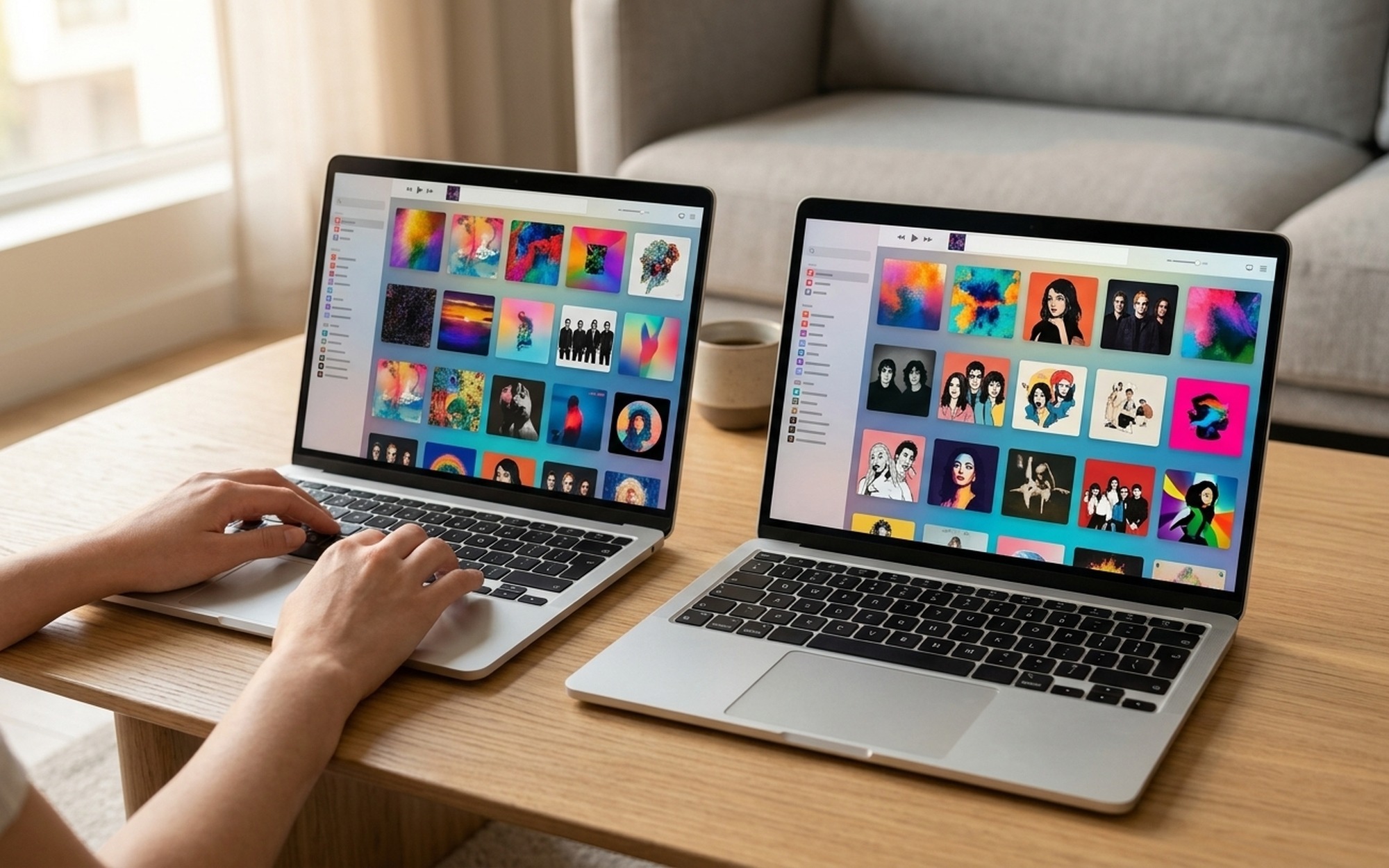
Sharing your iTunes library with multiple computers at home means your entire music and movie collection is available from every room, without buying duplicate copies. Whether you are on Windows, Mac, or a mix of both, there are four proven methods to make it work, each suited to different setups and household needs.
This guide walks through every method step by step, from the simplest one-click Home Sharing setup to storing your library on a shared network drive for full offline access.
What You Need Before You Start
Before choosing a method, confirm you have:
- iTunes for Windows (version 12.2 or later) on each Windows PC, available free from the Microsoft Store, or the Music app on Mac (macOS Catalina 10.15 and later)
- All computers connected to the same home Wi-Fi or Ethernet network
- A valid Apple ID, which is free to create at apple.com
- Each computer signed in with the same Apple ID, or family members’ Apple IDs linked via Family Sharing
Important for Windows users: Apple released a new standalone Apple Music app for Windows in 2023. However, this new app does not support Home Sharing. If you want to share your library across computers, you must use iTunes for Windows, which remains available as a separate free download from the Microsoft Store.
If you are looking for a broader comparison of your options on Windows, our best iTunes alternatives for Windows and Mac guide covers the leading apps for managing iPhone content and local libraries.
Method 1: iTunes Home Sharing (Recommended)
Home Sharing is Apple’s official solution for streaming your entire media library between up to five computers on your home network. It requires no file moving and takes under five minutes to set up.
How Home Sharing Works
One computer acts as the host by broadcasting its complete library (music, movies, TV shows, and playlists) to other computers on the same network. The host must be on and awake with iTunes or the Music app open for others to connect. The second computer streams from it in real time.
Turn On Home Sharing on Windows (iTunes)
- Open iTunes for Windows on your main computer.
- Click the File menu in the top menu bar.
- Go to Home Sharing and select Turn On Home Sharing.
- Enter your Apple ID and password, then click Turn On Home Sharing.
- Repeat these exact steps on every other Windows PC, using the same Apple ID.
Turn On Home Sharing on Mac (Music App)
- Click the Apple menu in the top-left corner and open System Settings.
- Select General in the sidebar, then click Sharing on the right side.
- Toggle on Media Sharing, then click the Info (i) button next to it.
- Select Home Sharing, enter your Apple ID, and click Turn On Home Sharing.
Access a Shared Library on Another Computer
Once Home Sharing is active on both machines:
- Open iTunes or the Music app on the second computer.
- In the left sidebar, look under the Shared section and click the other computer’s library name.
- Browse and play any song, album, or playlist from the shared library, just like your own.
Method 2: Shared Network Folder (One Library File, Multiple Computers)
This method places a single iTunes library file on a shared network folder or NAS drive. Any computer on the network can open it, but only one computer at a time can access the library. This is the right choice when you want a single authoritative library that includes imported CDs, local files, and custom metadata, all accessible from any computer in the house.
Step 1: Create a Shared Network Folder
On Windows:
1. Create a new folder (for example, C:\Shared\iTunes Library).
2. Right-click the folder and select Properties, then click the Sharing tab.
3. Click Advanced Sharing, check Share this folder, and set permissions to Read/Write for all users.
On Mac:
1. Create a new folder in a convenient location.
2. Go to System Settings > General > Sharing, turn on File Sharing, and add your new folder to the Shared Folders list.
Step 2: Move the iTunes Library to the Shared Folder
- Close iTunes or the Music app on all computers.
- Navigate to your current iTunes library folder:
- Windows:
%USERPROFILE%\Music\iTunes\ - Mac:
/Users/[your username]/Music/iTunes/ - Copy the entire iTunes folder, including
iTunes Library.itland theiTunes Mediasubfolder, to the shared network folder.
Step 3: Open the Library from the Shared Folder on the First Computer
- Windows: Hold Shift while launching iTunes, then click Choose Library and navigate to
iTunes Library.itlinside the shared folder. - Mac: Hold Option while launching the Music app, then click Choose Library and select the same file.
In iTunes preferences, go to Edit > Preferences > Advanced and confirm the iTunes Media Folder Location points to the correct subfolder inside the shared location.
Step 4: Set Up Every Other Computer
Repeat Step 3 on each additional computer, pointing them all to the same iTunes Library.itl file. Every computer will load the identical library with all playlists, play counts, ratings, and metadata intact.
Key limitation: Only one computer can have the library open at a time. If a second computer tries to open it while another has it active, iTunes will display a “library is locked” error. Always close iTunes on one computer before opening it on another.
Method 3: Use a NAS as an iTunes Media Server
A NAS (Network Attached Storage) device from brands like Synology or QNAP can serve as a dedicated iTunes media server, streaming your music to any computer on the network without needing any computer left running as a host.
Most NAS devices include a built-in iTunes Server package in their app store. When enabled, the NAS broadcasts your music as a shared library that appears in the iTunes or Music app sidebar on every computer, exactly like Home Sharing but driven by the NAS itself.
Setup steps vary by manufacturer. Look for an “iTunes Server” or “Media Server” package in your NAS device’s package manager and follow the device-specific guide. This option works best for larger households with libraries over 500 GB, or users who want 24/7 access without leaving any computer running.
Method 4: Apple Family Sharing (Purchased Content Only)
Apple Family Sharing lets up to six family members share purchased music, movies, TV shows, and apps from the iTunes Store. Each person keeps their own Apple ID, and shared purchases appear in each member’s library automatically.
What Family Sharing covers:
– Songs, albums, and movies purchased from the iTunes Store
– Apps and games from the App Store
– Subscriptions such as Apple Music Family Plan and Apple TV+
What it does not cover:
– Music imported from CDs or local audio files
– Music downloaded via Apple Music streaming (not a purchase)
To set up Family Sharing on Mac, go to System Settings > [Your Name] > Family Sharing. On Windows, open iTunes and go to Account > Family Purchases.
If your library consists largely of CD imports built up over many years, Family Sharing will not help you share that content. Use Home Sharing or the shared network folder method for imported music.
For users who want deeper control over their iPhone media alongside library sharing, TunesGo is a well-regarded option that handles both library management and device syncing in one place.
Comparison: Which Method Is Right for You?
| Method | Max Computers | Simultaneous Access | Includes Imported Music | Works Offline |
|---|---|---|---|---|
| Home Sharing | 5 | Stream only | Yes | No |
| Shared Network Folder | Unlimited | One at a time | Yes | Yes (on LAN) |
| NAS iTunes Server | Unlimited | Yes (streaming) | Yes | Yes (on LAN) |
| Apple Family Sharing | 6 | Yes | No (purchased only) | Depends |
Troubleshooting Common Issues
Home Sharing library not showing up in the sidebar
Make sure both computers are on the same Wi-Fi or Ethernet network, not a mobile hotspot. Confirm both are signed in with the same Apple ID in iTunes or the Music app. Try turning Home Sharing off and on again on both computers.
“Library is locked” error with the shared network folder
Another computer still has the library open, or iTunes did not close cleanly. Close iTunes on all computers. If the error persists, look for a file named iTunes Library.itl.lock inside the library folder and delete it, then try opening again.
iTunes can’t find media files after moving the library
This happens when the media folder path stored in the library file no longer matches the new location. Open iTunes preferences, go to Advanced, and update the iTunes Media Folder Location to the correct network path. Then use File > Library > Organize Library to consolidate any missing files.
Home Sharing stops working after a macOS or iTunes update
Apple occasionally requires re-authentication after major software updates. Re-enter your Apple ID under Home Sharing settings on each computer to restore the connection.
Slow playback when using the shared network folder method
This is usually a Wi-Fi speed issue. Move the computer to a wired Ethernet connection, or consider the NAS server method which handles streaming more efficiently than a consumer PC folder share.
Summary
For most households, iTunes Home Sharing is the fastest and easiest solution. It requires no file moving, takes under five minutes to configure, and streams your full library between Windows and Mac computers reliably. If you need a single offline library that includes every imported CD and local file, the shared network folder method gives you full control. For always-on access without leaving a computer running, a NAS iTunes server is the cleanest long-term setup.
Choose the method that matches how your family actually uses its music and movie collection, and you will have a shared iTunes library that works across every computer in the house.
- Home Sharing works with up to 5 computers on the same home network
- No need to buy duplicate copies of purchased music and movies
- Compatible with both Windows (iTunes) and Mac (Music app)
- Purchased content can automatically download to all authorized computers
- Shared network folder method gives full offline access from a single library file
- Home Sharing requires all computers to stay on the same Wi-Fi or Ethernet network
- The new Apple Music app for Windows does not support Home Sharing (iTunes for Windows required)
- Shared network folder method only allows one computer to open the library at a time
- Music imported from CDs cannot be shared via Apple Family Sharing
- Home Sharing is capped at 5 computers per Apple ID
Frequently Asked Questions
Can two computers share one iTunes library at the same time?
With Home Sharing, both computers can stream from the same library simultaneously, but only one computer hosts the library. If you store the library on a shared network folder, only one computer can have it open at a time. Opening it on a second computer while another has it active will trigger a ‘library is locked’ error.
Does iTunes Home Sharing work between Windows and Mac?
Yes. Home Sharing works between iTunes for Windows and the Music app on Mac, as long as both are signed in with the same Apple ID and connected to the same home network. Note that the newer Apple Music app for Windows (2023 and later) does not support Home Sharing. You must use iTunes for Windows for cross-platform sharing.
How many computers can I add to iTunes Home Sharing?
iTunes Home Sharing supports up to 5 computers per Apple ID. All 5 must be on the same Wi-Fi or Ethernet network and signed in with the same Apple ID to access each other’s libraries.
Can I share my iTunes library including imported CD music with family members on different Apple IDs?
No. Apple Family Sharing only covers content purchased from the iTunes Store or App Store. Music imported from CDs or other local files is tied to your personal library and cannot be shared through Family Sharing. To share imported music, use Home Sharing or the shared network folder method, both of which require the same home network.
What happens to my playlists and ratings when I move the library to a network folder?
All playlists, play counts, ratings, and metadata are stored in the iTunes Library file (.itl), not in the media files themselves. As long as all computers open the same .itl file from the network folder, every computer will see identical playlists, ratings, and smart playlists.
Do I need to keep a computer on for Home Sharing to work?
Yes. The host computer that holds the library must be powered on, awake, and have iTunes or the Music app open for other computers to access the shared library. If you want 24/7 access without leaving a computer running, a NAS device with a built-in iTunes server is a better solution.