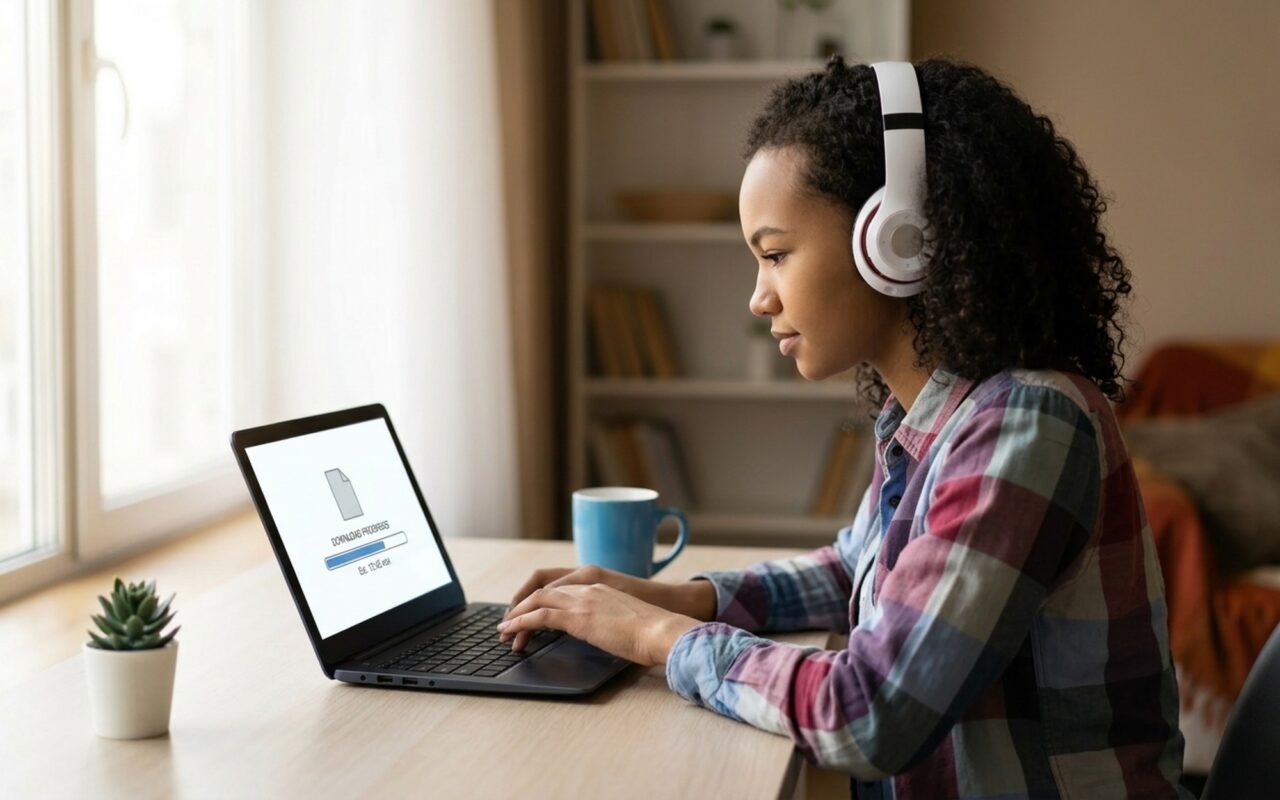
Streaming platforms make video watching convenient, but your internet connection does not always cooperate. Whether you want to save a YouTube tutorial for a long flight, capture a Twitch VOD before it expires, or archive a Vimeo short film before it disappears, knowing how to download streaming video is a practical skill.
This guide covers five proven free methods for 2026, from beginner-friendly browser extensions to the powerful yt-dlp command-line tool used by professionals worldwide. Each method is actively maintained, works without a paid subscription, and produces clean output without watermarks.
What You Need to Know Before Choosing a Method
Not every tool works on every platform. Check this compatibility table before picking a method:
| Platform | yt-dlp | 4K Downloader | Browser Extension | OBS Studio | cobalt.tools |
|---|---|---|---|---|---|
| YouTube | Yes | Yes | Yes | Yes | Yes |
| Vimeo | Yes | Yes | Yes | Yes | Yes |
| Twitch (VODs) | Yes | No | Partial | Yes | No |
| Twitter/X | Yes | No | Yes | Yes | Yes |
| Yes | Yes | Partial | Yes | Yes | |
| TikTok | Yes | Yes | Partial | Yes | Yes |
| Netflix / Disney+ | No (DRM) | No (DRM) | No (DRM) | No | No |
| Hulu | No (DRM) | No (DRM) | No (DRM) | No | No |
Format note: Most downloaded files arrive as MP4 or WebM. For iPhone and iPad compatibility, MP4 with H.264 encoding is the safest choice. Android plays both MP4 and WebM natively. The final section of this guide covers free conversion options if you need to change formats.
Method 1: Download YouTube and Vimeo Videos with yt-dlp (Free, Any Platform)
yt-dlp is an open-source command-line tool that supports more than 1,000 websites. It is maintained by an active developer community and updated regularly when platforms change their video delivery systems. Professionals who download video regularly use yt-dlp because no other free tool matches its range and reliability.
Why yt-dlp stands out:
– Downloads at any quality from 144p to 4K and 8K
– Extracts audio-only as MP3, M4A, or FLAC
– Works on Windows, Mac, and Linux
– Supports full playlist and channel downloads
– Completely free, open source, and actively maintained
Step 1 – Install yt-dlp
On Windows, download the latest yt-dlp.exe from the official yt-dlp releases page on GitHub and place it in a folder you can easily find, such as C:\Tools\.
On Mac, install via Homebrew:
brew install yt-dlp
On Linux (Debian/Ubuntu):
sudo apt install yt-dlp
Step 2 – Install FFmpeg
YouTube delivers high-quality video and audio as separate streams. yt-dlp needs FFmpeg to merge them into a single file. Download FFmpeg from ffmpeg.org and place it in the same folder as yt-dlp, or add it to your system PATH.
Step 3 – Download a video
Open Command Prompt (Windows) or Terminal (Mac/Linux) and run:
yt-dlp https://www.youtube.com/watch?v=VIDEO_ID
Replace VIDEO_ID with the actual ID from the URL. The file saves to your current directory by default.
Step 4 – Choose a specific quality (optional)
List all available formats before downloading:
yt-dlp -F https://www.youtube.com/watch?v=VIDEO_ID
Then download a specific format combination:
yt-dlp -f 137+140 https://www.youtube.com/watch?v=VIDEO_ID
This downloads 1080p video (format 137) and 128kbps audio (format 140) and merges them automatically.
Step 5 – Download audio only as MP3
yt-dlp -x --audio-format mp3 https://www.youtube.com/watch?v=VIDEO_ID
The same command structure works for Vimeo, Twitter/X, Reddit, SoundCloud, TikTok, and hundreds of other sites.
Method 2: Use 4K Video Downloader for a Point-and-Click Experience
If the command line is not for you, 4K Video Downloader offers a clean graphical interface with no ads and no watermarks on its free tier.
What the free version includes:
– YouTube, Vimeo, TikTok, Facebook, and Instagram support
– Downloads up to 4K resolution
– Playlist downloads (up to 25 videos per playlist on the free tier)
– Subtitle downloads in SRT format
– Available for Windows, Mac, and Ubuntu
How to use it:
- Download and install 4K Video Downloader from the official site.
- Copy the video URL from your browser address bar.
- Click Paste Link in the application window.
- Select your preferred quality and format: MP4, MKV, or audio-only M4A/MP3.
- Click Download and choose a save location.
The download starts immediately and shows real-time progress. For most YouTube videos at 1080p, expect a download time of one to three minutes on a typical broadband connection.
Method 3: Grab Videos with a Browser Extension (No Terminal Required)
Browser extensions add a download button directly to video pages and are the fastest option for occasional one-off downloads.
Video DownloadHelper is the most widely used extension for Firefox and Chrome. After installing:
- Visit any supported video page (YouTube, Vimeo, Dailymotion, etc.).
- Click the Video DownloadHelper icon in your browser toolbar – it animates when it detects a downloadable stream.
- Select the desired quality from the dropdown menu.
- Choose a save location and confirm the download.
Note: YouTube downloads through Video DownloadHelper require the companion app, a small local server the extension prompts you to install. This is expected behavior and not malware. The companion app handles the actual file writing.
Alternative for power users: Combining Tampermonkey with a yt-dlp integration user script lets you trigger yt-dlp directly from any video page in your browser, giving you extension-level convenience with yt-dlp’s broader site support.
Method 4: Record Any Streaming Video with OBS Studio
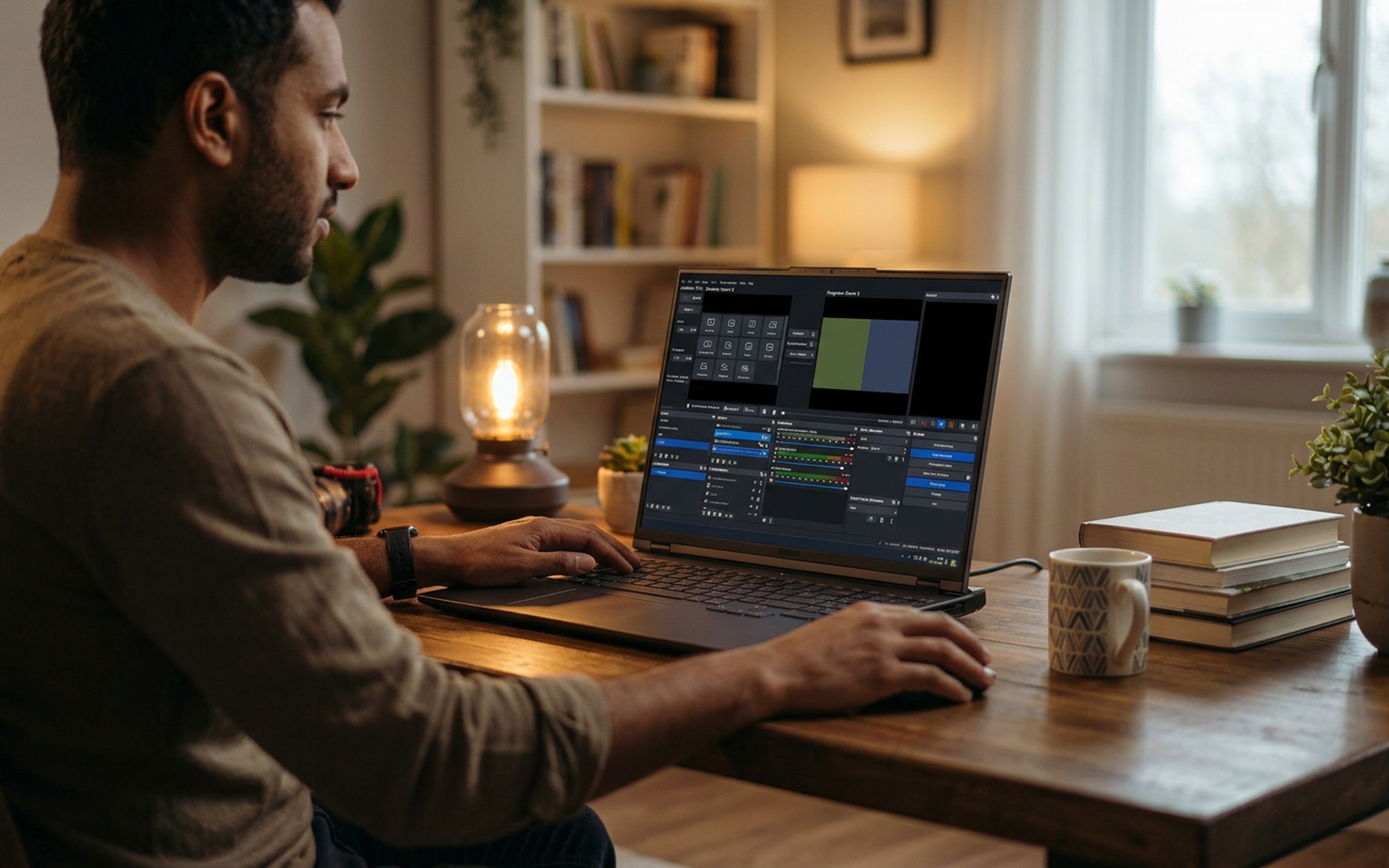
For platforms that encrypt their video delivery, making download links impossible to intercept, screen recording is the most reliable fallback. OBS Studio is the free, open-source recording tool used by streamers and content creators worldwide.
When OBS is the right choice:
– Live streams with no replay or archive feature
– Platforms where download tools consistently fail
– Webinars, online courses, or video conferences you want to save for personal reference
– Any situation where you need to record exactly what is playing on screen
Recording setup in OBS:
- Download and install OBS Studio from obsproject.com.
- Open OBS and click the + icon under the Sources panel.
- Select Display Capture to record your entire screen, or Window Capture to record one specific application window.
- Go to Settings → Output → Recording. Set the format to MP4 and the encoder to H.264 (x264).
- Set the recording folder to a location with sufficient free space (1080p footage at 8000 kbps uses roughly 3.5 GB per hour).
- Click Start Recording, then play the video in your browser at full resolution.
- Click Stop Recording when the video ends.
Quality tip: Match your OBS canvas resolution to your monitor resolution (1920×1080 or higher) and use a bitrate of at least 8000 kbps to avoid visible compression on fast-moving content.
Crash protection: OBS supports the MKV container format, which remains playable even if OBS closes unexpectedly mid-recording. After recording, use File → Remux Recordings to convert MKV to MP4 without re-encoding.
Method 5: Download Videos Online Without Installing Software (cobalt.tools)
If you are on a shared or managed computer where you cannot install software, cobalt.tools is the cleanest browser-based option available in 2026.
How to use cobalt.tools:
- Open cobalt.tools in any modern browser.
- Paste the video URL into the input field.
- Select your preferred quality from the settings panel (up to 1080p for most platforms).
- Click Download and save the file to your device.
cobalt.tools supports YouTube, Vimeo, Instagram, TikTok, Twitter/X, Reddit, and SoundCloud. It requires no registration, installs nothing, and adds no watermarks. The download is processed server-side and delivered as a direct file.
Limitations to be aware of: cobalt.tools does not support playlist downloads, channel downloads, or resolutions above 1080p on YouTube. For those use cases, yt-dlp handles all of them.
How to Convert Downloaded Videos to MP4 for iPhone, iPad and Android
Most downloads from the above tools arrive as MP4, but some sources produce WebM, MKV, or AVI files. iPhones and iPads require MP4 with H.264 or H.265 encoding for playback in the Photos app or Files app without third-party players.
Option A: HandBrake (free, all platforms)
HandBrake converts virtually any video format to MP4 or MKV.
- Open HandBrake and drag your video file into the application.
- Choose the Fast 1080p30 preset from the right-side panel.
- Confirm the output format is set to MP4 at the top of the window.
- Click Start Encode and wait for conversion to complete.
For a 1-hour video at 1080p, HandBrake typically takes 5 to 15 minutes depending on your processor speed.
Option B: VLC Media Player (free, any platform)
VLC converts video formats without any extra plugins:
- Go to Media → Convert/Save (or File → Convert/Stream on Mac).
- Add your video file and click Convert/Save.
- Select the Video for MPEG4 1080p TV/device profile.
- Set an output filename with a
.mp4extension and click Start.
Option C: Download directly as MP4 with yt-dlp
When downloading with yt-dlp, you can specify MP4 output at the time of download:
yt-dlp -f "bestvideo[ext=mp4]+bestaudio[ext=m4a]/best[ext=mp4]" URL
This selects MP4 video and M4A audio streams when available, merging them without a separate conversion step.
For a broader comparison of free video conversion tools with platform-specific recommendations, see our guide to the 18 best free video converters and downloaders for 2026.
Which Method Is Right for You?
| Your Situation | Recommended Method |
|---|---|
| YouTube or Vimeo playlists, maximum quality | yt-dlp (Method 1) |
| Occasional single video download, no command line | 4K Video Downloader (Method 2) |
| Quick grab from a video page in the browser | Browser extension (Method 3) |
| Live stream or platform where downloads fail | OBS Studio (Method 4) |
| No software installation allowed | cobalt.tools (Method 5) |
| Need iPhone or iPad compatible MP4 output | HandBrake or yt-dlp with MP4 flag |
All five methods are free for personal use and produce output without watermarks or time limits. No paid upgrade is required for the workflows described in this guide.
If you want to broadcast your own content live rather than download others, our guide to free video broadcasting software for Windows and Mac covers OBS setup for streaming to YouTube Live, Twitch, and Facebook Live.
- All five methods are completely free with no watermarks or file limits
- Works across 1,000+ streaming platforms including YouTube, Vimeo, Twitch, and Twitter/X
- Downloaded videos play offline on any device including iPhone, iPad, and Android
- Multiple options from beginner-friendly browser extensions to advanced yt-dlp
- No account, subscription, or personal data required for most tools
- DRM-protected platforms like Netflix and Disney+ cannot be downloaded with any free tool
- yt-dlp and FFmpeg require basic command-line familiarity to set up
- Downloaded files can take up significant storage at 1080p or 4K quality
- Platform terms of service may restrict downloading for non-personal use
Frequently Asked Questions
Is it legal to download streaming videos for free?
It depends on the platform and your intended use. Downloading videos for personal, offline viewing is generally tolerated by platforms like YouTube, though it technically violates their Terms of Service. Distributing downloaded content commercially or publicly is a separate matter and almost universally prohibited. For platforms that offer official offline download features (Netflix, Spotify, Disney+), use those instead of third-party tools.
What is the best free video downloader for YouTube in 2026?
yt-dlp is the most capable free YouTube downloader in 2026. It supports all quality levels up to 8K, handles playlists and channels, downloads subtitles, and works on Windows, Mac, and Linux. If you prefer a graphical interface rather than a command line, 4K Video Downloader is the best alternative, with a clean UI and a generous free tier.
Can I record streaming video without installing any software?
Yes. cobalt.tools is a browser-based tool that lets you download videos from YouTube, Vimeo, Instagram, TikTok, and other platforms without installing anything. Just paste the video URL into the site and click Download. It supports up to 1080p quality for most platforms and requires no registration or account.
How do I convert a downloaded video to MP4 for my iPhone or iPad?
The easiest way is to use HandBrake (free, available for Windows, Mac, and Linux). Open HandBrake, drag your video file into the app, select the Fast 1080p30 preset, make sure MP4 is chosen as the output format, and click Start Encode. Alternatively, if you used yt-dlp to download the video, you can add the flag -f ‘bestvideo[ext=mp4]+bestaudio[ext=m4a]’ to download directly as MP4 without a separate conversion step.
Why doesn’t yt-dlp work on Netflix, Hulu, or Disney+?
Netflix, Hulu, Disney+, and similar services use Widevine DRM (Digital Rights Management), a Google-developed encryption system that prevents any external tool from accessing the video stream. This is by design. The only supported way to watch these platforms offline is through their official apps, which include built-in download features for select titles. No free third-party tool can reliably bypass Widevine DRM in 2026.