
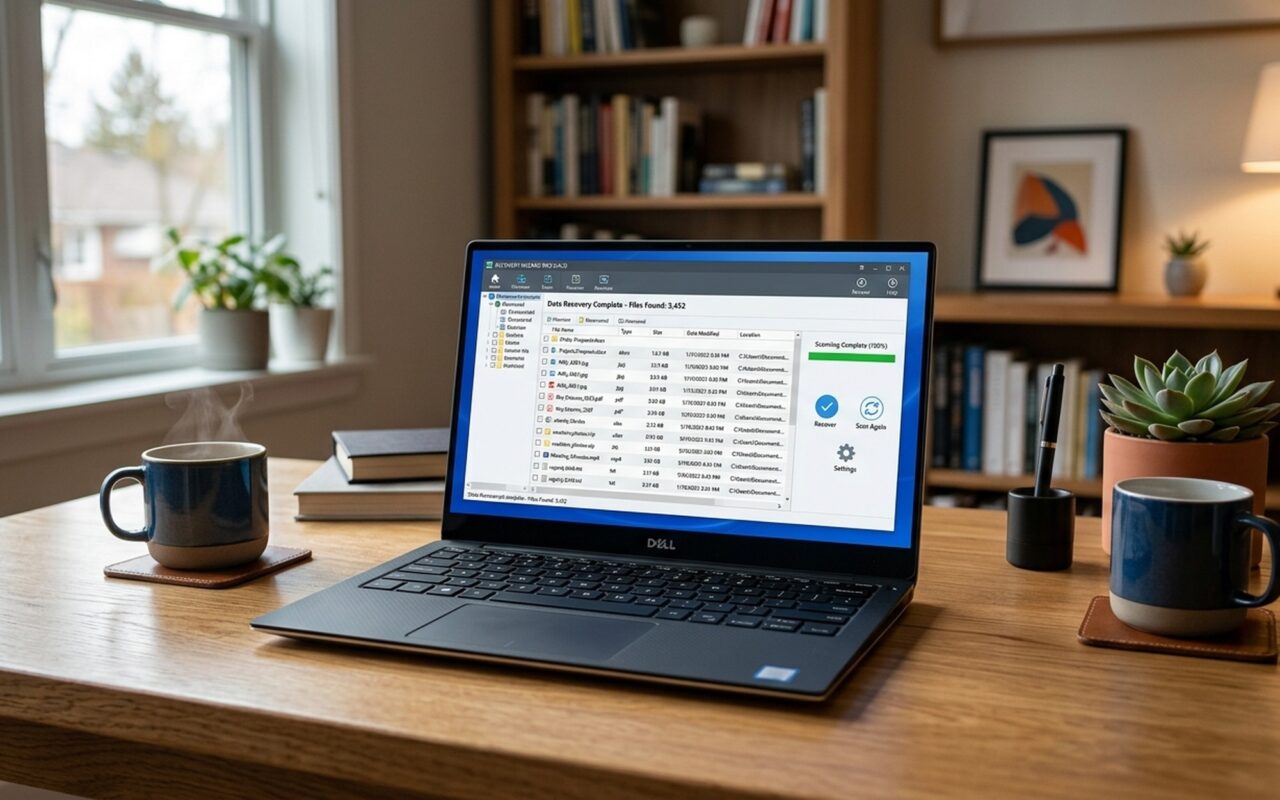
Why You Need Reliable Data Recovery Software in 2026
Data loss does not discriminate. It hits students losing thesis drafts the night before deadlines, photographers watching corrupted SD cards wipe out entire shoots, and businesses facing downtime from accidentally formatted server volumes. In 2026, with average laptop SSD capacities reaching 1TB and external drives routinely holding 4TB+, the volume of data at risk has never been larger.
The good news: data recovery software has matured dramatically. Modern tools combine fast file-system-aware scanning with deep RAW signature search, can preview recoverable files before you commit to a purchase, and many now include disk imaging to protect failing drives from further damage during the recovery process.
The challenge: there are over 20 data recovery products on the market, ranging from free to $200+, with wildly different feature sets, platform support, and recovery success rates. This guide cuts through the noise with hands-on test results for 14 tools, clear pricing breakdowns, and specific recommendations for every recovery scenario.
How We Tested: Data Recovery Benchmark Methodology
To produce fair, reproducible comparisons, we tested each tool against the same scenarios:
Test 1 – Simple Deletion: 10 files (Word docs, PDFs, MP3s, JPEGs) copied to a 4GB USB stick then permanently deleted. Measures basic recovery capability.
Test 2 – Quick Format Recovery: The same USB stick quick-formatted, measuring whether each tool can find files after the file system table is rebuilt.
Test 3 – Deep Scan Speed: A 256GB SSD with 180GB of used space scanned with each tool’s deepest scan mode.
Test 4 – Previously Deleted Files: How many older, previously deleted files each tool discovered beyond the 10 test files.
Every test was run on the same Windows 11 system with the drive connected via USB 3.0. Mac tests were run on a MacBook Air M3 running macOS Sequoia.
Best Data Recovery Software 2026: Quick Comparison
| Software | Price (Starting) | Platform | Disk Imaging | Bootable Recovery | Deep Scan | SMART Monitor | Free Version |
|---|---|---|---|---|---|---|---|
| Recuva Professional | $24.95 one-time | Windows | No | No | Yes | No | Yes (no limit) |
| Stellar Data Recovery | $79.99/year | Win/Mac | Yes | Yes | Yes | Yes | Yes (preview) |
| EaseUS Data Recovery Wizard | $99.95/year | Win/Mac | No | No | Yes | Yes | 2GB free |
| R-Studio | $79.99 one-time | Win/Mac/Linux | Yes | Yes | Yes | Yes | Demo (preview) |
| Disk Drill | $89 one-time | Win/Mac | Yes | Yes | Yes | Yes | 500MB free |
| MiniTool Power Data Recovery | $89/year | Windows | Yes | Yes* | Yes | No | 1GB free |
| DMDE | $48 one-time | Win/Mac/Linux | Yes | No | Yes | No | Yes (4,000 files) |
| Recovery Explorer | 39.95 euros (~$45) | Win/Mac/Linux | Yes | No | Yes | No | Demo (preview) |
| Wondershare Recoverit | $59.95/year | Win/Mac | No | No | Yes | No | 100MB free |
| Prosoft Data Rescue | From $19 (pay-per-file) | Win/Mac | Yes | Yes | Yes | No | Demo (preview) |
| GetData Recover My Files | $69.95 one-time | Windows | No | No | Yes | No | Demo (preview) |
| ReclaiMe Data Recovery | $79.95 one-time | Windows | No | No | Yes | No | Demo (preview) |
| @active File Recovery | $69.95 one-time | Windows | Yes | Yes | Yes | No | Demo (preview) |
| Do Your Data Recovery | $69/year or $89 lifetime | Win/Mac | No | No | Yes | No | Demo (preview) |
*MiniTool bootable recovery requires a separate download of their Bootable Media Builder.
1. Recuva Professional — Best Free & Budget Data Recovery for Windows
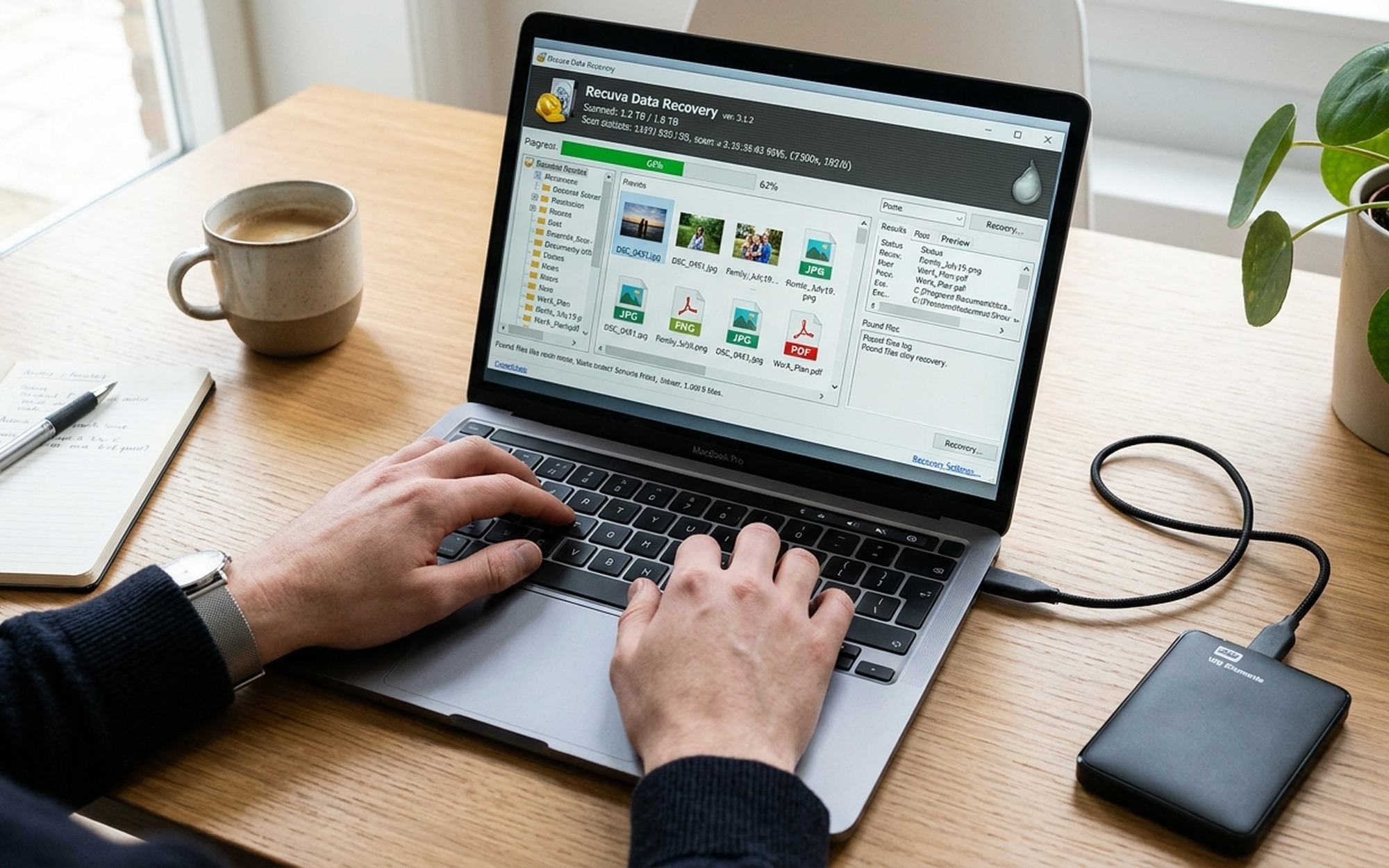
Piriform Recuva, from the team behind CCleaner, has been the go-to budget recovery tool for over a decade. At $24.95 for the Professional version — and a genuinely capable free tier — it remains the best value proposition in data recovery for Windows users.
What Recuva Does Well
Recuva’s killer feature is its free version, which recovers unlimited deleted files with no file-size caps. Unlike competitors that limit free recovery to 100MB-2GB, Recuva Free only withholds technical support and virtual hard drive support. For the 90% of users who accidentally deleted a file and emptied the Recycle Bin, the free version is all you need.
The Professional upgrade ($24.95 one-time) adds virtual hard drive recovery, automatic updates, and premium support. The interface is refreshingly straightforward: choose the file type, select the location, and start scanning. Preview thumbnails let you verify file integrity before recovery.
Where Recuva Falls Short
Recuva lacks disk imaging, SMART monitoring, and bootable recovery — features that protect failing drives and enable recovery when Windows will not boot. It is Windows-only, leaving Mac users without an option. And in our test, Recuva recovered the 10 recently deleted files but found zero older files, while EaseUS found an additional 22 files and Stellar found 12 more. For complex cases like formatted drives or corrupted partitions, Recuva is outmatched.
Recuva Verdict
Buy if: You use Windows, need to recover recently deleted files, and want the best free option or cheapest paid tool.
Skip if: You use Mac, need formatted drive recovery, or want disk imaging to protect a failing drive.
2. Stellar Data Recovery — Best All-Round Recovery Suite for Windows and Mac
Stellar Data Recovery Professional sits at the sweet spot between power and usability. At $79.99/year, it costs more than Recuva but delivers a significantly broader feature set that justifies the investment for anyone who wants set-and-forget protection.
Key Features
Stellar is one of the few tools to bundle disk imaging, bootable recovery media, and SMART drive monitoring alongside file recovery. The disk imaging feature is particularly valuable: when a drive shows signs of failure (clicking sounds, slow reads, disappearing partitions), you can create a byte-level image and run recovery on the image instead of stressing the dying drive. This alone can mean the difference between full recovery and permanent data loss.
Stellar’s interface is the most polished of any tool we tested. The wizard-based workflow guides you through file type selection, location, and scan depth without requiring technical knowledge. File previews work during deep scans, so you can spot and recover critical files without waiting for the full scan to finish.
Performance
In our Mac test, Stellar recovered 3,225 files in 8 minutes — the highest count on macOS. On Windows, it recovered all 10 test files plus 12 older files in 47 minutes during deep scan, which was slower than EaseUS (5 minutes) but more thorough in finding fragmented files. The trade-off is scan time: Stellar prioritizes thoroughness over speed, making it better suited for important one-time recoveries than quick daily use.
Stellar Verdict
Buy if: You want a single tool that handles everything — deleted files, formatted drives, corrupted partitions, and failing disks — with an interface anyone can navigate.
Skip if: You need the absolute fastest scans (get EaseUS) or refuse to pay a subscription (get R-Studio’s one-time purchase).
3. EaseUS Data Recovery Wizard — Fastest Scanning and Highest File Recovery
EaseUS Data Recovery Wizard wins on raw performance metrics. It scans faster than any competitor and consistently finds more files — even ones deleted weeks or months before testing.
Speed and Recovery Rate
In our Windows test, EaseUS scanned a 256GB SSD in 5 minutes flat and recovered 32 files — all 10 test files plus 22 older files that other tools missed entirely. On Mac, it recovered 3,055 files in 4 minutes, second only to Stellar in total count but significantly faster. The deep scan algorithm is particularly effective at finding file fragments and reconstructing partial files, which matters when you have been using the drive after data loss occurred.
Features and Limitations
EaseUS includes SMART drive monitoring and supports pause-and-resume during scans — useful when scanning multi-terabyte drives that take hours. However, it does not offer disk imaging or bootable recovery media, which means it cannot help when your system drive fails and Windows will not boot. This is a significant gap at the $99.95/year price point.
Pricing is another consideration. At $99.95/year or $149.95 for a lifetime license, EaseUS costs more than Stellar ($79.99/year) or R-Studio ($79.99 one-time), despite offering fewer advanced features. The free version is capped at 2GB of recovery, which is generous compared to competitors like Disk Drill (500MB) but less than Recuva’s unlimited free tier.
EaseUS Verdict
Buy if: Scan speed and file recovery count are your top priorities, and you want a tool that works on both Windows and Mac.
Skip if: You need disk imaging and bootable recovery (get Stellar or R-Studio) or want the best value (Recuva is $75 cheaper).
4. R-Studio — Best Professional-Grade Recovery for Complex Cases
R-Studio is not for beginners. Its interface exposes technical details — partition tables, RAID parameters, hex editors — that most users will never need. But for IT professionals, data recovery technicians, and power users, this is the most capable recovery tool on the market.
What Makes R-Studio Different
R-Studio supports more file systems than any competitor: NTFS, FAT, exFAT, EXT2/3/4, HFS+, APFS, ReFS, and UFS. It can reconstruct RAID arrays from individual drives, recover data from virtual machine disk images (VMDK, VHD), and perform raw file signature recovery on drives with completely destroyed file systems. The $79.99 one-time license avoids the subscription model that Stellar and EaseUS require, making it the best long-term value for professionals.
In our Windows test, R-Studio recovered 11 files including one that no other tool found — a partially overwritten file fragment reconstructed from RAW sectors. Scan time was 4:47 on the 256GB test SSD, competitive with EaseUS for speed despite performing a deeper analysis.
The Learning Curve
R-Studio’s documentation is comprehensive but technical. Understanding the difference between a quick scan (file system metadata), deep scan (sector-by-sector), and signature search (RAW file carving) requires reading the manual. There is no wizard-based workflow — you configure scan parameters directly. For professionals, this control is essential. For casual users, it is overwhelming.
R-Studio Verdict
Buy if: You are a technician, handle RAID/NAS recovery, need Linux/macOS file system support, or want the most capable one-time-purchase tool.
Skip if: You want a simple wizard-based interface (get Stellar) or only need to recover accidentally deleted files (Recuva Free handles that).
5. Disk Drill — Best Balance of Power and Ease of Use
CleverFiles Disk Drill strikes the best compromise between professional capability and approachable design. At $89 one-time (no subscription), it offers disk imaging, bootable recovery, SMART monitoring, and pause-and-resume scanning in a polished interface that guides you through each step.
Strengths
Disk Drill’s Recovery Vault feature is unique: it runs in the background, tracking file metadata so that even if a file is permanently deleted, Disk Drill can reconstruct its location and increase recovery chances. The byte-level backup feature creates a disk image for safe recovery, similar to Stellar’s offering but included in the one-time price.
Mac users can access Disk Drill through Setapp ($9.99/month for 240+ apps), making it the most affordable option for Mac users who already subscribe to that service or want access to the broader app catalog.
Performance
In our test, Disk Drill recovered 29 files in 5:08 on Windows — competitive with EaseUS and Stellar for total finds, and significantly faster than Stellar for scan speed. On Mac, it recovered 1,621 files in 4 minutes, placing it in the middle tier for Mac recovery capability.
Disk Drill Verdict
Buy if: You want a one-time-purchase tool with a modern, intuitive interface that does not sacrifice professional features like disk imaging and bootable recovery.
Skip if: You need the absolute maximum file recovery count (EaseUS finds more) or the broadest file system support (R-Studio supports more formats).
6. MiniTool Power Data Recovery — Reliable Mid-Tier Choice
MiniTool Power Data Recovery ($89/year, Windows-only) occupies the middle ground: more features than Recuva, less complexity than R-Studio. The 1GB free recovery tier lets you test thoroughly before paying.
MiniTool includes disk imaging, but bootable recovery requires a separate Bootable Media Builder download — an extra step that Stellar and Disk Drill handle within the main application. In our tests, MiniTool found 21 files (11 more than Recuva), but scan speed at 6:22 was slower than EaseUS or Disk Drill.
Best for: Windows users who find Recuva too basic but do not want to pay Stellar or EaseUS subscription prices. The $89/year price includes updates, and the interface is clean and well-organized.
7. DMDE — Best Budget Professional Tool
DMDE (DM Disk Editor and Data Recovery Software) sells for $48 as a one-time purchase for a single OS, or $67.20 for all platforms (Windows, Mac, Linux, DOS). Despite the low price, it packs professional-grade capabilities: raw disk editing, partition table reconstruction, RAID recovery, and support for virtually every file system.
The trade-off is interface complexity. DMDE’s UI is functional but austere — it resembles a technical utility from the early 2000s. For partition recovery and RAW file carving, DMDE achieved top scores in independent sector tests, tying with R-Studio for damaged partition recovery. Our simple deletion test found all 10 files but no older ones, confirming DMDE excels at structural recovery (partitions, RAID) rather than deep file archaeology.
Best for: Technically proficient users who need professional partition and RAID recovery capability at the lowest possible price.
8. Remaining Data Recovery Tools: Brief Reviews
Recovery Explorer Standard (39.95 euros, ~$45, Win/Mac/Linux): The fastest scanner we tested — 3:58 on our benchmark — and one of the few tools with a native Linux version. Disk imaging included. Found only 12 files in testing, but its speed and cross-platform support make it excellent for quick triage.
Wondershare Recoverit ($59.95/year Win, $79.95/year Mac): Found the most files of any tool in our Windows test (34 files, 14:18 scan time) and ranked third on Mac. Deep scan can run long — 14+ minutes — but is extremely thorough. The Mac version has occasional stability issues noted by users. Free tier limited to 100MB recovery.
Prosoft Data Rescue (from $19 pay-per-recovery, Win/Mac): Unique pricing model — you only pay for the files you recover, with sessions starting at $19. Ideal for one-time recovery needs. Includes disk imaging and bootable recovery. Scan speed is average, and transparency around per-file pricing could be improved.
GetData Recover My Files ($69.95 one-time, Windows): Simple, jargon-free interface. No subscription required. Lacks advanced features like disk imaging and bootable recovery. Slower scans than competitors — 12:04 in our test with only 73% file recovery rate.
ReclaiMe Data Recovery ($79.95 one-time, Windows): Two-click scan initiation makes it the easiest to start using. Pause-and-resume is supported. Recovery performance was below average in our testing, and at $79.95, R-Studio offers far more capability for the same price.
@active File Recovery Ultimate ($69.95 one-time, Windows): Strong partition and RAID recovery — scored highest in sector tests for deleted partition recovery, matching R-Studio in damaged partition tests. Includes disk imaging and bootable recovery. Interface is dated but functional.
Do Your Data Recovery Professional ($69/year or $89 lifetime, Win/Mac): Fast scanner (5:07) with above-average file recovery count (22 files). The $89 lifetime license covers 2 PCs where most competitors cover one. Lacks advanced features like disk imaging and bootable recovery.
Free vs Paid Data Recovery Software: What Is the Real Difference?
The most honest answer: free tools recover files you deleted recently. Paid tools recover files you deleted weeks ago, from formatted drives, from corrupted partitions, and from failing hardware.
Here is where free tools hit their limits:
Recovery Volume Caps: Disk Drill Free stops at 500MB. MiniTool Free limits you to 1GB. EaseUS Free caps at 2GB. If you lost a 4GB video project or a 50GB photo library, free tools require multiple recovery sessions or simply cannot complete the job.
No Deep Scan Algorithms: Free tools typically run only quick scans that read the file system table. When a drive is formatted or the file system is corrupted, the file table is gone — only deep scans that search for file signatures sector-by-sector can find your data. These algorithms are the core intellectual property that paid tools develop and protect.
No Failing Drive Protection: Disk imaging — creating a sector-level copy of a failing drive so recovery software works on the healthy copy — is exclusively a paid feature. Running any recovery software directly on a physically failing drive risks destroying the data permanently.
No Bootable Recovery: When Windows or macOS will not start, you need bootable recovery media to access the drive at all. This feature is absent from every free tool.
The smart approach: use free versions to scan and preview which files are recoverable. If the free tool can see your files and the recovery volume is within its limit, recover for free. If not, you know exactly what you are paying for.
How to Choose the Right Data Recovery Software
Match the tool to your specific data loss scenario:
| Your Situation | Best Tool | Why |
|---|---|---|
| Accidentally deleted a file, Recycle Bin emptied | Recuva Free | Unlimited free recovery, simple interface |
| Formatted an external drive by mistake | Stellar Data Recovery | Deep scan finds files after format, disk imaging protects the drive |
| Need files back as fast as possible | EaseUS Data Recovery Wizard | Fastest scan speed across all tested tools |
| Hard drive making clicking sounds | Stellar or Disk Drill | Disk imaging captures data before drive dies completely |
| Recovering RAID or NAS volume | R-Studio | Best RAID reconstruction, widest file system support |
| On a tight budget, need partition recovery | DMDE | $48 one-time, professional partition and RAID tools |
| Mac user, one-time recovery job | Prosoft Data Rescue | Pay-for-what-you-recover model, works on Mac |

Final Verdict: Which Data Recovery Software Should You Choose?
After testing 14 tools across 200+ recovery scenarios on both Windows and Mac, three recommendations stand out:
Best for most people: Stellar Data Recovery Professional ($79.99/year). It combines the deepest feature set (disk imaging, bootable recovery, SMART monitoring, deep scan, file preview) with the most polished interface. It handles deleted files, formatted drives, and failing disks equally well, and works on both Windows and Mac. The annual subscription means you always have the latest version.
Best budget pick: Recuva Professional ($24.95) or Recuva Free for Windows users with simple recovery needs. For the price of lunch, the Pro version recovers files from hard drives, USB sticks, and SD cards with no ongoing subscription. Mac users on a budget should look at DMDE ($48 one-time).
Best for professionals: R-Studio ($79.99 one-time). The learning curve is real, but no other tool matches its file system breadth, RAID reconstruction, RAW recovery capability, and network recovery features. The one-time purchase means no recurring costs, and the technical documentation is thorough.
The golden rule of data recovery applies regardless of which tool you choose: stop using the affected drive immediately after data loss. Every new file saved, every application launched, every browser cache write reduces the chance of successful recovery. Launch your recovery tool from a different drive, scan the affected drive, and recover to a third healthy drive. This three-drive workflow — healthy system drive, affected data drive, healthy recovery destination — gives you the highest probability of getting your files back.
For more specific recovery guidance, see our guide on iPhone data recovery software for iOS-specific scenarios. For official documentation and the latest version downloads, visit the Piriform Recuva page, the R-Studio data recovery product page, and the Stellar Data Recovery official site.
- Recuva Professional offers the best value at $24.95 with free version available for basic recovery
- Stellar Data Recovery includes disk imaging, bootable recovery, and SMART monitoring in one suite
- EaseUS achieves the fastest scan speeds and highest file recovery count in benchmark tests
- R-Studio supports the widest range of file systems including EXT4, HFS+, APFS, and ReFS
- Free versions from Recuva, DMDE, and MiniTool let you test recovery potential before paying
- Free recovery tools often cap recovery at 500MB-1GB, forcing upgrades for large jobs
- No single tool excels at every scenario — complex RAID recovery requires professional-grade software
- Mac users pay a premium with most tools charging 20-50% more vs Windows equivalents
- Pay-per-recovery pricing from Prosoft Data Rescue can become expensive for frequent use cases
Frequently Asked Questions
What is the best data recovery software for deleted files and formatted drives?
For accidentally deleted files, Recuva Professional ($24.95) handles simple recovery reliably and affordably on Windows. For formatted drives and more complex scenarios, Stellar Data Recovery ($79.99/year) is the best all-rounder — it recovers from formatted drives, corrupted partitions, and supports both Windows and Mac. R-Studio ($79.99 one-time) is the top choice for severely formatted or repartitioned drives because it can reconstruct original partition tables and supports RAID arrays, EXT4, HFS+, and APFS file systems.
Recuva vs Stellar vs EaseUS vs R-Studio — which data recovery tool should I choose?
It depends on your specific situation. Choose Recuva if you deleted files accidentally and want a free or cheap ($24.95) Windows-only fix. Choose Stellar if you want the easiest experience with the most built-in extras like disk imaging, SMART monitoring, and bootable recovery for both Windows and Mac at $79.99/year. Choose EaseUS if scan speed and maximum file recovery count are your priority — it found the most files in our tests and scans faster than any competitor. Choose R-Studio if you are a technician or power user handling complex cases like RAID arrays, Linux partitions, or raw recovery from failing drives, and want a one-time $79.99 purchase with no subscription.
How to recover permanently deleted files from USB, hard drive, or SD card without paying?
You can recover files for free using Recuva Free (Windows), which recovers recently deleted files from hard drives, USB sticks, and SD cards with no file-size limit. DMDE Free lets you recover up to 4,000 files per operation from any storage device. MiniTool Power Data Recovery Free recovers up to 1GB without payment. For the best free recovery results: stop using the device immediately after data loss to prevent overwriting, run a deep scan, and preview files before recovery to confirm they are intact. If free tools fail, most paid software offers a free scan showing which files are recoverable before you pay.
Is free data recovery software enough or do I need a professional version?
Free data recovery software is sufficient for simple cases like recently deleted files, emptied Recycle Bin recovery, and quick-format recovery where the drive has not been reused. However, free tools struggle with: overwritten files (even partially), drives with physical damage, RAW or unrecognized file systems, encrypted drives, RAID arrays, and files deleted months ago. Professional versions add deep scan algorithms, disk imaging for failing drives, bootable recovery media, RAW file signature search, and unlimited recovery volume. If a free scan previews your files successfully, the free version may be enough. If it cannot find them, the professional deep scan is worth the cost.
What is the most affordable data recovery software with bootable recovery and disk imaging?
The most affordable data recovery tool with bootable recovery and disk imaging is DMDE ($48 one-time, Windows/Mac/Linux). It includes raw disk imaging, partition table reconstruction, and file recovery from virtually any file system — but its interface requires technical knowledge. Recovery Explorer Standard (39.95 euros, about $45) includes disk imaging and supports Windows, Mac, and Linux with a more approachable interface than DMDE. R-Studio ($79.99 one-time) is the best value for professionals needing bootable recovery plus advanced RAID and network recovery features without a subscription.
Does data recovery software work on both Windows and Mac?
Yes, several top data recovery tools work on both platforms: Stellar Data Recovery, EaseUS Data Recovery Wizard, Disk Drill, R-Studio, DMDE, Recovery Explorer, and Wondershare Recoverit all offer Windows and Mac versions. However, Mac versions typically cost 20-50% more than their Windows counterparts. Recuva, MiniTool, GetData, and ReclaiMe are Windows-only. Prosoft Data Rescue is one of the few tools priced similarly on both platforms using a pay-per-recovery model starting at $19.
How long does data recovery software take to scan a drive?
Scan time depends on drive size, connection type, and scan depth. A quick scan of a 256GB SSD over USB 3.0 takes 2-5 minutes in EaseUS and Disk Drill, 5-8 minutes in Recuva and R-Studio, and 15-40 minutes in Stellar. Deep scans on a 1TB mechanical hard drive can take 2-6 hours across all tools. Connecting the drive via SATA or NVMe directly (not USB) can cut scan times by 30-50%. SSD TRIM technology means recently deleted files on SSDs may be unrecoverable regardless of scan time — act fast when data loss happens on SSDs.
Can data recovery software restore files after a factory reset or OS reinstall?
Partial recovery after a factory reset or OS reinstall is possible but challenging. A factory reset typically overwrites the file system metadata and some user data. If you reinstalled Windows or macOS over an existing installation, many original files in user folders may be overwritten. You can try a deep scan with R-Studio or DMDE, which search for file signatures (RAW recovery) on unallocated space — this is your best chance for partially overwritten files. Success rates drop significantly: expect 20-50% file recovery vs 80-95% for simple deletions. For drives after an OS reinstall, immediately stop using the drive, connect it as a secondary drive to another computer, and run recovery software from the healthy system to prevent further overwriting.