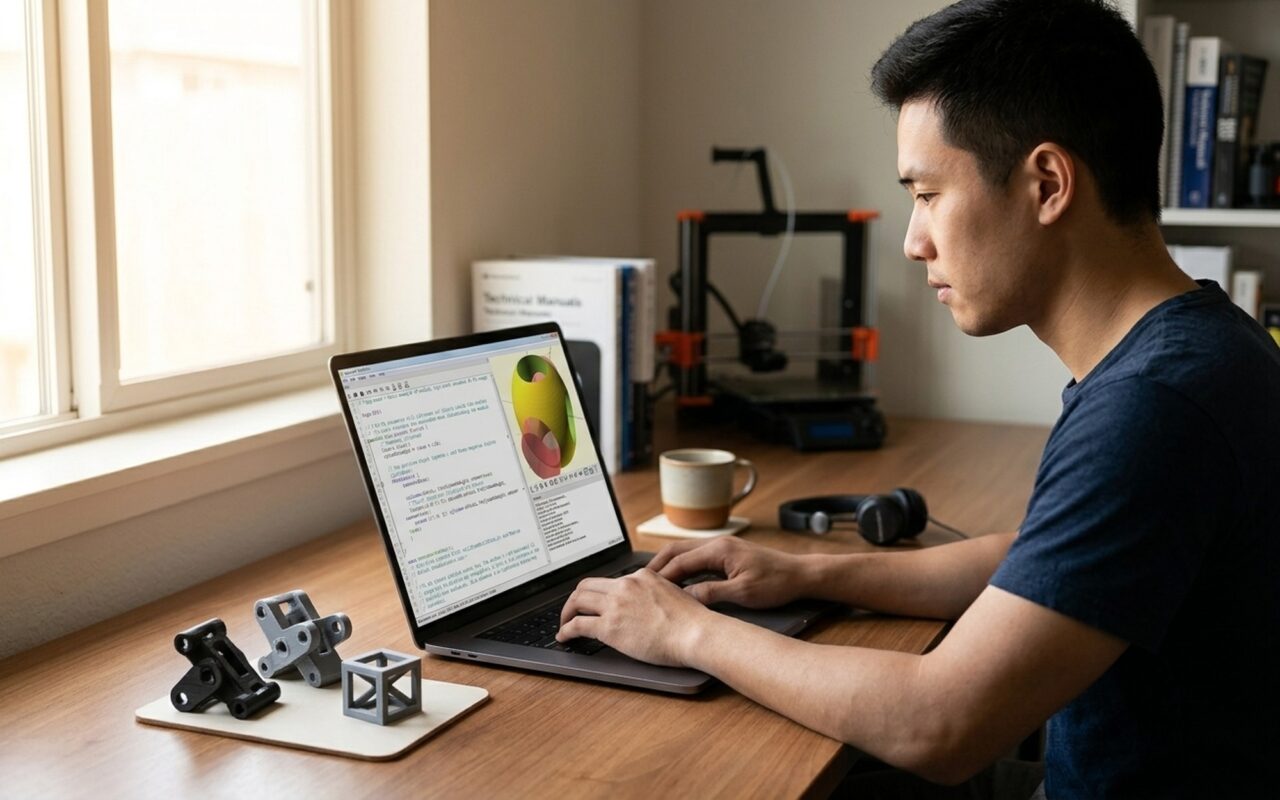

Meshmixer is Autodesk’s free mesh editing and 3D printing preparation tool, first released in 2009 and still actively used by makers worldwide in 2026. Even though Autodesk officially stopped development in 2021, Meshmixer version 3.5 continues to run without issues on Windows 10, Windows 11, and macOS, and it remains one of the most capable free tools available for preparing STL files for 3D printing.
This guide covers how to download Meshmixer, a step-by-step beginner tutorial for the most important 3D printing workflows, free online STL repair alternatives, and a comparison of the best free 3D modeling software for 3D printing in 2026.

What Is Meshmixer and Is It Still Worth Using in 2026?
Meshmixer sits in a unique space between a full 3D modeling suite and a slicer. It is not designed for creating models from scratch, and it is not a slicer like Ultimaker Cura or PrusaSlicer. Instead, it excels at the steps in between: taking a mesh you downloaded or designed elsewhere, fixing any errors, optimizing it for printing, and exporting a clean file ready to slice.
The software was officially discontinued by Autodesk in 2021, and no new versions have been released since version 3.5. This means no bug fixes and no new features, but for the tasks it handles well, it still outperforms many newer tools. The community site meshmixer.org continues to publish tutorials and installation guides.
If you want a free 3D sculpting tool for character work, Sculptris covers organic sculpting well. If you need parametric CAD design with code, OpenSCAD is a strong free option. Meshmixer fills neither of those roles, but for fixing and preparing models for printing, nothing free comes close.
How to Download Meshmixer for Free
Meshmixer is available as a direct download for Windows and macOS. No Autodesk account is required.
- Go to the Autodesk Meshmixer page or meshmixer.org for a direct mirror link
- Download the installer for your operating system (Windows 64-bit or macOS)
- Run the installer, accept the license agreement, and complete the setup
- Launch Meshmixer, no login or license key required
The installer is around 100MB. Installation takes under two minutes on most machines.
System requirements in 2026:
– Windows 10 or Windows 11 (64-bit)
– macOS 10.13 or later
– 4GB RAM minimum, 8GB recommended for complex models
– Any GPU with OpenGL 2.1 support (update drivers if you see display issues)
Meshmixer Tutorial for Beginners: 5 Core Workflows
Most beginners open Meshmixer and feel overwhelmed by the toolbar icons. This tutorial focuses on the five workflows you will actually use when preparing models for 3D printing.
1. Import and View Your STL File
Click Import on the welcome screen, then navigate to your STL or OBJ file. Meshmixer accepts STL, OBJ, PLY, AMF, 3MF, and OFF formats.
Once imported, use the mouse to navigate:
– Left-click drag: rotate the view
– Right-click drag: pan
– Scroll wheel: zoom
– F key: fit the model to screen
To toggle wireframe view, press W. This lets you see the underlying mesh triangle structure, which is useful when looking for problem areas before repair.
2. Auto-Repair STL Files with Inspector
This is the most common reason people use Meshmixer. Mesh errors like holes, non-manifold edges, and flipped normals cause slicers to fail or produce bad prints.
- Go to Analysis → Inspector
- Meshmixer highlights problem areas as colored dots (red for holes, blue for non-manifold geometry)
- Click Auto Repair All to let Meshmixer patch every detected error automatically
- Click Done when finished
For most downloaded models, Inspector plus Auto Repair fixes everything in under 10 seconds. For complex issues, follow up with Edit → Make Solid, which re-voxelizes the mesh into a clean watertight solid. Set the solid type to Accurate and adjust Solid Accuracy to 256 or higher for detailed models.
3. Hollow Out a Model to Save Material
Hollowing is essential for resin printing (SLA/MSLA) because solid resin models are expensive and heavy. Even for FDM, hollowing with a thin shell can reduce print time.
- Go to Edit → Hollow
- Set Offset Distance (wall thickness): 2.0mm minimum for SLA resin, 1.5mm for SLS
- Under Holes, set the number of holes (at least 2) and Hole Radius (3 to 4mm is standard)
- Click Update Hollow to preview the hollowed mesh
- Click Accept to apply
Always place the escape holes at the lowest point of the model in printing orientation. Uncured resin pools inside without them, adding weight and causing print failures.
4. Generate Tree Support Structures
Meshmixer’s support generator creates branching tree supports rather than the solid-column approach most slicers default to. Tree supports are easier to remove and leave cleaner surface marks.
- Go to Analysis → Overhangs
- Set the Contact Angle to match your printer (45 degrees for FDM, 30 degrees for SLA)
- Click Generate Support
- Use the left-click tool to manually delete any supports that would be impossible to remove
- Right-click on the model surface to manually add support points if any overhangs were missed
- Click Done, then export the model with supports included
5. Optimize Bed Orientation
Before generating supports, use Meshmixer to find the print orientation that minimizes the total area needing support.
- Go to Analysis → Overhangs
- Click Optimize Orientation in the panel
- Meshmixer calculates and rotates the model to the orientation that requires the least support material
- Review the result and manually adjust if the suggested angle is mechanically impractical
This single step can cut support material use by 30 to 50 percent on complex organic shapes.
How to Repair STL Files Online for Free (No Software Needed)
If you need a quick fix without installing any software, several free browser-based tools handle the most common STL errors. This is useful for users in any country who need a fast repair on a shared or work computer.
| Tool | Best For | Signup Required |
|---|---|---|
| Formware Online STL Repair | Binary and ASCII STL files | No |
| iamRapid STL Fixer | Non-manifold errors, open edges | No |
| Remeshy | Quick upload-and-fix, no signup | No |
| Aspose 3D Repair | Incorrect normals, missing thickness | No |
| Meshmixer (desktop) | Complex multi-error repair, hollowing, supports | No |
For simple holes and non-manifold fixes, any of the online tools above works well. For hollowing, support generation, or more complex mesh surgery, Meshmixer on desktop remains the better choice.
Best Free 3D Modeling Software for 3D Printing in 2026
Meshmixer does not create models from scratch. If you need to design your own objects, these are the best free options in 2026.
| Software | Best For | Difficulty | Platform |
|---|---|---|---|
| Meshmixer | STL repair, hollowing, supports | Intermediate | Windows, Mac |
| Blender | Organic sculpting, full modeling pipeline | Advanced | Win, Mac, Linux |
| Tinkercad | Complete beginners, simple shapes | Beginner | Browser |
| FreeCAD | Mechanical/functional parts, parametric design | Intermediate | Win, Mac, Linux |
| MeshLab | Open-source mesh analysis and repair | Intermediate | Win, Mac, Linux |
| Ultimaker Cura | Slicing only (not modeling) | Beginner | Win, Mac, Linux |
Blender is the most powerful free option overall, but its learning curve is significantly steeper. Tinkercad is browser-based and ideal for users who want to start designing within minutes. For 3D printing in Australia and other markets where filament costs are high, the hollowing workflow in Meshmixer pays for itself in saved material quickly.
Meshmixer Features: Full List
Mesh Editing
– Drag-and-drop mesh mixing and combining
– Boolean operations: union, difference, intersection
– Plane cuts, mirroring, extrusions, and offset surfaces
– Remeshing with target edge length or adaptive density control
– Mesh simplification and smoothing
3D Printing Preparation
– Convert-to-solid for non-watertight meshes
– Hollowing with configurable wall thickness and escape holes
– Branching tree support structure generation
– Automatic bed orientation optimization
– Thickness and stability analysis
Sculpting Tools
– Volume brushes: Drag, Draw, Flatten, Inflate, Pinch
– Symmetry sculpting across any axis
– Stamp tool for surface detail patterns
Layout and Measurement
– 3D positioning and surface alignment
– Distance, angle, and area measurement tools
– Multi-object bed packing for batch prints
File Support
– Import/export: STL, OBJ, PLY, AMF, 3MF, OFF, WRL
- Completely free, no account or subscription needed
- Powerful STL repair with one-click auto-fix Inspector tool
- Hollowing and escape hole generation saves significant resin/filament
- Tree-style support structures reduce post-processing damage
- Bed orientation optimizer minimizes support use automatically
- Works on Windows 10, Windows 11, and macOS in 2026
- Discontinued by Autodesk in 2021, no new updates or bug fixes
- Steep learning curve for complete beginners
- No slicer built in, requires exporting to Cura or PrusaSlicer
- Interface feels dated compared to newer alternatives
- No cloud save or collaboration features
Frequently Asked Questions
Is Meshmixer still free to download in 2026?
Yes, Meshmixer is completely free in 2026. Autodesk stopped active development in 2021 but has kept the download available at no cost, with no account or license key required. Version 3.5 (build 474) is the final release and runs on Windows 10, Windows 11, and macOS without issues.
Can Meshmixer repair STL files automatically?
Yes. Go to Analysis → Inspector, then click Auto Repair All. Meshmixer will scan for holes, non-manifold edges, flipped normals, and other common mesh errors and patch them in seconds. For complex models, following up with Edit → Make Solid gives you a clean, fully printable mesh.
What is the best free alternative to Meshmixer in 2026?
For STL repair and mesh editing, MeshLab is the closest open-source alternative. For organic sculpting, Blender covers everything Meshmixer did and much more. For simple beginner-friendly design, Tinkercad is browser-based and requires no install. For online repair without any software, try Formware or iamRapid.
Does Meshmixer work on Windows 11 and macOS in 2026?
Yes. Meshmixer 3.5 runs on Windows 10, Windows 11, and recent macOS versions despite being discontinued. Most users report no compatibility issues, though some older GPU drivers may cause display problems. Updating your graphics drivers usually resolves these.
Can I repair an STL file online for free without installing software?
Yes. Several free online STL repair tools work in your browser: Formware Online STL Repair handles binary and ASCII STL files; iamRapid automatically fixes open edges and non-manifold errors; Remeshy requires no signup. For most common printing errors, these tools get the job done in under a minute.
How do I add support structures in Meshmixer?
Go to Analysis → Overhangs, then adjust the angle threshold (default 45 degrees works for most FDM printers). Click Generate Support to create tree-style branching supports. You can manually delete or add individual support struts before exporting. This gives much finer control than slicer-generated supports.
How do I hollow a model in Meshmixer to save resin?
Select Edit → Hollow. Set your wall thickness (2mm is a safe minimum for SLA resin, 1.2mm for SLS). Enable Offset Distance and create Hole Radius under Holes to add escape holes for uncured resin. Click Update Hollow to preview, then Accept. Always add at least two escape holes at the bottom of the model.