
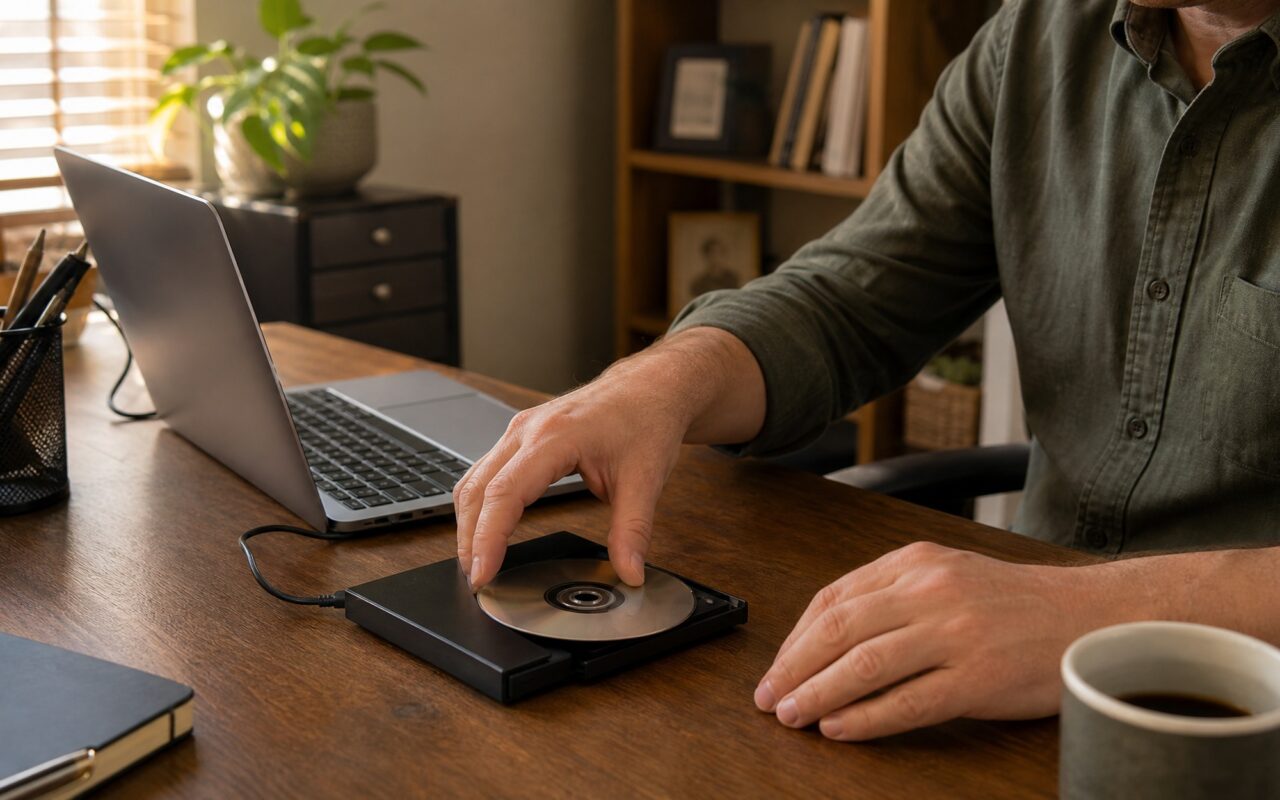
Physical media is making a quiet comeback in 2026. While streaming platforms dominate, millions of people still own DVD collections of movies, TV shows, concert films, and family recordings that are not available on any streaming service. The problem is that most modern laptops no longer include a DVD drive, and even when you have one, managing a shelf of discs is far less convenient than having the files saved to your computer.
Converting your DVDs to MP4 solves this. You get a digital file that plays on any device: your phone, tablet, laptop, Smart TV, or media server. The file never degrades, never gets scratched, and never gets lost. Whether you need a DVD to MP4 converter USA recommendation, are looking for the best DVD ripper UK users trust, want to learn how to rip DVD Canada style under local copyright rules, need a free DVD converter Australia download that handles region 4 discs, or are following a DVD conversion guide Germany source for private copying under UrhG Section 53, the methods below work the same way across any region. This guide covers five free methods to convert DVD to MP4 on Windows and Mac, from the quickest one-click approach to the highest-quality archival workflow.
Why Convert DVDs to MP4 in 2026?
You might ask why anyone would bother with DVDs in the streaming era. Here are four reasons that might apply to you:
- Streaming gaps: Not every movie or TV show is on Netflix, Disney+, or Prime Video. Many titles cycle in and out of streaming catalogs monthly. Region-locked imports, indie films, concert recordings, and older documentaries often remain physical-only.
- Preserve your collection: DVDs degrade over time. Disc rot, scratches, and warping can render a disc unplayable within 10 to 25 years. A digital MP4 file stored on a hard drive and backed up to the cloud lasts indefinitely.
- Play on modern devices: Phones, tablets, Smart TVs, and streaming boxes cannot play a physical DVD. An MP4 file, however, plays on virtually every screen in your home.
- Build a media server: Apps like Plex and Jellyfin stream your ripped DVD library to any device in your house or over the internet when you are traveling. Your entire collection becomes your personal Netflix.
Which Output Format Should You Choose?
When you convert DVD to MP4 or another digital format, your choice of output container matters. Here is a quick comparison:
| Format | Best For | Compatibility | File Size |
|---|---|---|---|
| MP4 (H.264) | Universal playback | Best: phones, TVs, browsers, consoles | Moderate (2-4 GB per movie) |
| MKV (H.264/H.265) | Archiving and Plex servers | Desktop players, Plex, VLC | Moderate to large |
| AVI | Legacy devices | Old Windows PCs and DVD players | Large (often 6-12 GB) |
| MOV | Mac-only workflows | QuickTime, Final Cut Pro | Moderate |
| WMV | Old Windows devices | Windows Media Player only | Moderate |
For most people, MP4 with H.264 video and AAC audio is the right choice. It plays on everything: iPhone, Android, Windows, Mac, Smart TVs, PlayStation, Xbox, and web browsers. No additional codec installation required.
If you plan to build a Plex media library and want lossless audio and multiple subtitle tracks, choose MKV instead. You can always convert MKV to MP4 later with HandBrake without losing quality.
What You Need to Get Started
Before you begin ripping DVDs, gather these items:
- A DVD drive: Most modern laptops do not come with one. An external USB DVD drive costs \$20 to \$35 on Amazon. Get one from a known brand like LG, ASUS, or Dell for reliable disc reading.
- 5 to 10 GB of free disk space: A 90-minute DVD produces roughly a 2 to 4 GB MP4 file at good quality settings.
- The software: Install at least HandBrake and MakeMKV. Both are free and available for Windows, Mac, and Linux.
- libdvdcss (for HandBrake): This is the decryption library that lets HandBrake read copy-protected commercial DVDs. We cover the installation steps below.
Method 1: Convert DVD to MP4 with HandBrake (Free, Windows and Mac)
HandBrake is the most popular free DVD ripper for a reason. It is open source, regularly updated, and offers precise control over video quality and file size. Here is how to use it.
Step 1: Install HandBrake and libdvdcss
Download HandBrake from handbrake.fr. Install it like any standard application.
On Windows: You also need libdvdcss, the decryption library that lets HandBrake read copy-protected DVDs.
1. Go to the VideoLAN libdvdcss download page
2. Download the latest libdvdcss-2.dll for Windows (64-bit)
3. Copy the DLL file into the HandBrake installation folder, usually C:\\Program Files\\HandBrake\\
4. Restart HandBrake
On Mac: Open Terminal and run:
brew install libdvdcss
If you do not have Homebrew, install it first from brew.sh.
Step 2: Load Your DVD
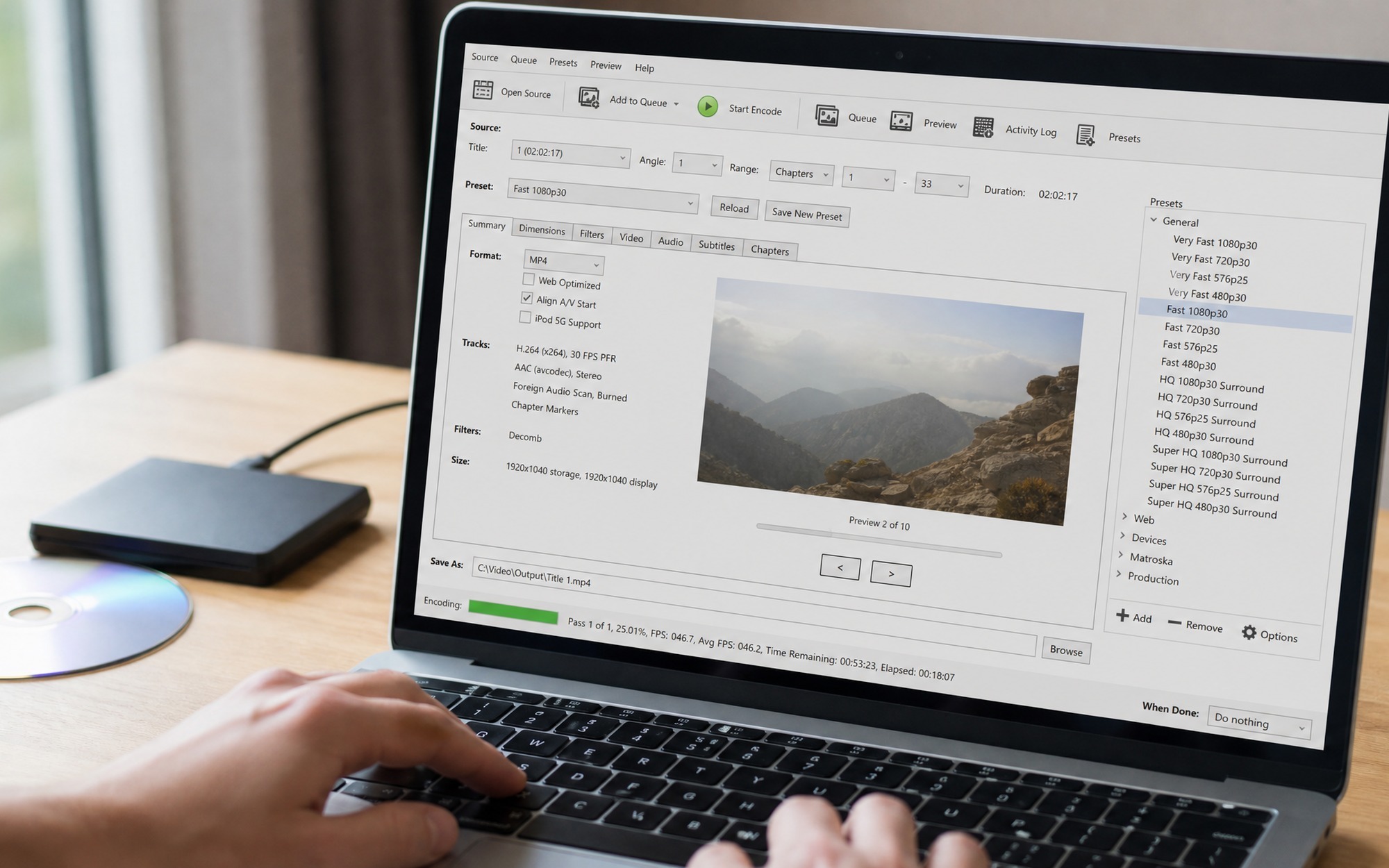
Insert your DVD into the drive. Open HandBrake. Click Open Source in the upper-left corner and select your DVD drive from the list. HandBrake scans the disc for a few seconds and displays all titles found on the disc.
Step 3: Select the Main Title
HandBrake automatically selects the longest title, which is usually the main movie. If the disc has multiple long titles (common on TV show discs or discs with multiple versions), check the duration column and select the one that matches the feature length.
Step 4: Choose MP4 and Quality Settings
In the Summary tab:
– Set Format to MP4
– Check Web Optimized (this places the file index at the beginning, allowing instant streaming playback)
In the Video tab:
– Set Video Encoder to H.264 (x264) for best compatibility, or H.265 (x265) for smaller file sizes at the same quality (note: H.265 takes longer to encode)
– Set Framerate to Same as source with Constant Framerate (this prevents audio sync issues on concert DVDs and TV discs)
– Set Constant Quality to RF 20. Lower numbers (18) mean better quality but larger files; higher numbers (24) mean smaller files with some quality loss.
In the Audio tab:
– Select the main audio track (usually Track 1, English, AC3 5.1)
– Set Codec to AAC (avcodec)
– Set Bitrate to 160 kbps for stereo or 256 to 320 kbps for 5.1 surround
In the Subtitles tab:
– Click Add Track and select the English subtitle track if you want soft subtitles (toggle on/off during playback)
– Check Burn In only if you want subtitles permanently embedded in the video (useful for foreign language films)
Step 5: Start the Conversion
Click Browse to choose a save location, name your file, then click Start Encode at the top. A progress bar shows estimated time remaining. A 90-minute DVD typically finishes in 15 to 30 minutes on a modern laptop.
Method 2: Rip Copy-Protected DVDs with MakeMKV + HandBrake (Free)
If HandBrake shows “No valid source found” even after installing libdvdcss, your DVD uses a protection scheme beyond standard CSS. This is where MakeMKV comes in. MakeMKV is the best free tool for decrypting protected commercial DVDs. It handles CSS, region codes, ARccOS, RipGuard, and most other protection schemes automatically.
Step 1: Install MakeMKV
Download MakeMKV from makemkv.com. Install it normally.
Step 2: Get the Free Beta Key
MakeMKV is in a permanent beta period. The free beta key expires every 30 to 60 days, but a new one is always posted on the MakeMKV forum.
Open MakeMKV, go to Help > Register, and paste the current beta key. This must be done each time the key expires. The key costs nothing and takes under a minute to renew.
Step 3: Rip the DVD to MKV
Insert your DVD. MakeMKV detects it automatically. Click the large drive icon in the center of the window. After scanning, you see a list of titles.
Select the main movie title (the largest one, usually 4 to 7 GB). Uncheck any languages or subtitle tracks you do not need. Click the Save selected titles button (the yellow folder icon with a green arrow).
MakeMKV produces a 1:1 copy of the DVD content in an MKV container. This is lossless: the video and audio quality are identical to the original DVD. The resulting file is typically 4 to 7 GB.
Step 4: Compress the MKV to MP4 with HandBrake
Open the MKV file in HandBrake using Open Source > File. Follow the same settings from Method 1, Step 4 to compress it to MP4. Since MakeMKV already decrypted the disc, HandBrake reads the MKV file without any issues.
This two-step workflow, MakeMKV for decryption plus HandBrake for compression, gives you the best of both worlds: reliable copy protection handling and fine control over output quality and file size.
Method 3: Rip DVD with VLC Media Player (Free, Already Installed)
VLC Media Player is installed on hundreds of millions of computers. It has a hidden DVD ripping feature that works for unencrypted and lightly protected discs. Here is how to access it:
Step 1: Open the Convert/Save Dialog
Open VLC. Go to Media > Convert / Save (Windows) or File > Convert / Stream (Mac).
Step 2: Select Your DVD
Click the Disc tab at the top. Select DVD and check that Disc device points to your DVD drive. Click Convert / Save at the bottom.
Step 3: Choose MP4 as the Output Profile
In the Convert dialog, under Profile, select Video – H.264 + MP3 (MP4) from the dropdown. Click the wrench icon next to the profile to customize settings:
– Video codec tab: Check Video and Keep original video track for lossless quality (produces a large file), or select H.264 and set a bitrate of 2000 to 4000 kb/s for reasonable compression.
– Audio codec tab: Check Audio and set codec to MP3 or AAC with a bitrate of 192 kb/s.
Step 4: Start Ripping
Click Browse to choose a destination file and name it with a .mp4 extension. Click Start. VLC plays through the DVD at 1x speed to extract the video, which means a 90-minute movie takes roughly 90 minutes. This is significantly slower than HandBrake.
When to Use VLC
VLC is best as a quick solution when you already have it installed and do not want to install additional software. Use it for home-recorded DVDs, unprotected discs, or short clips under 30 minutes. For longer movies or copy-protected commercial discs, switch to HandBrake or MakeMKV.
Method 4: Online DVD Converters (No Installation Required)
Several websites offer free DVD to MP4 conversion directly in your browser. These services work by letting you upload the VOB files from the DVD’s VIDEO_TS folder and converting them to MP4 on their servers. Popular options include CloudConvert, Zamzar, and Online-Convert.
How to Use an Online Converter
- Insert your DVD and open it in File Explorer or Finder
- Navigate to the VIDEO_TS folder on the disc
- Locate the largest
.VOBfiles (typically VTS_01_1.VOB through VTS_01_5.VOB) - Upload these files to the online converter
- Select MP4 as the output format and download the converted file
Limitations to Know
Online converters come with significant drawbacks:
– No copy protection support: Encrypted commercial DVDs produce scrambled output when uploaded as raw VOB files
– File size limits: Most free online converters cap uploads at 100 MB to 2 GB, while a DVD movie is typically 4 to 7 GB
– Upload speed: A 5 GB upload over a typical home internet connection takes 30 to 60 minutes, plus conversion time
– Privacy: Your video content is uploaded to a third-party server. For personal or sensitive recordings, this may not be acceptable
Use online converters only for short, unencrypted DVD clips where the convenience of no software installation outweighs these limitations.
Method 5: Paid DVD Ripper Software
If you convert DVDs regularly, say you are digitizing a 50-disc collection, a paid DVD ripper can save hours of time. Paid tools combine decryption, conversion, and basic editing into a single application with no manual library installation. Popular options include:
- DVD Video Converter Suite: A two-in-one DVD ripper and video converter for Windows with support for 200+ output formats and built-in CSS decryption. We have a full review of DVD Video Converter Suite.
- WinX DVD Ripper Platinum: Known for its AI upscaling feature that enhances 480p DVD quality to 1080p, and its ability to handle Disney’s 99-title protection scheme.
- DVDFab DVD Ripper: Long-established paid tool with support for nearly all disc protection schemes and GPU acceleration for fast encoding.
Paid tools typically cost \$30 to \$60 for a lifetime license. They are worth it if you value your time and want a one-click workflow that Just Works every time.

How to Rip a DVD to Your Computer for Plex or Media Server
If your goal is to build a digital media library for Plex, Jellyfin, or Emby, the workflow is slightly different from ripping for casual playback. Here is the recommended approach:
- Rip with MakeMKV to get a 1:1 lossless copy of the DVD. This preserves the original MPEG-2 video and AC3/DTS audio tracks without any quality loss.
- Do not recompress unless you need to. A 4 to 7 GB MKV file per movie is manageable if you have a NAS with multiple terabytes of storage.
- If you do recompress, use HandBrake with the HQ 1080p preset, RF 18 to 20, and H.265 (x265) for better compression efficiency. H.265 typically produces files 30 to 40 percent smaller than H.264 at the same visual quality.
- Name your files correctly for Plex to recognize them:
Movie Name (Year).mp4orMovie Name (Year).mkv. Place each movie in its own folder inside your Plex library directory. - Keep the subtitles. In MakeMKV, check all English subtitle tracks before ripping. Plex can display soft subtitles without re-encoding.
How to Rip DVD Audio to MP3
Some DVDs are primarily valuable for their audio content: concert films, music documentaries, or spoken-word performances. Here is how to extract just the audio:
With HandBrake: Load the DVD, switch to the Audio tab, select the track you want, set codec to MP3 or AAC, set bitrate (192 kbps for MP3 is standard quality), and go to the Summary tab. Change format to MP3 or M4A instead of MP4. HandBrake extracts and encodes only the audio track.
With VLC: Go to Media > Convert/Save, select the DVD disc, click Convert/Save, and under Profile choose Audio – MP3. Choose your destination and click Start.
With Audacity (free audio editor): You can also play the DVD in VLC, record the system audio output with Audacity, and export as MP3. This method works for any disc regardless of copy protection, though it plays in real time.
Troubleshooting Common DVD Ripping Problems
“No Valid Source Found” in HandBrake
This error almost always means the DVD is copy-protected and libdvdcss is missing or incorrectly installed. Verify that libdvdcss-2.dll is in the HandBrake program folder on Windows, or that libdvdcss is installed via Homebrew on Mac. If the error persists after verifying the installation, switch to Method 2 (MakeMKV) which handles protection schemes that libdvdcss does not cover.
Audio Out of Sync After Conversion
Audio drift happens when the source DVD uses Variable Frame Rate (VFR), common on concert DVDs and discs that mix 24fps film content with 30fps video content. In HandBrake, go to the Video tab and set Framerate to Same as source with Constant Framerate selected. This forces a uniform frame rate and prevents audio from drifting.
Subtitles Are Missing
In HandBrake, the subtitle track must be explicitly added. Go to the Subtitles tab and click Add Track. If you want subtitles always visible, check Burn In. If you want them optional (toggle on/off during playback), leave Burn In unchecked and choose Add Track instead. MakeMKV preserves all subtitle tracks by default: check the subtitle boxes before ripping.
Conversion Speed Is Too Slow
On older or lower-end computers, enable hardware acceleration:
– In HandBrake, set Video Encoder to H.264 (Intel QSV) on Intel CPUs with integrated graphics or H.264 (Nvidia NVENC) on systems with an Nvidia GPU. These hardware encoders are 2 to 4 times faster than software encoding, though they produce slightly larger files at equivalent quality settings.
– Close other applications during conversion. HandBrake uses all available CPU cores.
– Rip DVDs on a desktop or a laptop plugged into power. Battery saver mode throttles CPU performance.
Disc Produces Scrambled or Garbled Output
This means the disc uses a copy protection scheme that your current tool cannot handle. The most reliable fix is to rip with MakeMKV first, then convert the resulting MKV file to MP4 with HandBrake. MakeMKV receives frequent updates to support new disc protections, while libdvdcss only handles standard CSS encryption.
MakeMKV Beta Key Expired
Go to the MakeMKV forum to get the latest free beta key. The key is posted publicly and updated every month or two. Paste it into MakeMKV via Help > Register. This is a minor inconvenience of using a free tool, and it has been this way for over a decade.
Best Free DVD Ripper: Quick Comparison
| Tool | Copy Protection | Output Formats | Speed | Learning Curve |
|---|---|---|---|---|
| HandBrake + libdvdcss | CSS, region codes | MP4, MKV, WebM | Fast (multi-core) | Moderate |
| MakeMKV | CSS, ARccOS, RipGuard, AACS | MKV only (lossless) | Fast (disc read speed) | Easy |
| VLC Media Player | Limited (some CSS) | MP4, AVI, WebM, OGG | Slow (real-time) | Easy |
| Online Converters | None | MP4, AVI, MOV | Slow (upload + convert) | Very easy |
For most users, the best approach is the two-tool Combo: MakeMKV + HandBrake. MakeMKV handles any copy protection reliably, and HandBrake gives you full control over the final MP4 file quality and size.
Additional Resources
If you are working with a large DVD collection or want to go further with your conversion workflow, these guides may help:
- After ripping, you may want to compress your videos to save storage space, especially if you are working with a smaller SSD.
- If you need to burn video files back to a physical disc for sharing or backup, check our list of free DVD burning software.
- For a dedicated all-in-one paid solution, read our DVD Video Converter Suite review covering its 200+ format support and built-in DVD decryption.
- HandBrake is completely free and open source, with no watermarks or time limits
- MakeMKV handles nearly all copy protection schemes including CSS, ARccOS, and RipGuard
- VLC Media Player can rip DVDs and comes pre-installed on millions of computers
- Converting to MP4 makes DVDs playable on any phone, tablet, Smart TV, or streaming box
- Digital copies never degrade, scratch, or get lost unlike physical discs
- libdvdcss installation on Windows requires manual file download and folder placement
- MakeMKV’s free beta key expires every 30 to 60 days and must be manually renewed
- DVD ripping takes 15 to 45 minutes per disc depending on your CPU speed
- Copy-protected discs with newer schemes may require updated software versions
- Online DVD converters cannot handle encrypted commercial discs and have file size limits
Frequently Asked Questions
What is the best free DVD to MP4 converter in 2026?
HandBrake is the best free DVD to MP4 converter. It is open source, works on Windows, Mac, and Linux, and offers precise control over video quality and file size. To rip copy-protected commercial DVDs, you also need to install libdvdcss (a free decryption library). MakeMKV is the next best free option for copy-protected discs since it handles decryption automatically, though it outputs MKV files that you may want to convert to MP4 afterward.
How do I rip a copy-protected DVD for free?
Use MakeMKV to rip the protected DVD first, then compress the resulting MKV file to MP4 with HandBrake. MakeMKV handles CSS encryption, region codes, and most newer protection schemes like ARccOS and RipGuard automatically, even in its free beta mode. Download MakeMKV, insert your disc, click the drive icon, select the main title, and click Save. Then open the MKV file in HandBrake to compress it to MP4. The MakeMKV beta key is free and updated monthly on the MakeMKV forum.
Can VLC Media Player rip a DVD?
Yes, VLC can rip unencrypted DVDs to MP4 using its built-in Convert/Save feature. Go to Media > Convert/Save, select the Disc tab, choose your DVD drive, click Convert/Save, pick MP4 as the profile, and click Start. However, VLC’s ripping is slower than HandBrake and it cannot handle most copy-protected commercial DVDs on its own. Use VLC for quick rips of home-recorded or unprotected discs.
Why does HandBrake say no valid source found when I insert a DVD?
This error means HandBrake cannot read the DVD, usually because it is copy-protected with CSS encryption. Install libdvdcss to fix this. On Windows: download libdvdcss-2.dll from videolan.org, then place it in the HandBrake program folder (C:\Program Files\HandBrake). On Mac: install libdvdcss via Homebrew with the command brew install libdvdcss. Restart HandBrake and the disc should be readable. If it still fails, the disc may use a newer protection scheme, switch to MakeMKV for the rip step.
How long does it take to rip a DVD to MP4?
A standard 90-minute DVD takes 15 to 45 minutes on a modern computer. With a fast quad-core CPU and hardware acceleration enabled (Intel QuickSync or NVIDIA NVENC), expect 10 to 20 minutes. On an older dual-core laptop without hardware encoding, ripping may take 40 to 60 minutes. The output quality setting also affects speed: the HandBrake Fast 1080p preset is quickest, while HQ 1080p produces better quality at lower file size but takes longer.
What output format should I choose: MP4 or MKV?
Choose MP4 for maximum device compatibility and MKV for archiving. MP4 with H.264 video and AAC audio plays on iPhones, Android devices, Smart TVs, game consoles, and web browsers without additional software. MKV supports lossless audio tracks, multiple subtitle tracks, and chapter markers, making it ideal for Plex media servers or long-term digital archiving. Avoid AVI, WMV, and MOV for DVD rips unless you have a specific device requirement.
Is it legal to rip DVDs?
Laws vary by country. In the USA, the DMCA generally prohibits circumventing copy protection, but there are limited exceptions for educational use and personal backup. In the UK, format-shifting for personal use occupies a legal grey area. In Canada, personal copying is permitted under private copying provisions with a levy on blank media. In Australia, format-shifting was legalized for personal use under 2022 copyright reforms. In Germany, private copying is allowed under Section 53 of the Urheberrechtsgesetz. Check your local laws before ripping copy-protected discs.
How do I reduce the file size of a ripped DVD?
Use HandBrake’s RF (Rate Factor) quality slider to control file size. The default RF 22 produces a 2 to 4 GB file from a 90-minute DVD. Lower RF values (18 to 20) give higher quality at larger file sizes. Higher RF values (24 to 26) produce smaller files with some quality loss. For most DVDs, RF 20 is a good balance of quality and size. You can also downscale the resolution from 720×480 (native DVD) to 640×480 for smaller output, though this reduces sharpness on larger screens.