
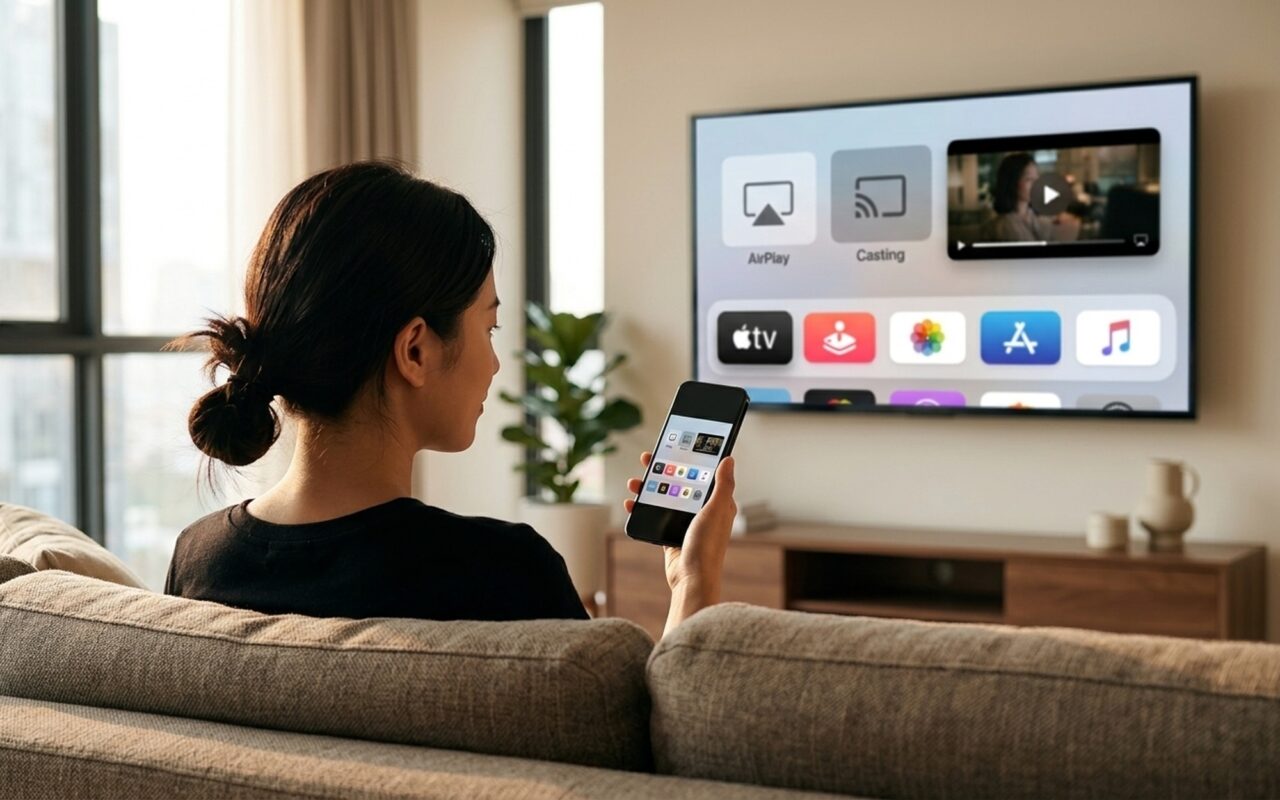
Want to see your iPhone or iPad content on the big screen? Whether you’re watching a movie, presenting slides, or showing photos to the family, connecting your Apple device to a TV is easier than ever. This guide covers every method, wired and wireless, so you can pick the one that fits your setup.
Which Method Is Right for You?
Before diving into steps, here’s a quick overview to help you choose:
| Method | Works Without Wi-Fi? | Best For |
|---|---|---|
| AirPlay to Apple TV | No | All Apple households |
| AirPlay to Smart TV | No | Modern Samsung, LG, Sony TVs |
| HDMI Adapter (Lightning/USB-C) | Yes | Any TV, no wireless needed |
| Chromecast (Google Home) | No | Non-Apple smart TV setups |
| Roku AirPlay | No | Roku TV or stick users |
Method 1: AirPlay to an AirPlay 2 Smart TV (No Apple TV Needed)
This is the easiest wireless method if you have a modern smart TV. Most Samsung TVs from 2018, LG TVs from 2019, Sony Bravia TVs from 2021, and Vizio/TCL TVs from 2020 support AirPlay 2 natively. No Apple TV box required.
Requirements:
– iPhone or iPad (iOS 12.3 or later)
– AirPlay 2-compatible smart TV
– Both devices on the same Wi-Fi network
Steps:
- On your iPhone or iPad, swipe down from the top-right corner to open Control Center. (On older iPhones with a Home button, swipe up from the bottom.)
- Tap the Screen Mirroring button, which looks like two overlapping rectangles.
- Your iPhone will scan for nearby AirPlay devices. Select your TV’s name from the list.
- If a 4-digit passcode appears on your TV screen, type it on your iPhone.
- Your screen will now mirror to the TV. To stop, open Control Center, tap Screen Mirroring, then tap Stop Mirroring.
Tip: If your TV doesn’t appear in the list, check that AirPlay is enabled. On Samsung TVs, go to Settings > General > Apple AirPlay Settings and turn AirPlay On. On LG TVs, go to Settings > General > Apple AirPlay Settings.
Method 2: AirPlay via Apple TV
If you have an Apple TV (3rd generation or later), this is the most seamless option. Apple TV supports full-resolution video streaming with the lowest latency.
Requirements:
– Apple TV with latest tvOS
– iPhone or iPad on the same Wi-Fi network and signed into the same iCloud account
Steps:
- Make sure your iPhone/iPad and Apple TV are on the same Wi-Fi network.
- Open Control Center and tap Screen Mirroring.
- Select your Apple TV from the list.
- Mirroring begins immediately. No passcode is needed if you’re on the same iCloud account.
AirPlay vs. Screen Mirroring: You can also AirPlay individual videos or songs directly from apps like Photos, Safari, or YouTube. Look for the AirPlay icon (a triangle with circles) within supported apps and tap it to send just that content to your TV, while continuing to use your iPhone normally.
Method 3: Connect with an HDMI Adapter (Wired, No Wi-Fi Needed)
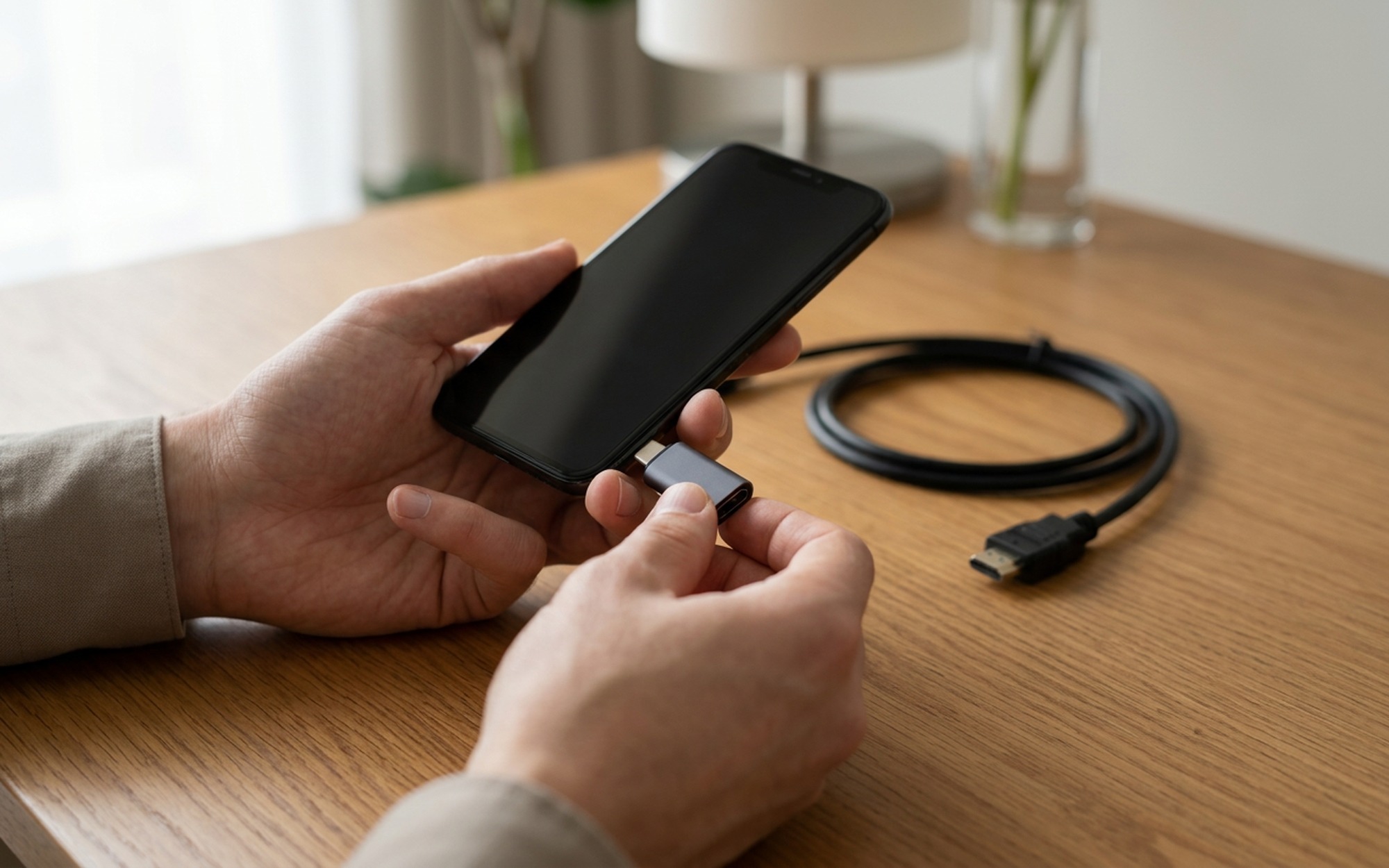
The wired method works with any TV that has an HDMI port and doesn’t require a Wi-Fi connection. This is ideal for hotels, older TVs, or situations where wireless mirroring is unreliable.
For iPhone 15, 16, and USB-C iPads
All iPhone 15 and newer models use USB-C, as do most modern iPads (iPad Pro, iPad Air, iPad mini 6+).
What you need:
– USB-C to HDMI adapter (supports up to 4K at 60Hz)
– Standard HDMI cable
Good options include the Apple USB-C Digital AV Multiport Adapter (~$69) or third-party MFi-certified adapters from Anker or Belkin for $12-$20.
For iPhone 14 and Earlier, and Older iPads (Lightning Port)
What you need:
– Lightning Digital AV Adapter (Apple’s official version: $49, or third-party MFi-certified alternatives)
– Standard HDMI cable
– Output: up to 1080p at 60Hz
Steps (same for both):
- Plug the adapter into your iPhone or iPad’s charging port.
- Connect one end of the HDMI cable to the adapter and the other end to a free HDMI port on your TV.
- Turn on your TV and use the remote to select the correct HDMI input (HDMI 1, HDMI 2, etc.).
- Your iPhone or iPad screen will automatically appear on the TV with no settings required.
Important: Some streaming apps (Netflix, Disney+, Amazon Prime Video) block HDMI output due to DRM content protection. For those apps, use AirPlay or install the app directly on your smart TV.
Method 4: Mirror iPhone to a Chromecast or Google TV
If you have a Chromecast device or a TV running Google TV, you can cast from your iPhone using the Google Home app.
Steps:
- Install the Google Home app on your iPhone (free on the App Store).
- Make sure your Chromecast and iPhone are on the same Wi-Fi network.
- Open Google Home, tap your Chromecast device, then tap Cast my screen.
- Confirm on the prompt and your iPhone screen will mirror to the TV.
Note: Google Home screen mirroring from iPhone is limited in functionality compared to Android. For better results, use individual app casting. Tap the Cast icon inside apps like YouTube, Netflix, or Spotify to send content directly to Chromecast without full screen mirroring.
Method 5: Mirror iPhone to a Roku TV or Roku Stick
Newer Roku devices (Roku OS 9.2 and later) support AirPlay 2, making it simple to mirror your iPhone.
Steps:
- On your Roku, go to Settings > Apple AirPlay and HomeKit and make sure AirPlay is On.
- Connect your iPhone and Roku to the same Wi-Fi network.
- Open Control Center on your iPhone, tap Screen Mirroring, and select your Roku device.
- Enter the passcode shown on your TV.
If your Roku doesn’t support AirPlay (older models), you can use third-party apps like MirrorMeister or AirBeamTV from the Roku Channel Store to enable iPhone mirroring.
Troubleshooting: TV Not Showing Up in Screen Mirroring
If your TV doesn’t appear in the Screen Mirroring list, run through this checklist:
- Same network? Your iPhone and TV must be on the exact same Wi-Fi network. If your router broadcasts both 2.4GHz and 5GHz bands with the same name, try connecting both to the same band.
- AirPlay enabled on TV? Check your TV settings and ensure AirPlay is toggled On.
- Firewall or router settings? Some routers block device discovery (mDNS/Bonjour). Try temporarily disabling AP isolation in your router settings.
- Restart both devices. A quick restart of your iPhone and TV resolves most connectivity hiccups.
- iOS and TV firmware up to date? Outdated software can cause compatibility issues.
Quick Comparison: Which Connection Method Is Best?
Best for video quality: HDMI adapter, as it’s a direct connection with zero compression or lag.
Best for convenience: AirPlay 2 to a compatible smart TV. No cables, no extra hardware needed.
Best for travel or any TV: HDMI adapter, which works on any HDMI-equipped TV without Wi-Fi.
Best for sharing a single app’s content: AirPlay from within individual apps (YouTube, Photos, Safari), which keeps your iPhone screen private while casting.
All methods described here work for both iPhone and iPad. Just make sure you’re using the correct adapter for your device’s connector (USB-C or Lightning).
- AirPlay to smart TVs works without an Apple TV box
- HDMI adapter works on any TV without Wi-Fi
- USB-C iPhones (iPhone 15+) support 4K output via adapter
- Most modern Samsung, LG, and Sony TVs support AirPlay 2 built-in
- Streaming apps like Netflix may block wired HDMI mirroring due to DRM
- AirPlay requires both devices on the same Wi-Fi network
- Lightning to HDMI adapter limited to 1080p output
- USB-C to HDMI requires a separate HDMI cable
Frequently Asked Questions
How do I connect my iPhone to a TV without Apple TV?
You have two main options. First, if your TV is a modern Samsung, LG, Sony, or Vizio model (2019 or newer), it likely has AirPlay 2 built in. Just open Control Center on your iPhone, tap Screen Mirroring, and select your TV. Second, you can use a Lightning to HDMI adapter (iPhone 14 and earlier) or USB-C to HDMI adapter (iPhone 15+) plugged directly into your TV’s HDMI port. No Wi-Fi needed.
What cable do I need to connect an iPhone to a TV?
It depends on your iPhone model. For iPhone 14 and earlier (Lightning port), you need Apple’s Lightning Digital AV Adapter ($49) or a third-party MFi-certified Lightning to HDMI adapter, plus a standard HDMI cable. For iPhone 15 and newer (USB-C port), you need a USB-C to HDMI adapter (around $10-$15 from brands like Anker or Belkin), plus an HDMI cable.
Can you connect an iPad to a TV with HDMI?
Yes. All modern iPads use USB-C, so you need a USB-C to HDMI adapter and a standard HDMI cable. Older iPads with a Lightning connector need a Lightning Digital AV Adapter. Once connected, your iPad screen mirrors automatically to the TV with no setup required.
How do I mirror my iPhone to a Samsung, LG, or Sony TV wirelessly?
Most Samsung TVs from 2018 onwards, LG TVs from 2019, and Sony Bravia TVs from 2021 support AirPlay 2. Make sure your iPhone and TV are on the same Wi-Fi network. Then on your iPhone, swipe down from the top-right corner to open Control Center, tap the Screen Mirroring icon (two overlapping rectangles), and select your TV from the list. A passcode may appear on your TV screen, so just enter it on your iPhone.
Why isn’t Screen Mirroring showing my TV?
The most common cause is that your iPhone and TV are on different Wi-Fi networks or bands (2.4GHz vs 5GHz). Make sure both devices are connected to the exact same network. Also check that AirPlay is enabled in your TV’s settings (usually under Network or Apple AirPlay settings). Restarting both devices often resolves the issue.
Does HDMI mirroring work with Netflix and streaming apps?
Not always. Netflix, Disney+, and some other streaming apps use DRM (Digital Rights Management) that blocks video output through a Lightning or USB-C to HDMI adapter. For these apps, use AirPlay instead, as streaming via AirPlay is permitted and works well. Alternatively, install the streaming app directly on your smart TV.