

Whether you received a PDF contract, a study guide, or a scanned form, editing it on your iPhone used to mean sending it to a computer first. In 2026, that is no longer necessary. Several reliable, free apps and browser tools can convert PDF to Word directly on your iPhone – no desktop required.
This guide covers four proven methods, ranked from fastest to most flexible. Each section includes exact steps you can follow right now.
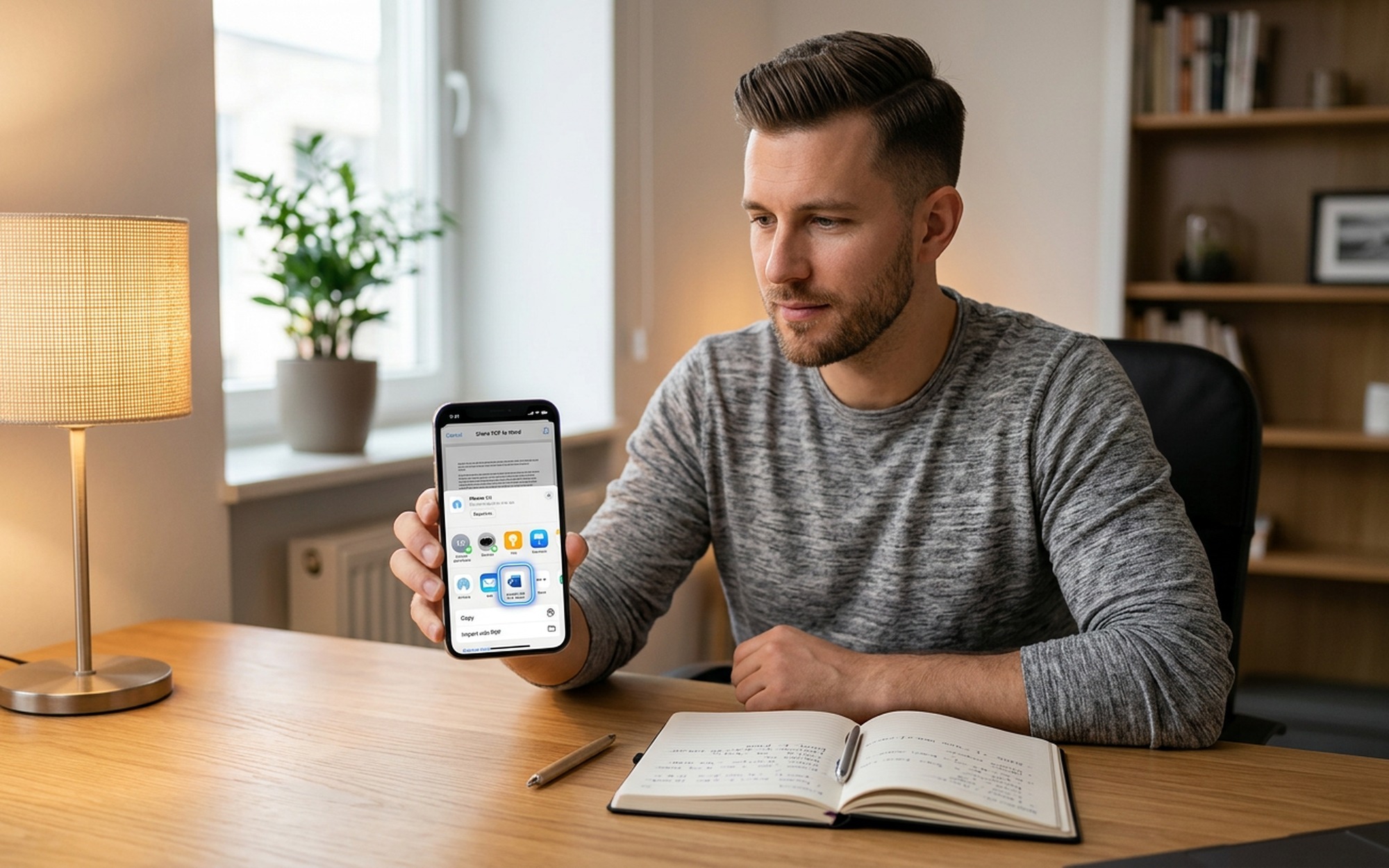
Method 1: Use Microsoft Word for iOS – No Extra App Needed
If you already have Microsoft Word installed on your iPhone, this is the fastest method for standard text-based PDFs. Microsoft added native PDF-to-Word conversion to its iOS app, letting you open a PDF and immediately begin editing it as a DOCX file.
What you need: Microsoft Word app (free download from the App Store; a Microsoft account is recommended for saving files to OneDrive)
Steps:
- Open the Files app on your iPhone and locate your PDF.
- Long-press the file and tap Share, or tap it to open preview and then tap the Share icon.
- In the Share sheet, scroll down and tap Open in Word.
- Word automatically converts the PDF into an editable document – this takes a few seconds for most files.
- Edit the content directly, then tap the ··· menu to save or share the finished DOCX.
Best for: Contracts, reports, articles, and any PDF that was originally created digitally.
Limitation: If your PDF is a scanned image – a photo of a printed page – Word will embed the image rather than extract the text. Use Method 3 for scanned documents.
Method 2: PDFgear – 100% Free, Works Offline, No Watermarks
PDFgear is a free iOS app that converts PDF to Word entirely on your device. There is no internet upload required, no watermark on the output, and no paywall for the conversion feature. It also handles editing, compression, and splitting within the same app.
Steps:
- Download PDFgear from the App Store (free).
- Open the app and tap + to import your PDF from Files, iCloud Drive, or cloud storage.
- With your PDF open, tap the ··· menu in the top-right corner.
- Select Export → Microsoft Word (.docx).
- PDFgear converts and saves the file locally. Tap Share to open it in Word, Pages, or send it directly.
Best for: Everyday conversions where privacy matters – your files never leave your device.
Limitation: Multi-column layouts or PDFs with complex graphics may need minor formatting adjustments after conversion.
Method 3: iLovePDF – Best for Scanned PDFs
If your PDF is a scanned document – a photographed receipt, a printed contract run through a copier, or any image-only PDF – you need OCR (Optical Character Recognition) to extract the text. iLovePDF includes built-in OCR and handles this automatically.
Steps:
- Download iLovePDF from the App Store.
- Open the app and tap the PDF to Word tool from the home screen.
- Tap Select PDF file and import your scanned document from Files, Google Drive, or Dropbox.
- iLovePDF detects that the PDF is image-based and applies OCR automatically – no manual toggle needed.
- When conversion completes, tap Go to Files to access and share your editable Word document.
iLovePDF also lets you:
– Scan a physical document with your iPhone camera and convert it to Word in one step
– Import from Google Drive or Dropbox directly
– Batch-convert multiple files (requires a Premium subscription)
Best for: Scanned documents, photographed receipts, printed forms that need to be made editable.
Limitation: Free plan converts one file at a time. Uploaded files are deleted from their servers after 2 hours.

Method 4: PDF Candy – No App Required
If you would rather not install another app, PDF Candy works entirely in your iPhone’s browser. Open Safari, go to the site, upload your PDF, and download the converted Word file – no account, no installation.
Steps:
- Open Safari (or Chrome) on your iPhone.
- Go to PDF Candy’s PDF to Word converter.
- Tap + Add File and select your PDF from Files or cloud storage.
- Tap Convert and wait for the processing to finish – usually under a minute for most documents.
- Tap Download file to save the DOCX directly to your iPhone’s Files app.
Best for: One-off conversions where you do not want a new app taking up storage.
Limitation: The free plan has a 50 MB file size cap and processes one file at a time. Complex formatting may not survive perfectly.
Comparing All Four Methods
| Method | Cost | Offline | Handles Scanned PDFs | Best Use Case |
|---|---|---|---|---|
| Microsoft Word iOS | Free | Yes | No | Text-based PDFs you need to edit fast |
| PDFgear | 100% Free | Yes | Limited | Privacy-first, everyday conversions |
| iLovePDF | Free (limited) | No | Yes (OCR) | Scanned documents and forms |
| PDF Candy | Free (limited) | No | No | Quick one-off jobs, no app install |
Common Problems and How to Fix Them
The converted Word file shows jumbled or missing text.
This happens with PDFs that use embedded fonts or multi-column layouts. Try PDFgear, which tends to preserve formatting better than online tools. If you only need the text, copy-paste from the PDF directly into a new Word document.
Word is showing the PDF as an image, not editable text.
Your PDF is a scanned document. Switch to iLovePDF (Method 3), which uses OCR to extract the text from image-based pages.
The converter is rejecting my file.
Check if your PDF is password-protected. Open it in the Files app first – if it asks for a password, you will need to enter it and remove the protection before any converter can process it. Some apps handle this in-app; others require the password to be removed separately.
I converted the file but cannot find it on my iPhone.
After conversion, always tap Share → Save to Files to move the DOCX into your iPhone’s Files app. From there you can open it in Word, Pages, or send it via email or AirDrop.
- Edit any PDF on your iPhone without a computer or desktop software
- Multiple 100% free options available in 2026 — PDFgear and Microsoft Word have no hidden fees
- Scanned or image-based PDFs can be made editable via OCR apps like iLovePDF
- Works with iCloud, Google Drive, and Dropbox — no need to email files to yourself
- Browser-based tools like PDF Candy need no app installation at all
- Complex layouts — multi-column text, tables, charts — may shift during conversion
- Scanned PDFs require OCR processing and take longer than standard text PDFs
- Large files (50 MB+) may hit free-plan limits on online tools
- Password-protected PDFs must be unlocked before any converter can process them
Frequently Asked Questions
What is the best free PDF to Word converter for iPhone?
PDFgear is the best completely free option in 2026 — it works offline, adds no watermarks, and has no hidden upgrade prompts. Microsoft Word for iOS is also free and requires no extra app if you already have it installed, though it works best with text-based PDFs rather than scanned documents.
Can I convert a scanned PDF to Word on iPhone?
Yes. iLovePDF includes built-in OCR (Optical Character Recognition) that reads text from scanned or photographed PDF pages and converts them into editable Word documents. Standard converters like Microsoft Word cannot extract text from image-based PDFs — they only embed the image.
Is it safe to upload PDF files to an online converter on iPhone?
Reputable tools like PDF Candy and iLovePDF delete uploaded files from their servers after 2 hours and use HTTPS encryption in transit. For sensitive documents — contracts, medical records, financial files — use an offline app like PDFgear instead, which never uploads your files anywhere.
Why does my converted Word file look different from the original PDF?
PDF and Word are fundamentally different formats. PDFs lock layout in place; Word documents reflow text. Complex elements like multi-column layouts, custom fonts, embedded charts, or decorative headers often shift during conversion. For simple text documents the result is usually clean; for design-heavy PDFs, expect to reformat some sections manually.
Can I convert PDF to Word on iPhone without an internet connection?
Yes. PDFgear converts files entirely on-device with no internet connection required. Microsoft Word for iOS also works offline once the app is installed. Online tools like PDF Candy and iLovePDF require an active internet connection to process files on their servers.
Which app can convert PDF to editable Word on iPhone for free without watermarks?
PDFgear is the top choice — it is 100% free, adds no watermarks, requires no sign-up, and works offline. Microsoft Word for iOS is another watermark-free option for text-based PDFs, though it requires a Microsoft account for full functionality.