
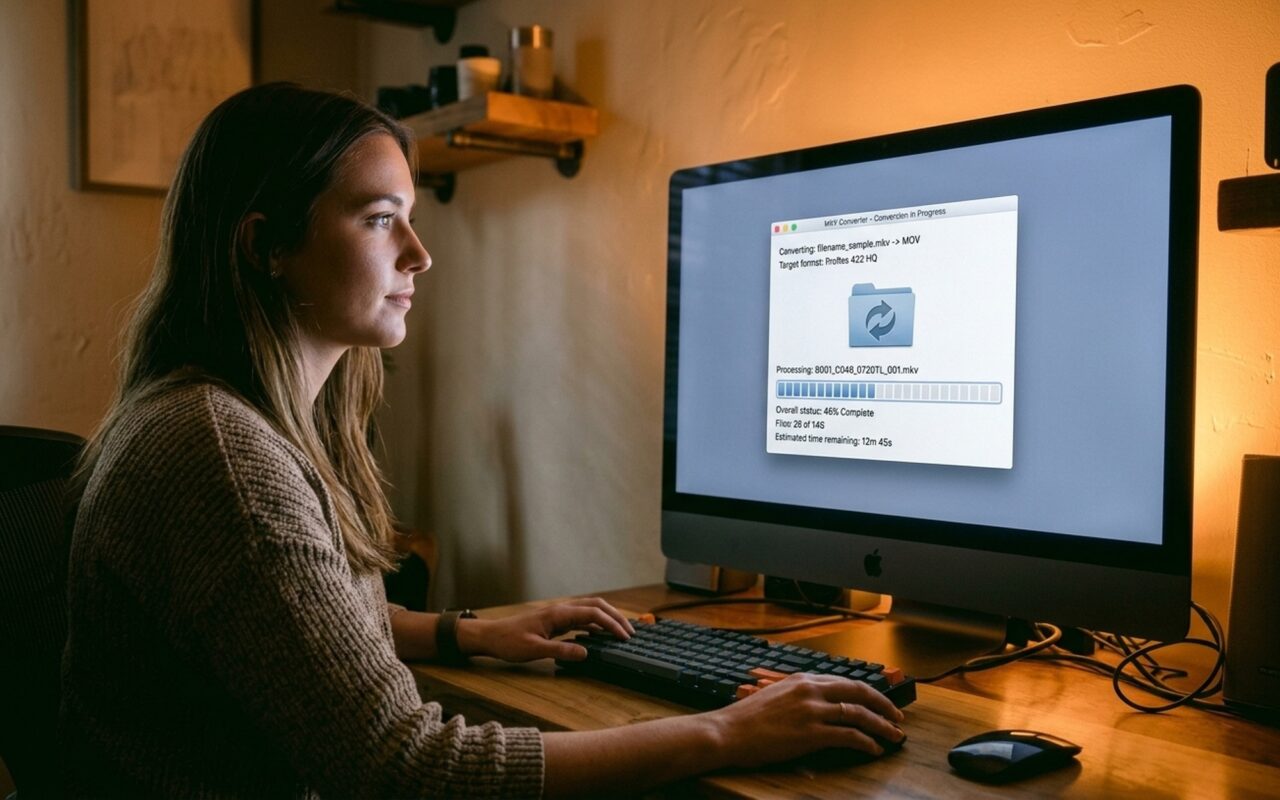
Whether you are converting a GoPro recording to MP4 for editing, extracting audio from a lecture video, or saving a YouTube clip for offline travel, the bottleneck is almost always the same: waiting. A conversion that takes 30 minutes on one tool finishes in 3 minutes on another, and the quality difference is negligible if both use hardware acceleration.
This guide covers what makes a video converter fast, reviews Movavi Video Converter as the leading paid option for 2026, and compares it with the best free desktop and browser-based alternatives.
What Makes a Video Converter Fast?
Most converters fall into two processing categories:
CPU-only encoding is accurate but slow. The processor handles every frame sequentially, and modern H.265 encoding at high quality can take 3 to 5 times longer than the video’s actual runtime.
GPU-accelerated encoding offloads compression to dedicated hardware inside your Nvidia, AMD, or Intel graphics chip. Intel QuickSync, Nvidia NVENC, and AMD VCE are all designed specifically for real-time video encoding. A 1-hour 1080p file that takes 35 minutes with CPU-only encoding finishes in 2 to 4 minutes with GPU acceleration enabled.
The second speed factor is batch conversion: loading 20 files into a single processing queue rather than converting them one by one. Tools that handle batches well process the same total volume in significantly less time due to reduced per-file startup overhead.
Movavi Video Converter 2026 Review
Movavi Video Converter is a paid Windows and Mac desktop application built around speed and format breadth. It has been a consistent presence in the converter market for over a decade, and the current version reflects significant updates in GPU support and streaming site compatibility.
Key Features
Format support: 180+ formats including MP4, MKV, AVI, MOV, WMV, FLV, WebM, HEVC, H.264, AV1, VP9, and DVD. Device output presets cover iPhone, iPad, Samsung Galaxy, Apple TV, Xbox, PlayStation, and Roku.
GPU-accelerated encoding: Nvidia NVENC, AMD VCE, and Intel QuickSync all supported. Movavi’s marketing claims up to 79x faster than real-time for specific codec pairs; in typical 1080p-to-H.265 conversions, expect 10 to 20x improvements over CPU-only mode.
Built-in video downloader: Supports YouTube, Vimeo, Facebook, Dailymotion, and 1,500+ other streaming platforms. Download and convert in a single step without a separate tool.
Batch conversion: Drop a folder of files and apply the same output format to all of them simultaneously.
Basic editing tools: Trim, crop, merge files, adjust brightness, add subtitles, and add watermarks before conversion, all within the same interface.
Speed Comparison: Movavi vs HandBrake
| Task | Movavi (GPU enabled) | HandBrake (GPU enabled) |
|---|---|---|
| 1080p MP4 to H.265, 1 hour source | ~3 minutes | ~5 minutes |
| 4K MKV to 1080p MP4, 30 min source | ~2.5 minutes | ~4 minutes |
| Batch: 20 files, 720p MP4 | ~8 minutes | ~14 minutes |
| YouTube download and convert to MP3 | Built-in, single step | Not supported |
Both tools use GPU encoding when available. The main gap is in batch processing efficiency and the built-in downloader, which HandBrake does not include.
How to Convert a Video File with Movavi (Step by Step)
These steps apply to both the Windows and Mac versions.
Step 1: Install and open the application.
Download Movavi Video Converter from the official site and run the installer. Open the application after installation.
Step 2: Add your video files.
Click the blue Add Media button in the top-left corner and select Add Video. Choose one or multiple files. Movavi scans each file and displays the source format, resolution, frame rate, and duration in the file list.
Step 3: Select an output format.
At the bottom of the screen, click the format tab that matches your goal:
- Video tab: MP4, MKV, AVI, MOV, WMV, WebM, HEVC
- Devices tab: iPhone 15, Samsung Galaxy, Apple TV 4K, Sony PlayStation
- Audio tab: MP3, AAC, FLAC, WAV, OGG
For broadest device compatibility, choose MP4 > H.264. For smaller file size at the same visual quality, choose MP4 > H.265 (HEVC).
Step 4 (Optional): Edit before converting.
Click the scissors icon on any file to open the editing panel. You can trim the clip to a specific time range, crop the frame, adjust audio volume, or embed subtitles.
Step 5: Start conversion.
Click the Convert button in the bottom-right corner. A progress bar tracks each file individually. Output files are saved to the folder shown in the destination path field, which you can change at any point before starting.
How to Download YouTube Videos with Movavi
Step 1: Open the URL downloader.
Click Add Media and select Add from Web. A URL input field appears.
Step 2: Paste the video URL.
Copy the full URL from your browser (YouTube, Vimeo, Facebook, Dailymotion, or another supported site) and paste it into the field. Click Analyze. Movavi fetches the available stream quality options from the page.
Step 3: Choose resolution and output format.
A list of available resolutions appears (typically 360p, 720p, 1080p, and 4K where the source supports it). Select your preferred quality. Under format, choose MP4 for video or MP3 for audio-only extraction.
Step 4: Download and convert.
Click Download. Movavi handles the download and conversion in one continuous step. The finished file appears in your output folder in the format and resolution you selected.

Pricing
Movavi Video Converter is a paid application. The free trial has no time expiry but limits all output files to the first 60 seconds, which is useful for verifying format compatibility but not for real conversions.
- Annual subscription: approximately $49.95 per year (includes updates)
- Lifetime license: approximately $74.95 (one-time, one computer)
Windows and Mac versions are separate purchases. For users who convert files regularly, the lifetime license pays for itself compared to managing an annual renewal. For occasional one-off conversions, a free tool is the more practical choice.
Best Free Video Converter Alternatives
If Movavi’s price does not fit your use case, three free tools cover the majority of conversion needs without quality trade-offs.
HandBrake
HandBrake is an open-source video encoder available on Windows, macOS, and Linux. It supports GPU acceleration via Intel QuickSync, AMD VCE, and Nvidia NVENC, and handles files of any size with no daily limits. Device presets for common phones, tablets, and streaming devices are built in.
The main constraint is output containers: HandBrake writes only MP4 and MKV files. For AVI, WMV, MOV, or other containers, you need a different tool. HandBrake also has no video downloader; use yt-dlp alongside it for YouTube downloads.
Best for: Users who want free, unlimited, hardware-accelerated conversion without caring about output container variety.
VLC Media Player
VLC’s Media menu includes a Convert/Save function that handles basic format conversion between dozens of formats. It processes files locally, requires no upload, and is free and open-source. The conversion interface is not intuitive, but it is a practical option if VLC is already installed and you need an occasional conversion without adding new software.
Best for: One-off conversions on a computer that already has VLC installed.
CloudConvert (Browser-Based)
For users who prefer not to install software at all, CloudConvert handles over 200 format pairs directly in the browser. The free tier allows 25 conversions per day with support for common video, audio, and image formats. Files are processed on secure servers and deleted after 24 hours.
For a more detailed breakdown of 18 free tools, including SnapTik for TikTok, yt-dlp for command-line downloading, and FFmpeg for advanced encoding scripts, see our full free video converters and downloaders guide.
Quick Comparison: Which Tool Fits Your Situation?
| Situation | Best Tool |
|---|---|
| Fastest conversion, any format | Movavi Video Converter |
| Free, unlimited, desktop | HandBrake |
| Download and convert YouTube in one step | Movavi or yt-dlp |
| No software install, browser-based | CloudConvert |
| Already have VLC, occasional one-off | VLC Convert/Save |
| Need to rip a DVD as well | Movavi or Any Video Converter Free |
| Command-line scripting or automation | FFmpeg |
For users who convert video regularly, handle large files, or need to download from streaming platforms, Movavi’s GPU acceleration and built-in downloader are worth the cost. For users who convert files a few times per year or only need MP4 and MKV output, HandBrake is the right free choice.
If your use case includes DVD ripping alongside regular video conversion, see our review of the best DVD video converter tools for a focused comparison of disc ripping software.
- GPU-accelerated encoding converts 60 minutes of 1080p footage in under 3 minutes on modern hardware
- Supports 180+ input and output formats including MP4, MKV, AVI, HEVC, AV1 and DVD
- Built-in downloader supports YouTube, Vimeo, Facebook and 1,500+ streaming sites
- Batch conversion processes an entire folder simultaneously with one click
- Free desktop alternatives like HandBrake handle unlimited conversions at no cost
- Movavi’s free trial limits output to the first 60 seconds, making full-file testing impossible without a purchase
- A full license for Movavi costs $49.95 per year or $74.95 lifetime, which is overkill for occasional one-off conversions
- HandBrake only outputs MP4 and MKV containers, not AVI, WMV or MOV
- YouTube download features in any converter may break temporarily when platforms update their stream protection
Frequently Asked Questions
Is Movavi Video Converter free?
Movavi Video Converter is not free. It offers a free trial that works without a time limit, but all output files are capped at the first 60 seconds until you purchase a license. A single-computer license costs approximately $49.95 per year or $74.95 for a lifetime license. For a completely free alternative, HandBrake is the closest match in quality and output format support.
How fast is Movavi Video Converter compared to HandBrake?
Both Movavi and HandBrake use GPU acceleration when available, but Movavi is consistently faster in batch processing scenarios. For a single 1080p file, the difference is roughly 3 minutes (Movavi) versus 5 minutes (HandBrake) for an hour-long source. For batch conversions of 20 files, Movavi finishes in about 8 minutes compared to HandBrake’s 14 minutes.
Can Movavi Video Converter download YouTube videos?
Yes. Movavi includes a built-in URL downloader that supports YouTube, Vimeo, Facebook, Dailymotion, and over 1,500 other streaming platforms. You paste the video URL into Movavi, select your preferred quality and output format, and it downloads and converts in a single step. Note that this feature depends on each platform’s current stream structure, so it may require a software update if a site changes its video delivery method.
What is the best free alternative to Movavi Video Converter?
HandBrake is the best free desktop alternative. It supports GPU-accelerated encoding, handles unlimited file sizes, and produces the same quality output as Movavi. The trade-off is that HandBrake only exports MP4 and MKV containers and does not include a video downloader. For browser-based conversion with no installation, CloudConvert supports over 200 formats with 25 free conversions per day.
What video formats does Movavi Video Converter support?
Movavi supports over 180 formats for input and output, including MP4, MKV, AVI, MOV, WMV, FLV, WebM, M4V, 3GP, HEVC (H.265), H.264, AV1, VP9, and DVD. Audio formats include MP3, AAC, FLAC, WAV, OGG, and AC3. Device presets for iPhone, iPad, Samsung Galaxy, Apple TV, Roku, PlayStation, and Xbox are also included.
Is it legal to convert or download YouTube videos?
Converting a video file you already own to a different format is legal in most countries. Downloading YouTube videos, however, violates YouTube’s Terms of Service unless you have explicit permission or are downloading your own content. In some jurisdictions, downloading for personal offline use falls into a legal grey area. Always check the copyright and licensing status of any content before downloading.