
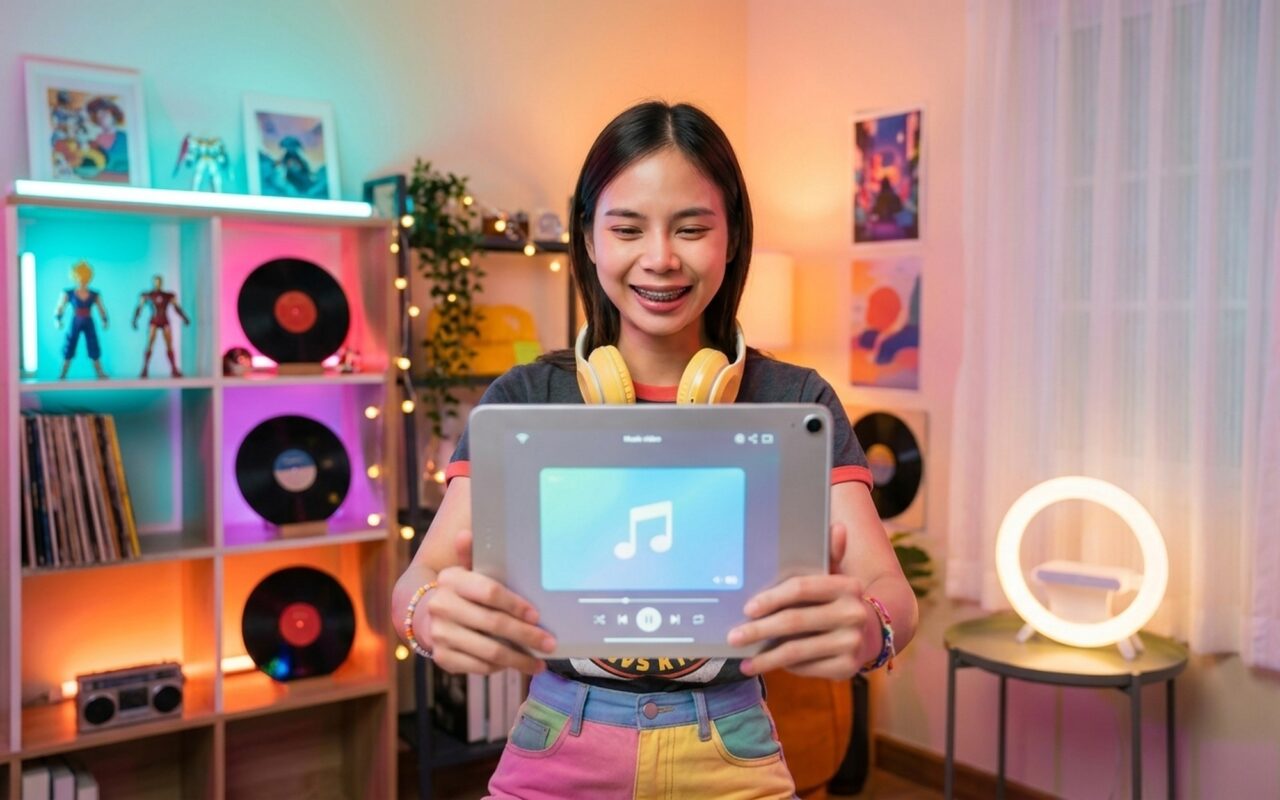
Making a music video on your iPad used to mean expensive software and a computer. In 2026, three free apps cover every style of music video you might want to create: Video Star for lip sync and fan edits, iMovie for multi-scene storytelling, and CapCut for auto beat sync and social media exports. This guide walks through each method step by step, with specific guidance for beginners who have never edited a video before.
What You Need Before You Start
Before opening any app, get these ready:
- Your iPad (any model from 2018 or later for 1080p; iPad Air 2020 or later for 4K export)
- A song – saved to your Apple Music library, purchased from the iTunes Store, or a royalty-free track downloaded to your device
- Good lighting – natural window light or a ring light works well; avoid filming with a bright window behind you
- A stable surface or tripod – propping your iPad on a stack of books works fine for beginners
- Enough storage – a 3-minute video at 1080p uses approximately 1–2 GB of free space
All three apps are free to download from the App Store. None of them require an account to start.
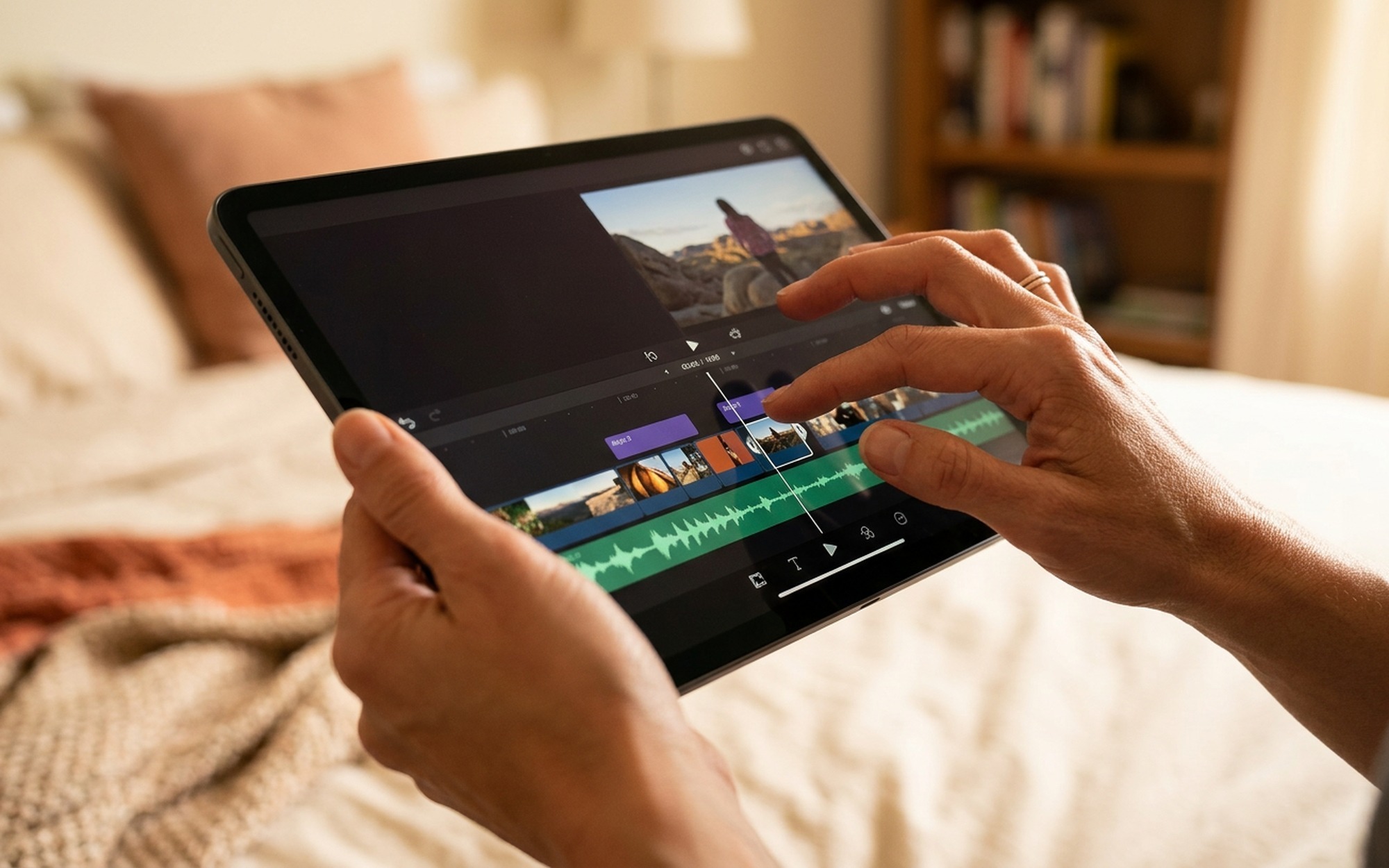
Method 1: Video Star – Best for Lip Sync and Beat-Driven Fan Edits
Video Star is the most popular app for music video creation on iPad and iPhone, with over 140 million downloads. It was built specifically for lip sync, beat-synced edits, and the kind of fan edit content you see on TikTok and Instagram. The free version is enough to make complete music videos.
Step 1 – Download and Open Video Star
Search for Video Star in the App Store and install it. It requires iPadOS 17.2 or later and about 720 MB of storage. Open the app – you will see the main screen with a large New Video button.
Step 2 – Choose Your Song
Tap New Video. A music picker appears. Tap My Music to browse your Apple Music library or iTunes purchases. Find your song and tap it. The song title appears at the top of the screen confirming your selection.
If your song is not in your library, you have two options: purchase it from the iTunes Store (prices start at $1.29), or download a royalty-free track from a free music library. Spotify tracks and Apple Music streamed songs cannot be selected – the song must be downloaded to the device. For a list of sites where you can legally download free music, see our guide to 3 legal ways to download free music for iPhone.
Step 3 – Film Your Clips
After selecting a song, the camera view opens with the music playing through the speaker. You will see yourself on screen while the song plays – this is how you lip sync in real time.
Tap the red Record button to start filming. The music plays and the camera records simultaneously.
To film in multiple takes:
– Tap the Pause button (two vertical bars) to stop recording without ending the clip
– Adjust your position, expression, or location
– Tap Record again to continue from where you paused
This is the core of Video Star’s workflow – one long session with multiple paused moments creates a multi-scene video without needing to import separate clips.
Tap Done when you have finished recording all your scenes.
Step 4 – Preview and Edit Your Scenes
After tapping Done, the editing screen appears. You will see a timeline of your recorded scenes at the bottom and a preview window at the top.
To trim a scene: Tap the clip in the timeline. Drag the yellow handles at each end inward to remove unwanted sections from the start or end.
To delete a scene: Tap the clip, then tap the trash icon.
To reorder scenes: Press and hold a clip, then drag it to a new position in the timeline.
To add a color effect: Tap a clip, then tap Effects in the toolbar on the right. Browse the free effects library – options include color grading presets, glitch, blur, and speed change. Tap any effect to preview it on your clip.
To change playback speed: Tap a clip, tap the Speed control, and drag the slider. Slowing a scene to 50% creates a slow-motion effect; speeding it to 200% creates a fast-cut energy effect.
Step 5 – Add Text and Titles (Optional)
Tap the Text button (T icon) in the right toolbar. Type your text – song title, your name, or lyrics. Tap the font name to browse styles. Drag the text box to position it anywhere on screen. Tap outside the text box to confirm placement.
Step 6 – Export and Share
Tap the Share button (box with upward arrow) at the top right. Choose your export quality – 1080p HD is the standard choice for YouTube and social media. Tap Save to Camera Roll to save the file locally, or tap YouTube to upload directly.
Method 2: iMovie – Best for Multi-Scene Storytelling and High-Quality Export
iMovie is Apple’s free video editor, pre-installed on most iPads. It does not have Video Star’s lip sync recording mode, but it is the best option when you want to combine separately filmed clips into a cohesive music video with transitions, titles, and cinematic pacing.
Step 1 – Create a New Project
Open iMovie on your iPad. Tap the + button, then select Movie (not Trailer – Trailer uses fixed templates). Tap Create Movie without selecting any clips yet, or select clips from your Camera Roll to import them immediately.
Step 2 – Import Your Clips
In the iMovie timeline, tap the + button on the left side to open the media browser. Select the video clips you filmed (from Video Star’s Camera Roll export or clips you recorded separately in the Camera app). Tap each clip to add it to the timeline.
Drag clips into the order you want them to appear. To trim a clip, tap it in the timeline – yellow handles appear at each end. Drag the handles to trim the start or end.
Step 3 – Add Your Music
Tap the + button again in the timeline and select the Audio tab. You have three options:
- Soundtracks – Apple’s built-in royalty-free music (free, safe for YouTube)
- My Music – songs from your Apple Music library or iTunes purchases
- Files – audio files saved to your iPad via the Files app
Tap your chosen song and tap the + icon to add it to the project. The audio track appears as a green bar below your video clips. Drag the green bar left or right to align the music with your video.
To adjust volume: Tap the audio track, then tap the speaker icon. Drag the volume slider.
To fade in or fade out: Tap the audio track, then tap the fade handle (small circle at the start or end of the green bar) and drag inward.

Step 4 – Add Transitions Between Clips
In the iMovie timeline, a small icon appears between each pair of clips. Tap it to open the transition options: None, Dissolve, Slide, Wipe, or Fade. Tap a style to apply it. Tap the transition icon again and adjust the duration slider to make it shorter (snappier) or longer (smoother).
Step 5 – Add Titles and Text
Tap a clip in the timeline, then tap the T (Titles) button in the toolbar above the preview. Browse the title styles – Centered, Lower Third, Scrolling Credits, and more. Tap a style to apply it. Double-tap the title text in the preview window to type your own text.
Step 6 – Apply Filters
Tap a clip, then tap the filter icon (three overlapping circles) in the toolbar. iMovie offers about 10 color filter presets – Vivid, Dramatic, Warm, Cool, and others. These apply to the selected clip only. Tap a filter to preview it, then tap outside to confirm.
Step 7 – Export Your Video
Tap Done in the top left to return to the project screen. Tap the Share button (box with arrow). Select Save Video to export to your Camera Roll, or tap YouTube to upload directly. iMovie lets you choose the export resolution: 360p, 540p, 720p, 1080p, or 4K (on supported iPads).
Method 3: CapCut – Best for Auto Beat Sync and Social Media Export
CapCut is a free video editor from ByteDance (the company behind TikTok) and is optimized for short-form social media content. Its Auto Beat Sync feature automatically detects the beat of any song and aligns your clip cuts to those beats, which creates the rhythmic edit style you see across TikTok and Instagram Reels.
Step 1 – Import Clips and Add Music
Open CapCut and tap New Project. Select the clips you want from your Camera Roll and tap Add. Your clips appear in the timeline.
To add a song, tap Add audio at the bottom of the screen. Choose from CapCut’s built-in music library (large selection, but note that some tracks are licensed for CapCut use only and may be muted on other platforms), or tap My music to use a song from your Apple Music library.
Step 2 – Use Auto Beat Sync
With your audio track added, tap the audio clip in the timeline. Tap Auto beat in the toolbar that appears below. CapCut analyzes the song and places yellow markers at each detected beat. Trim or cut your video clips so that scene changes land on these yellow markers. The result is a video where every cut hits on the beat.
For manual control, tap Beats instead of Auto beat to place beat markers yourself by tapping in time with the music as it plays.
Step 3 – Add Effects
Tap Effects in the bottom toolbar. Browse by category – Video Effects includes Glitch, Dream, Neon, Vintage, and dozens more. Tap any effect to preview it on your current clip position. Tap the effect again to add it to the timeline as its own layer.
To add a transition between clips, tap the white square icon between two clips in the timeline. Browse transitions and tap one to apply.
Step 4 – Add Text and Captions
Tap Text in the bottom toolbar. Tap Add text to create a text layer. Type your content, choose a font style and color, and drag the text box to position it. Adjust the timing handles on the text layer to control how long it stays on screen.
For auto-generated lyrics or captions, tap Auto captions – CapCut transcribes spoken audio automatically. Useful if you are adding voiceover to your music video.
Step 5 – Export
Tap Export in the top right corner. Select your resolution (up to 4K at 60fps on supported iPads) and tap Export. The video saves to your Camera Roll. Tap the TikTok or Instagram icon on the completion screen to share directly, or use the standard share sheet to upload to YouTube.
Note: Free CapCut exports include a small CapCut watermark in the corner. To remove it, toggle off Add CapCut watermark before exporting – this option is available in the free version in most regions as of 2026.
App Comparison: Which Should You Use?
| Video Star | iMovie | CapCut | |
|---|---|---|---|
| Best for | Lip sync, fan edits | Multi-scene storytelling | Beat sync, TikTok/Reels |
| Free to use | Yes (core features) | Yes (fully free) | Yes (core features) |
| Auto beat sync | Manual | Manual | Yes (automatic) |
| Lip sync recording | Yes (built-in) | No | No |
| Multi-layer editing | Paid (Power Pack) | No | Yes (free) |
| Export quality | Up to 1080p | Up to 4K | Up to 4K (60fps) |
| Watermark | No | No | Optional (removable) |
| Learning curve | Steep | Easy | Easy to Medium |
| Platform | iOS only | iOS / macOS | iOS / Android |
Recommendation for complete beginners: Start with iMovie. Its timeline is the most forgiving, undo is reliable, and everything exports cleanly with no watermark. Once you are comfortable with basic editing, add Video Star for recording and CapCut for effects.
Tips for Better Music Videos on iPad
Lighting makes the biggest difference. Face a window so natural light falls on your face rather than behind you. A $15–$30 ring light clip-on for iPad is a worthwhile upgrade if you plan to film regularly.
Record more than you need. Film each scene two or three times. Having options in the editing timeline lets you pick the best take instead of being stuck with one recording.
Match your cuts to the beat. In any of the three apps, listen to the song before editing and identify the main beat drops or chorus moments. Plan your scene changes to land on those moments – even one or two well-timed cuts make a big difference in how professional the video feels.
Keep videos short for social media. TikTok and Instagram Reels perform best under 60 seconds. YouTube music videos can run longer. Edit for the platform you are targeting.
Use the front camera for lip sync. The front camera on iPad is lower quality than the rear camera, but it lets you see yourself while recording, which is essential for accurate lip sync. For higher-quality footage, film with the rear camera and use a separate mirror or the iPad’s live preview in a reflection.
For more ways to find songs to use in your videos, our guide to free online video editing software covers additional editing tools that work alongside these apps for polishing your final export.
- Video Star, iMovie, and CapCut are all free to download from the App Store
- Video Star is purpose-built for lip sync and beat-driven music video editing
- iMovie supports up to three audio tracks and exports in up to 4K resolution
- CapCut’s Auto Beat Sync feature aligns cuts to music automatically
- All three apps work on iPad and iPhone — no computer required
- Finished videos can be exported directly to YouTube, TikTok, or Instagram
- Video Star’s advanced effects (Multi-Layer, Cinema Pro) require paid Power Pack purchases
- iMovie does not support custom font uploads or advanced color grading
- CapCut adds a watermark to free exports — requires Pro to remove it
- Video Star is iOS only — no Android or desktop version exists
- Complex multi-layer Video Star edits have a steep learning curve for first-time users
- High-quality 4K video exports require iPad models from 2018 or later
Frequently Asked Questions
What is the best free app to make a lip sync music video on iPad?
Video Star is the most popular app specifically built for lip sync and music-driven video editing on iPad and iPhone. It is free to download and includes enough tools in the free version to make complete music videos — including multi-scene recording, pause-and-resume capture, and basic visual effects. Advanced effect packs like Multi-Layer cost extra, but the core lip sync workflow is fully free. CapCut is the best alternative if you prefer a simpler interface with Auto Beat Sync and AI effects.
Can you record yourself singing while making a music video with Video Star?
Yes. Video Star records video through your iPad’s camera while the chosen song plays in the background through the speaker. You can see yourself on screen while the music plays, which lets you lip sync in real time. The app does not record the audio from your microphone during filming — the final video uses the original song track, not your voice. If you want to add your own vocals or commentary on top, use iMovie after filming in Video Star to mix an additional audio track.
How do I add special effects to my music video on iPad without experience?
CapCut is the easiest entry point for effects — open your project, tap Effects on the bottom toolbar, and browse categorized packs including Glitch, Dream, Retro, and Cinematic. Tap any effect to preview it in real time. For more control, Video Star lets you apply color effects, speed changes, and visual overlays to individual clips. Both apps show a live preview before you commit to any effect, so you can experiment freely without worrying about making permanent changes.
How do I make a music video on iPad with multiple shots or scenes?
In Video Star, tap the Pause button while recording to stop mid-take, adjust your position or costume, then tap Record again — all footage is saved as one continuous clip with your cuts built in. For fully separate scenes, finish each take as a separate clip and arrange them in order in the editing timeline. In iMovie, import multiple clips from your Camera Roll into the timeline and drag them into the order you want. In CapCut, import all clips first, then trim and reorder them on the timeline using drag handles.
Video Star vs iMovie vs CapCut — which is better for making music videos on iPad?
Each app suits a different goal. Video Star is best for lip sync and beat-driven fan edits — it was designed specifically for this and has the deepest music video tools. iMovie is best if you want to tell a story across multiple scenes with smooth transitions and cinematic feel, and its export quality is the highest of the three. CapCut is best for short-form content aimed at TikTok or Instagram Reels, thanks to its Auto Beat Sync, trending templates, and fast workflow. Most active creators use Video Star or CapCut for filming and editing, then optionally touch up in iMovie before exporting.
How do I upload my iPad music video to YouTube after editing?
In iMovie, tap Done to exit the timeline, then tap the Share button (box with arrow) and select YouTube. Sign in to your Google account if prompted, fill in the title and privacy setting, and tap Share. In CapCut, tap Export in the top right, then tap Share to Other Apps and select YouTube. In Video Star, tap the Share icon after your project is complete and choose YouTube from the share sheet. All three methods upload directly without needing a computer.